
Asad Webs runs a complete PDF workshop: 56 free tools covering editing, annotating, form building, converting, page organizing, compression and security — every one of them in your browser, with no sign-up, no usage limits, no watermarks, and no uploads. Your file is processed on your own device and never leaves it. This guide walks the whole section tool by tool: what each one does, who it is for, and — first — the distinction almost nobody explains honestly, between tools that truly edit a PDF and tools that only draw on top of it.
Almost every PDF job falls into one of six buckets: change what's in the document, mark it up for review, turn it into something else (or build it from something else), rearrange its pages, make it smaller or healthier, or control who can do what with it. The workshop has a dedicated tool for each bucket — usually several — so you never have to force a general editor to do a specialist's job, or upload a contract to a stranger's server because your usual app put the feature behind a paywall. Skim the family tables to find your tool, or read the deep dives on the flagships.
The honest truth: most "PDF editors" don't actually edit
Here is the thing the PDF software industry rarely says out loud. Most products sold as "PDF editors" — including many famous ones — are annotators. They let you draw, type and stick things on top of a page: a text box floating over the original paragraph, a white rectangle hiding a price you wanted gone, a comment in the margin. The original content underneath is untouched. That has real consequences:
The covered-up text is still there. Draw a black box over a salary figure in an "editor" that only annotates, send the file, and the recipient can often select the text under the box, copy it, or simply delete the box. People have embarrassed companies and law firms exactly this way. (Our Redact PDF exists precisely because of this — it re-renders redacted pages as images with the boxes burned in, so the words are destroyed, not hidden.)
"Edited" text is a sticker, not a change. Fix a typo with an annotation text box and the document now has two versions of the line — the original words still selectable and searchable underneath your patch, in the original font that never quite matches. Search the file later and the wrong text is what turns up.
You can't remove or rearrange what's already there. An annotator cannot delete a paragraph, move the original heading, restyle the document's own text, or take an element out. Anything already in the PDF is, to an annotator, part of the furniture.
Annotation is genuinely useful — the whole markup family below exists because marking up is a real job. The problem is only the label. So this workshop is built the other way round: two of its tools are real editors that work on the PDF's existing content itself, and they are the flagships of the section. Everything else is honestly named for the single job it does.
PDF Studio — the editor that edits what is already there
PDF Studio is the flagship: a full document studio that opens a PDF and lets you work on its actual contents. Click an existing element — a line of the document's own text, an image, a shape — and the Properties panel treats it as what it is: original content, its real font identified (the capture below shows exactly that). Retype its text in place, drag it to a new position, restyle it, cover it out, convert it to outlines, attach a link — and the changes are baked into the exported PDF. The studio is even honest about the edge: its own panel notes that for permanent removal of original content, Redact PDF is the tool. That is the difference in one sentence: an annotator floats marks over the page and calls it editing; here, the document itself is the thing being edited.
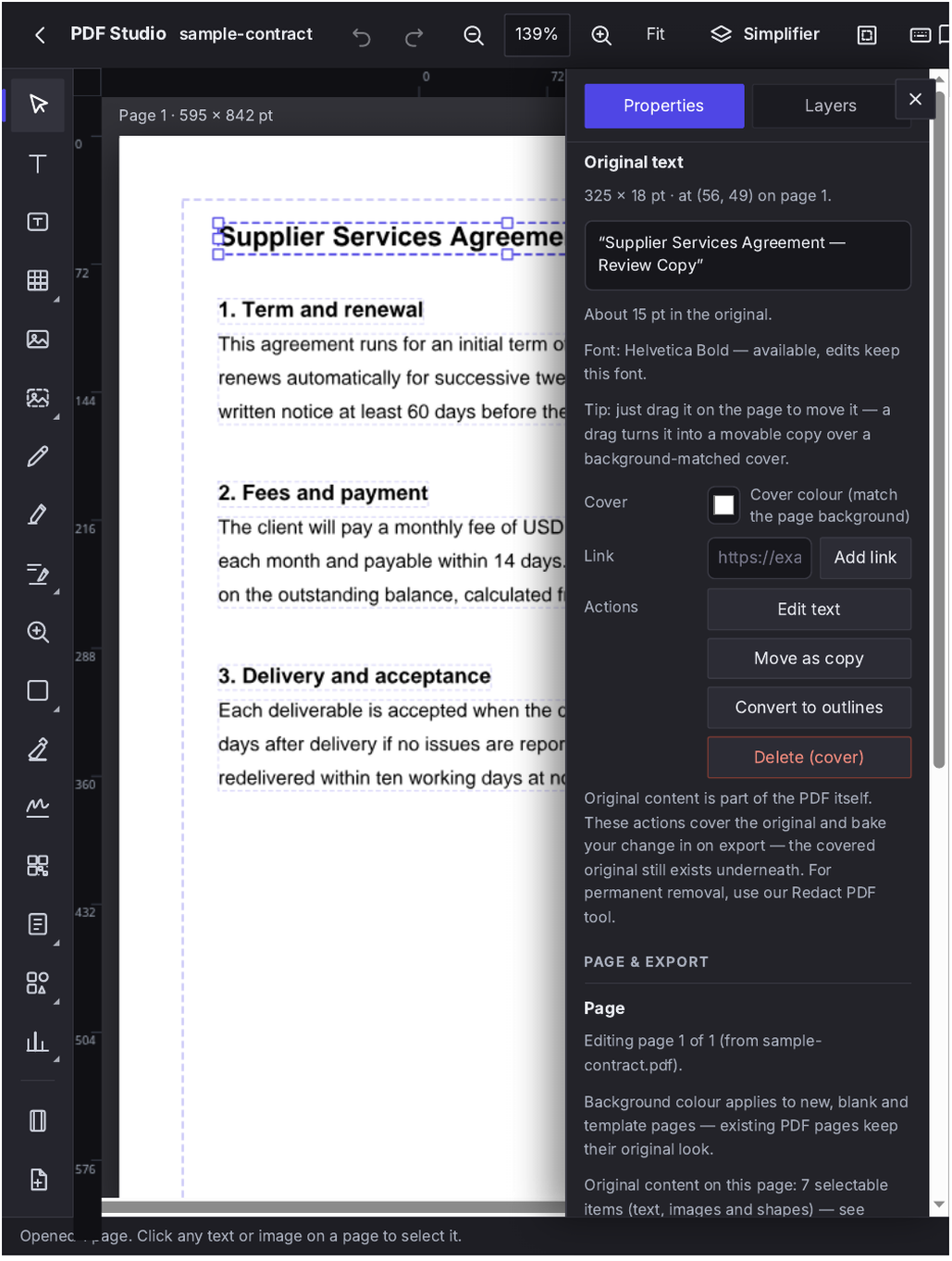
PDF Studio with a document open: existing content is selectable and editable in place — moved, restyled or removed — alongside the studio's own additions. Click the image to open the tool.
Around that core, the studio carries the rest of a document workshop: a library of 227 ready-made templates (forms, certificates, planners, business documents) you can start from instead of a blank page; page sizes and multi-page documents built from scratch; a shared library of 2,300+ real font files — when a PDF's font isn't embedded, the studio matches the genuine font or a metric-compatible public equivalent, so edited text sits naturally beside the original; text that can be converted to outlines for print work; clickable links attached to any item (web, email or tap-to-call); multiple PDFs opened together as one document; and an export that embeds the editable project inside the PDF, so the file you send can be reopened and re-edited later. The full walkthrough lives in our PDF Studio guide.
Edit PDF — the scalpel for existing content
Where PDF Studio is the workshop bench, Edit PDF is the scalpel, built for one job: changing a PDF that already exists. Hover the page and the tool picks out the individual elements under your cursor — the smallest element wins — so you can grab the one word, image or block you mean. Drag to move it, pull a corner to resize, use the rotate handle, restyle it, or double-click text and retype it in place. "Move / edit a copy" duplicates an element instead of disturbing the original, and page thumbnails let you rotate, duplicate, delete or add pages around the edit.
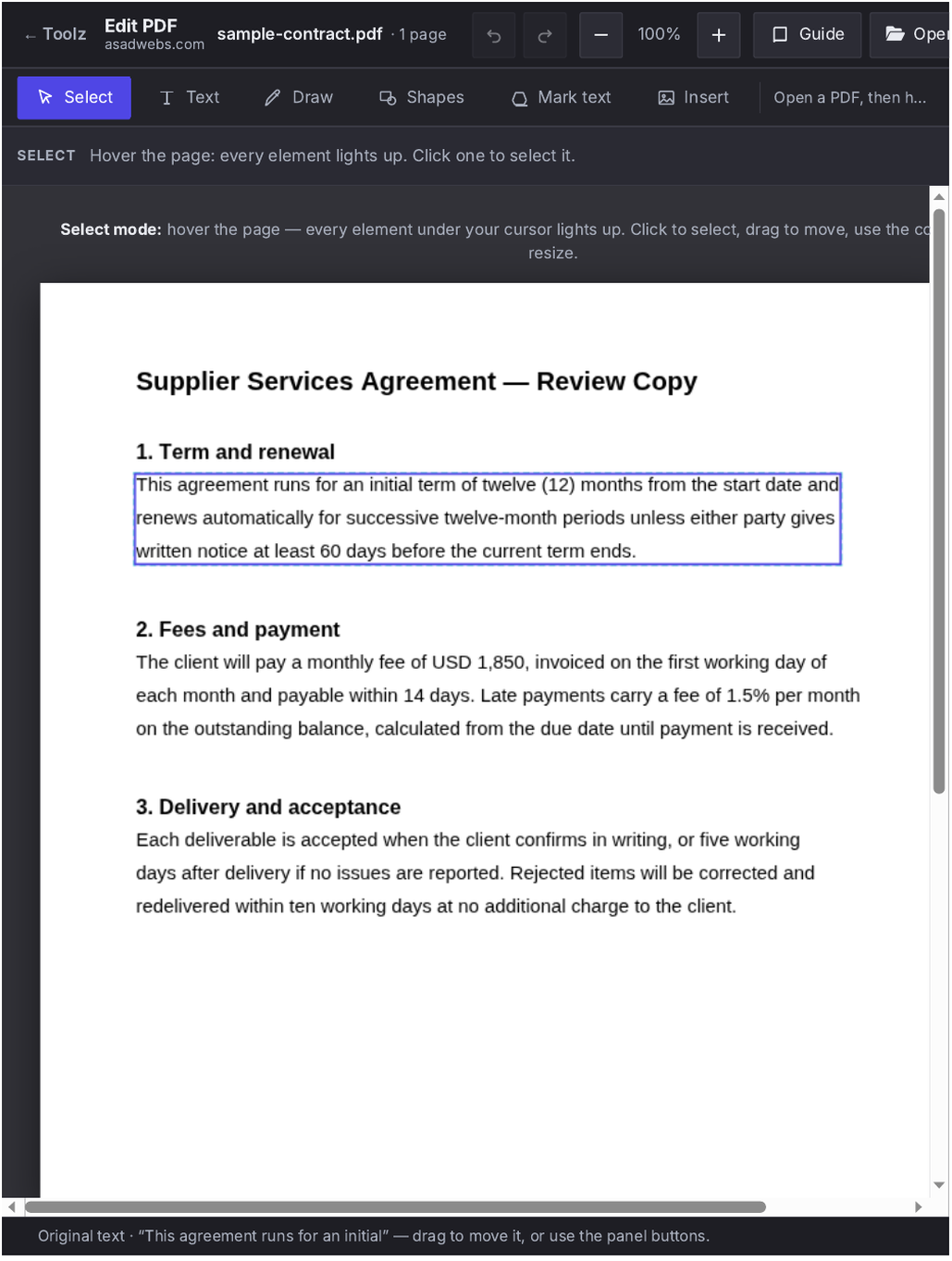
Edit PDF with an original element selected: the document's own content — not an overlay — is what gets moved, restyled or retyped. Click the image to open the tool.
Two honest limits, stated the way the tool states them: text you move is re-set in the closest standard font (the original font file is rarely inside a PDF in reusable form — PDF Studio's font library is the answer when matching matters), and grouped artwork is detected element by element rather than as one object. For the everyday reality — fix the date on the invoice, move the logo, correct the price, delete the paragraph — it is the fastest route in the section. The deep dive is our Edit PDF guide.
The form duo: build fillable forms, then fill them
Forms deserve their own mention because they show the same real-content philosophy. Create PDF Form turns a plain PDF into a genuinely fillable one: drag real form fields — text boxes, checkboxes, dropdowns, radio buttons — onto the page where they belong, name them properly, and download a form that any PDF reader treats as a form, because it is one. Fill PDF Form is the other half: open any fillable form and complete it in the browser, fields and all, then save the filled copy. And when a filled form needs to stop being editable — a submitted application, a signed-off timesheet — Flatten PDF locks the values into the page as permanent content that can no longer be typed over.
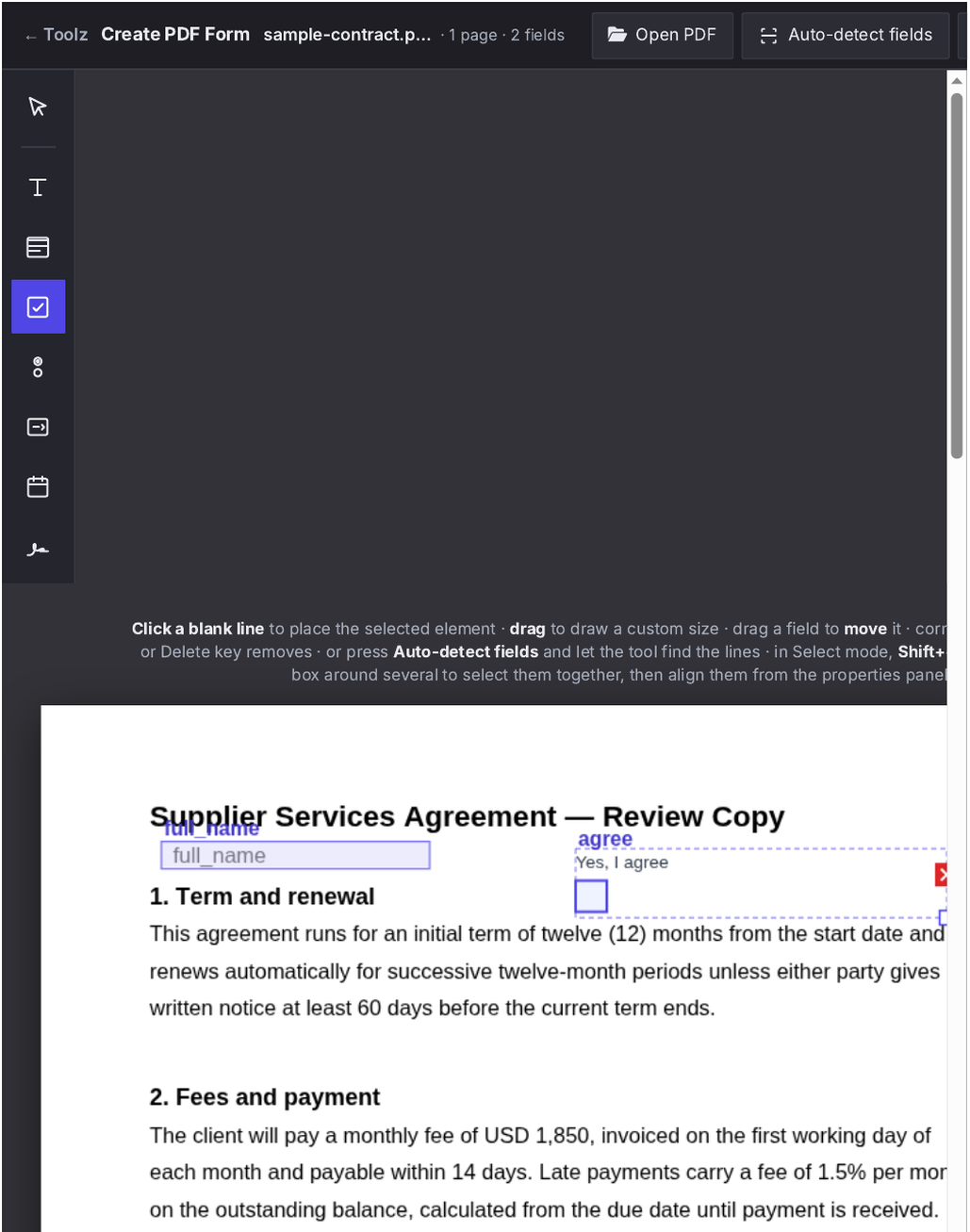
Create PDF Form: real fields placed on the page — the downloaded file is a true fillable form, not a picture of one. Click the image to open the tool.
One specialist neighbour completes the editing family: PDF Text to Outlines converts a document's text into vector outlines — the print-shop move that makes text un-editable, un-missable and identical on every machine, because there is no font left to substitute. And when you are creating from nothing rather than editing, three builders feed the workshop: Text to PDF (typed or pasted text laid out as a clean document), HTML to PDF (paste HTML, preview it live, download a paginated PDF — the invoice-template trick) and Scan to PDF (your phone camera becomes a scanner; pages are combined into one tidy PDF, on the device).
Mark it up: the annotation family
Annotation done openly is a strength, and this family is built for review work: contracts before a meeting, proofs before print, homework before class. The star is Highlight PDF, whose marks snap to the text line you drag across — on a normal text page you get one tidy mark per line instead of a wobbly rectangle — in yellow, green or pink, with freehand pens and text notes alongside, and every mark listed with its page number so you can remove any of them before downloading. Our Highlight PDF guide covers its three-colour system in depth.
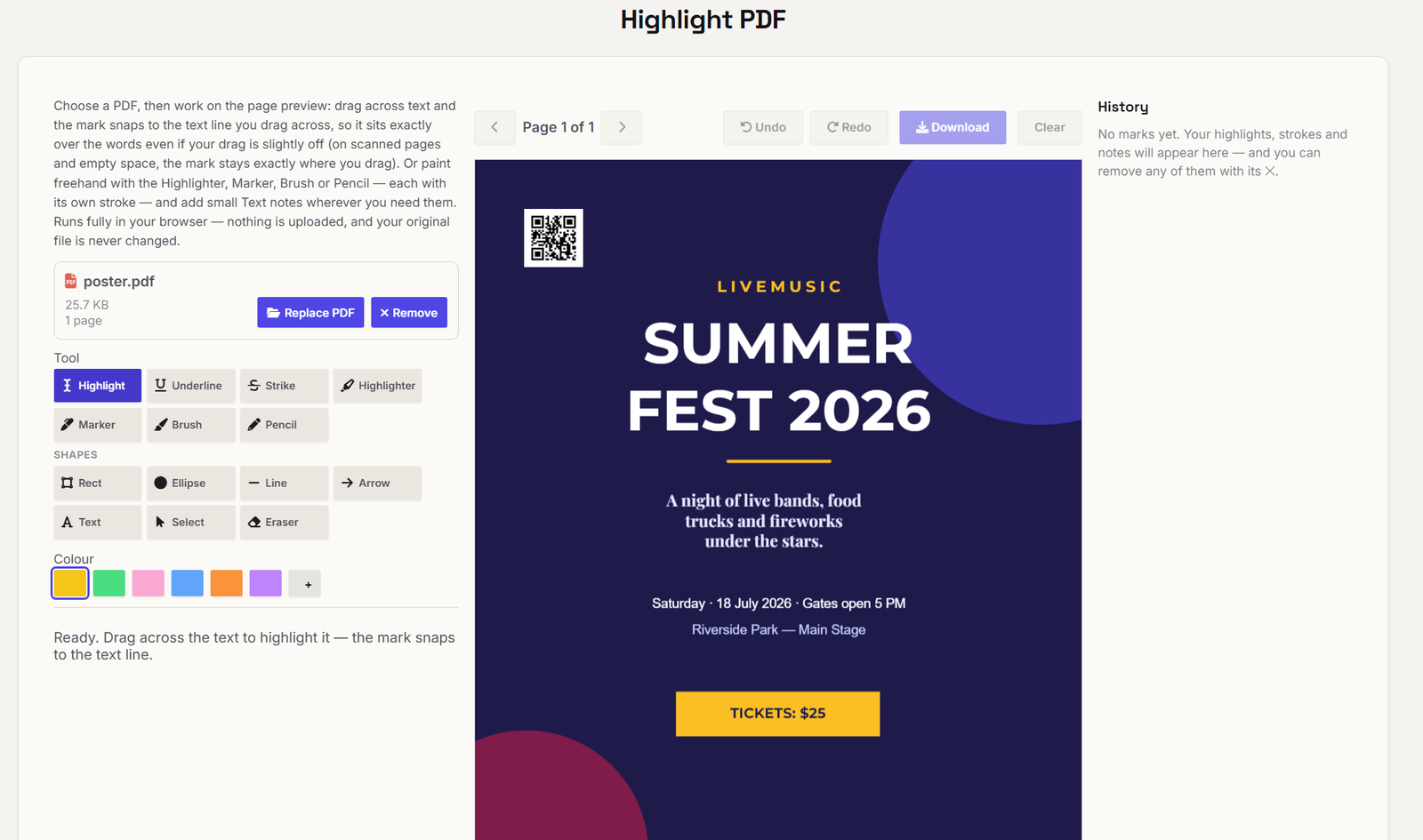
Highlight PDF: drag across the words and the mark snaps to the line — the History panel tracks every mark by page. Click the image to open the tool.
| Tool | What it does | Best for |
|---|---|---|
| Highlight PDF | Drag highlights that snap to text lines (yellow, green, pink), plus pens, notes and a per-page marks list | Study, contract review, research |
| Underline PDF | Underlines that land at the foot of your drag, exactly under the words | Emphasis that reads like a careful reader's pen |
| Strikethrough PDF | A clean line through text — the editor's mark for "this goes" | Draft markups and redline-style reviews |
| Draw on PDF | Freehand pen strokes saved over the untouched original | Circling, sketching, pointing at diagrams |
| Add Comments to PDF | Real sticky-note comments at clicked points, with your name attached | Review feedback that stays attached to the spot it means |
| Add Shapes to PDF | Rectangles, ellipses, lines and arrows placed on the page | Callouts, diagrams, "look here" marking |
| Add Image to PDF | Stamps an image — a logo, a photo, a stamp graphic — onto any page | Branding documents, adding a photo to a report |
| Sign PDF | Draw or upload a signature and stamp it at the exact spot, size and page | Agreements and approvals without printing |
| Watermark PDF | Text or image watermarks across pages | DRAFT stamps, branding, deterring casual reuse |
| Redact PDF | True redaction: redacted pages are re-rendered with boxes burned in, so covered content is destroyed | Names, account numbers, anything that must be gone, not hidden |
Organize the pages: merge, split, rearrange
Page surgery is where a single-purpose tool beats a general editor every time — you think in pages, so the tools do too. The visual anchor is Organize PDF: every page as a thumbnail, drag them into order, rotate the sideways ones, delete the dead weight, extract a selection, download. Around it sits a full kit of one-move tools for when you know exactly what you want:
| Tool | What it does | Best for |
|---|---|---|
| Merge PDF | Combines multiple PDFs into one, in your order | One file per client, case or application |
| Split PDF | Breaks a document into separate files by pages or ranges | Sending one chapter, one invoice, one section |
| Split PDF by Size | Splits into consecutive parts each under a size cap you set, delivered as a ZIP | Email attachment limits and upload caps — a single oversized page is flagged honestly, not silently split |
| Organize PDF | Visual page manager: reorder, rotate, delete and extract by thumbnail | Cleaning up scans and assembled documents |
| Delete PDF Pages | Removes the pages you name | Stripping blanks, covers and scanner junk |
| Duplicate PDF Pages | Copies pages inside the same document | Repeated forms, tickets and handouts |
| Insert PDF Pages | Inserts blank pages or pages from a second PDF at any position | A cover sheet at the front, an appendix at the back |
| Add Blank Page to PDF | Adds matched blank pages at the start, end or after any page | Duplex printing layouts and section breaks |
| Replace PDF Pages | Swaps named pages for corrected ones from a second PDF | One page changed in a 60-page document — replace just that page |
| Reverse PDF Pages | Flips the page order end to end | Fixing reverse-fed scans |
| Rotate PDF | Rotates pages permanently | Sideways scans that open wrong everywhere |
| Crop PDF | Trims page margins and edges | Removing scanner borders and excess white space |
| Resize PDF | Changes the page size itself (for example to A4 or Letter) | Print-ready documents in the right format |
| Add Page Numbers | Stamps page numbers in your chosen style and position | Reports, manuals and anything cited by page |
Convert: out of PDF, and into it
Half of all PDF work is really conversion work — the document is in the wrong format for the next step. Outbound, the workshop covers images, text and data. PDF to Text pulls the words out plainly; Extract Tables from PDF goes further and rebuilds tables from the position of the text — rows and columns detected from alignment — and hands you a CSV your spreadsheet can actually use, skipping ordinary prose pages by default instead of dumping them into your file. And OCR PDF handles the case the others can't: a scan with no text layer at all. It reads every page and rebuilds the document with an invisible text layer aligned over the image, so the scan stays looking like itself but becomes searchable, selectable and copyable — with the honest note, printed on the tool itself, that accuracy depends on scan quality.
| Tool | What it does | Best for |
|---|---|---|
| PDF to JPG | Renders pages as JPG images | Sharing a page anywhere images go |
| PDF to PNG | Renders pages as crisp PNG images | Slides, documentation, sharp text |
| PDF to TIFF | Renders pages as TIFF for print and archive workflows | Print shops and formal archives |
| PDF to Text | Extracts the document's text | Quoting, searching, feeding text elsewhere |
| Extract Images from PDF | Pulls the embedded images out at their original quality | Recovering photos and graphics without screenshots |
| Extract Tables from PDF | Rebuilds tables as CSV (one file, per-table ZIP, or every page as a grid) | Liberating numbers into Excel or Sheets |
| OCR PDF | Adds a searchable text layer to scanned PDFs | Archives of scans you need to search |
Inbound is shorter but just as used: Image to PDF combines photos and images into a single document in your order and page size; Scan to PDF does the same straight from a phone camera; Text to PDF sets plain text as a document; and HTML to PDF renders pasted HTML — invoices, receipts, generated reports — into a properly paginated file.
Shrink it, fix it, control it
The last family keeps documents healthy and under your control. Compression leads it: Compress PDF shrinks the file with quality choices, and four target-size editions — 100 KB, 200 KB, 500 KB and 1 MB — exist because application portals and email systems state a number, not a preference. Beside compression sit two diagnostics worth knowing before you need them: Validate PDF gives a plain-language health report (two parsing engines, structure, encryption, metadata, a rewrite test), and Repair PDF rebuilds a damaged file's internal structure from the content still in it — it fixes structure honestly, and says so; it cannot invent pages that are already gone. Compare PDF answers the question every contract round asks — what actually changed? — page by page, with the differing words shown (text layer compared; layout and images are not, and the tool says that too).
| Tool | What it does | Best for |
|---|---|---|
| Compress PDF (+ 100 KB / 200 KB / 500 KB / 1 MB editions) | Shrinks PDFs, or compresses to an exact target size | Upload caps, email limits, faster sharing |
| Grayscale PDF | Converts colour to black & white — vector mode keeps text selectable and sharp; image mode re-renders pages | Cheap printing, formal copies |
| Flatten PDF | Locks form values into permanent page content | Freezing a filled form before sending |
| Protect PDF | Locks a PDF with a password | Sensitive documents in transit |
| PDF Permissions | Sets what readers may do — print, copy, modify, annotate, fill — enforced by encryption with an owner password | Handouts people can read and print but not alter |
| Unlock PDF | Removes password protection from your own files | Your document, your password, no lock |
| PDF Metadata Editor | Views and edits title, author, subject and keywords, or strips them all | Fixing the title readers and search engines display |
| Remove PDF Metadata | Strips all metadata for a clean file | Sharing without the file's hidden biography |
| Validate PDF | Structural health report in plain language | "Is this file actually healthy?" before print or submission |
| Repair PDF | Rebuilds a damaged PDF's structure | Files that won't open or throw errors |
| Compare PDF | Page-by-page text differences between two versions | Contract rounds and revision checks |
| PDF Viewer | A clean, private in-browser reader: page, zoom, rotate, print | Opening files you don't want to hand to a stranger's server |
Which tool do I need?
| The job | Reach for |
|---|---|
| Fix a typo, price or date in the document itself | Edit PDF — or PDF Studio when fonts must match |
| Design a document, or start from a template | PDF Studio (227 templates) |
| Make a form people can fill in | Create PDF Form, then send it; recipients can use Fill PDF Form |
| Black out a name or account number for good | Redact PDF — never a drawn rectangle |
| Mark a contract or paper for review | Highlight PDF + Add Comments |
| Sign an agreement | Sign PDF |
| Get the numbers out of a PDF table | Extract Tables from PDF (CSV) |
| Make a scan searchable | OCR PDF |
| Fit a portal's 200 KB upload cap | Compress PDF to 200 KB |
| One corrected page in a long document | Replace PDF Pages |
| See what changed between two versions | Compare PDF |
| Print cheaply in black & white | Grayscale PDF (vector mode) |
| Stop a filled form being edited | Flatten PDF |
| Text that must print identically everywhere | PDF Text to Outlines |
Three workflows that chain the tools together
The contract round. A revised agreement arrives: Compare PDF shows what changed; Highlight PDF marks the clauses for the meeting in the three-colour system; comments carry the questions; after the call, Edit PDF fixes the agreed date in the document itself, Sign PDF signs it, and PDF Permissions sends it out printable but not alterable. Six tools, one sitting, zero uploads.
The application pack. A client intake form gets built in Create PDF Form (or from a PDF Studio template), filled copies come back through Fill PDF Form, each is frozen with Flatten PDF, and the set is combined with Merge PDF and numbered with Add Page Numbers for the file.
The paper archive. A drawer of paperwork becomes a searchable archive: Scan to PDF captures it, Organize PDF straightens and orders the pages, OCR PDF makes every page searchable, Compress PDF shrinks the archive, and Remove PDF Metadata cleans the files before they are shared.
No sign-up, no limits, nothing uploaded — how, and what's the catch?
The how is simple: these tools are programs that run in your web browser, on your device. Your PDF is read by your own machine, edited by your own machine, and the result is saved from your own machine. There is no server doing the work, which is why there is nothing to sign up for, no quota to sell you, and no copy of your document sitting in someone else's storage. It is also why the tools keep working on sensitive files — contracts, statements, medical reports — that should never be uploaded anywhere.
The catch, stated plainly: your device does the lifting, so a very large PDF on an old phone will process slower than on a desktop, and a password-protected file must be unlocked (with its password — Unlock PDF) before most tools can open it. Browser memory is the only ceiling, and for everyday documents it is not a ceiling you will meet. Note also what editing can and cannot mean for scans: a photographed page has no text layer, so annotating works by region, and changing its words means OCR first or re-creating the page — any tool that promises otherwise is drawing over the picture.
Open the workshop. Every tool above is free and unlimited — start from the tools index or jump straight to PDF Studio. And if this section gave you an idea — a document workflow your business runs every week that should be this simple, or a website with tools your own clients would use daily — that is exactly what we build for clients. Tell us about your project and we will reply with honest next steps.
Frequently Asked Questions
Are all 56 PDF tools really free, with no sign-up and no limits?
Yes. Every tool in the PDF section is free, needs no account, carries no daily limit and adds no watermark. They run in your browser, so there is no server quota to ration.
What is the difference between PDF Studio, Edit PDF and the annotators?
PDF Studio and Edit PDF change a PDF's existing content — its own text and elements can be moved, restyled, retyped or deleted. Annotators (Highlight, Draw, Comments and friends) add marks on top of the page, which is the right tool for review work but cannot change or remove what is already in the document.
Is my PDF uploaded to your server?
No. All 56 tools process files locally in your browser; the document never leaves your device. That is also why your original file is never changed — you always download a new copy.
Can I remove text from a PDF so nobody can recover it?
Use Redact PDF. It re-renders redacted pages as images with the boxes burned in, so the covered content is destroyed rather than hidden under a shape — the mistake that makes drawn-over "redactions" unsafe.
Which tool edits the text already inside a PDF?
Edit PDF for focused changes to existing elements and text; PDF Studio when you need the full studio — templates, the 2,300+ font library for matching originals, design work and multi-file documents.
Can I make a PDF form fillable, and fill one in?
Yes — Create PDF Form places real form fields on a plain PDF, and Fill PDF Form completes any fillable form in the browser. Flatten PDF then locks a filled form's values into the page.
My PDF is a scan. Which tools still work?
Page tools, annotation by region, conversion and compression all work. To search or copy its text, run OCR PDF first to add a text layer; editing a scan's words requires OCR or recreating the page, because a scan is a picture of text, not text.
How do I compress a PDF to an exact size like 200 KB?
Use the target-size editions — Compress PDF to 100 KB, 200 KB, 500 KB or 1 MB — built for portal and email caps that state a number.
Be the first to share a useful question or thought.