
To highlight text in a PDF online for free, open the Highlight PDF tool, drop in your file, pick yellow, green or pink, and drag across the words — the mark snaps neatly onto the text line, even if your drag is slightly off. Work through as many pages as you need, then click Highlight & download. The tool runs entirely in your browser: nothing is uploaded, there is no sign-up, and your original file is never changed — you always download a marked copy.
Highlighting is the oldest study and review technique there is, and the PDF is where it usually goes to die. People print contracts to mark them with a pen, screenshot pages and scribble on the image, or pay for a heavyweight desktop editor just to put a yellow stripe over a sentence. This tool exists for the ten minutes in between: you have a PDF, three passages matter, and you want them glowing before you send the file on. This guide covers every feature — the snap-to-text highlighting, the three-colour system, the freehand pens and the text notes — plus who gets the most from it and the habits that make highlights actually useful.
Tool preview: Highlight PDF in use
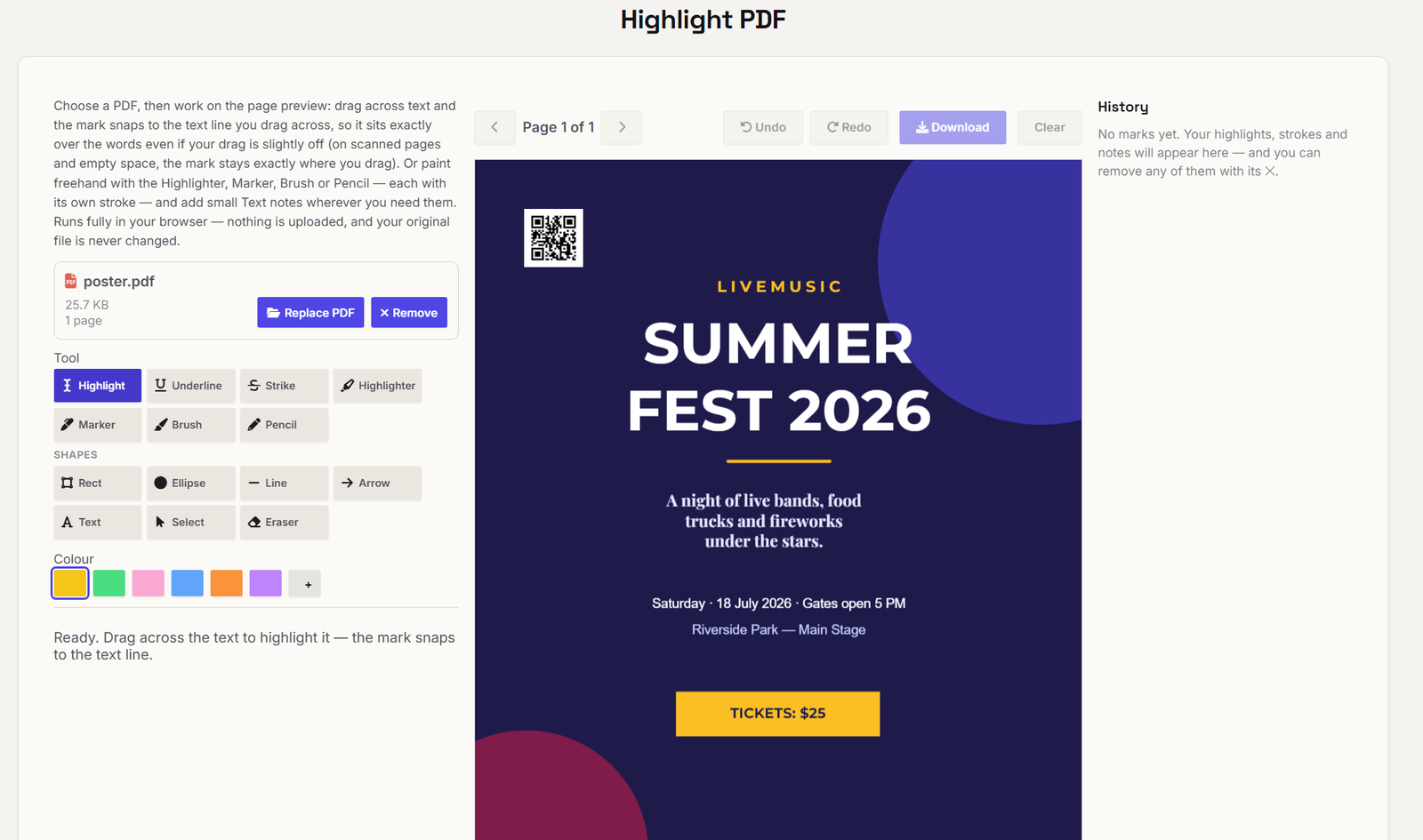
The Highlight PDF tool with a poster PDF open: the marking tools and colour palette on the left, the page in the middle, and the History panel on the right, where every mark is listed with its page number. Click the image to open the tool and try it on your own file.
What the tool does
Everything happens on the page preview, the way you would work on paper. You open a PDF, move between pages with Prev and Next, and mark what matters:
| Feature | What it does | Why it matters |
|---|---|---|
| Snap-to-text highlighting | Drag across words on a page with a text layer and the mark aligns itself to the text lines you covered | Tidy, professional marks even with a shaky mouse or trackpad — no half-on, half-off stripes |
| Three marker colours | Yellow, green and pink translucent highlights | One colour per theme — dates, money, actions — so a page reads at a glance |
| Region marking for scans | On scanned pages and images, the mark stays exactly where you drag | Scanned contracts and photographed pages highlight just as well as born-digital ones |
| Freehand pens | Highlighter, Marker, Brush and Pencil tools, each with its own stroke | Circle a figure, underline a name, sketch attention onto a diagram |
| Text notes | Small typed notes placed anywhere on the page | "Check this date" or "Ask legal" sits right beside the passage it refers to |
| Marks list with pages | Every highlight, stroke and note is listed with its page number, each with a ✕ to remove it | Review everything before downloading; undo a mark without starting over |
| Marked-copy download | One click produces the highlighted PDF; your original file is untouched | Keep a clean original and as many marked copies as you need |
Two properties of the output are worth knowing. The marks are drawn with the transparency the PDF format itself defines, so the words underneath stay fully readable — and because the highlight is a layer above the page rather than a picture pasted over it, the text beneath can still be selected, copied and searched by whoever receives the file. And the highlights print the way a real marker pen looks on paper, so a marked copy survives the trip to a printer without turning into grey smears.
Step by step: your first highlighted PDF
1. Open the tool and load your file. Go to the Highlight PDF tool and choose your PDF, or drag and drop it onto the page. Because everything runs locally in your browser, even a long document opens quickly — there is no upload bar to wait for.
2. Find the passage. Use Prev and Next to reach the page. If you are working through a document in order — a chapter, a report, a contract — simply start at page one and move forward; the tool keeps every mark you make across all pages for the single download at the end.
3. Pick a colour and drag. Choose yellow, green or pink, then drag across the words. On a normal text page you will see the preview snap to the lines as you drag; release, and the mark is placed and added to the list. Slightly sloppy dragging is fine — the snapping tidies it.
4. Add pens and notes where they help. Switch to the Marker or Pencil to circle a number or underline a heading, and drop a text note beside anything that needs a comment. Notes are often what turn a marked page into a useful one: the highlight says "look here", the note says why.
5. Review the list, then download. The marks list shows everything with page numbers. Remove anything you regret with its ✕, then click Highlight & download. Send the marked copy on, and keep your original exactly as it was.
Why snapping matters (and when it doesn't)
Most quick annotation tools paint a translucent rectangle wherever your pointer travelled. Drag a fraction too high and the stripe sits between two lines, covering the bottom of one and the top of the next — readable, but scruffy, and scruffy reads as careless when the file lands with a client or a manager. When a page has a real text layer (any PDF made from Word, a browser, or a modern scanner with OCR), this tool reads the lines your drag covers and places one clean mark per line, aligned to the words themselves; those marks are listed as "snapped to text".
On pages without a text layer — a photographed page, an image-only scan — there are no lines to snap to, so the mark is placed by region, precisely where you dragged. That is the right behaviour: the tool cannot know where the words are, so it trusts your hand instead of guessing. In practice the difference is invisible until you compare the two side by side on a text page, after which the freehand rectangles are hard to go back to.
A three-colour system that earns its keep
Three colours are not a limitation; they are a discipline. The classic failure of highlighting — on paper and on screen — is the page where everything glows and nothing stands out. Give each colour one job and stick to it, and a highlighted document becomes a summary you can read in seconds.
The three-colour system — one colour, one job.
The mapping flexes by job. A student marking a textbook chapter might run yellow for definitions, green for worked examples, pink for anything the lecturer flagged as examinable. A manager reviewing a supplier contract: yellow for dates and term, pink for fees, penalties and notice periods, green for the obligations their own team has accepted. A researcher working through sources: yellow for quotable lines, green for supporting evidence, pink for claims that need checking before they are repeated. The colours stay the same; the legend changes — and writing the legend in a text note on page one takes ten seconds and saves every reader after you.
Who this is for
| Who | Typical job | Features that carry it |
|---|---|---|
| Students | Marking lecture slides, papers and textbook chapters for revision | Colour system for topics; notes for questions to ask; free, on any device with a browser |
| Office and legal teams | Flagging clauses in contracts, reports and proposals before a meeting | Snap-to-text tidy marks; pink for money and deadlines; nothing uploaded — sensitive files never leave the machine |
| Researchers and writers | Working through source PDFs and pulling the lines that matter | Marks stay selectable and searchable; list with page numbers doubles as a citation index |
| Teachers | Marking up reading packs and model answers for a class | Notes beside passages; green for good examples; print-friendly output |
| Editors and proofreaders | A first pass over a manuscript or report, flagging what needs a second look | Pens for circling and underlining; ✕ removal keeps the pass honest; original untouched |
| Anyone with one PDF and ten minutes | A tenancy agreement, an insurance policy, a medical report | No install, no account, no upload — open, mark, download |
The privacy row in that table deserves emphasis. A large share of the documents people highlight — contracts, statements, reports with names in them — are documents they should not be uploading to a stranger's server. This tool's answer is architectural rather than a promise: the highlighting happens in your browser, on your device, and the file is never transmitted at all. There is nothing to leak, retain or subpoena from a server that never received anything.
A worked example: the pre-meeting contract pass
The tool's own example is the one most office readers will recognise. A supplier agreement lands the day before a review meeting, and three clauses need discussion. Open the PDF, and work it in one pass: the renewal clause — twelve-month term, 60 days' notice — in yellow, because dates drive the meeting's decisions. The fees paragraph — the monthly amount, the 14-day payment window, the late-payment charge — in pink, because money clauses are where disagreements live. The delivery and acceptance terms in green once you have confirmed your team can meet them, with a text note beside the acceptance window: "Confirm our review time with ops."
Check the marks list — three colours, three themes, page numbers beside each — download, and send the marked copy round before anyone arrives. The meeting starts on the clauses instead of hunting for them, and your clean original is still on your machine for the next round. The same pattern works for a student the night before an exam and a researcher building a literature review; only the legend changes.
Highlight PDF vs the usual alternatives
| This tool | Desktop PDF editor | Print and use a pen | |
|---|---|---|---|
| Cost | Free | Usually a subscription | Printer, paper and ink |
| Setup | None — a browser tab | Download and install; updates | A working printer |
| Your file | Never leaves your device | Stays on your device | Becomes paper; hard to share |
| Mark quality | Snaps to text lines; text stays selectable | Full annotation suite | As tidy as your hand |
| Best for | Marking a document now and sending it on | Heavy daily editing, forms, signatures, redaction | Reading away from screens |
The honest boundary sits in that last row: if your day is deep PDF surgery — rebuilding pages, filling complex forms, signing and redacting — you want a full editor, and our PDF Studio guide covers the free editor on this site that does that class of work, while the Edit PDF guide explains the lighter editor for changing existing content. Highlighting is a different, smaller job, and this tool is deliberately sized to it: open, mark, download, done.
Habits that make highlights work
Highlight less than you want to. A useful rule from every study-skills tradition: if more than about a fifth of a page is glowing, the highlights have stopped discriminating. Mark the sentence that carries the paragraph, not the paragraph.
Decide the legend before page one. Three colours with assigned jobs beat six colours improvised. Ten seconds spent on a page-one note pays off on every page after.
Pair flags with notes. A highlight without a reason forces the next reader — often future you — to reconstruct your thinking. "Check this" beside the pink clause is the difference between a mark and a message.
Review the list before downloading. The marks list is your quality pass: duplicates, stray drags and changed minds all come out with one ✕ each, and the page numbers give you a map of the document's hot spots.
Send the copy, keep the original. Because the tool never modifies your file, marked copies are free to proliferate — one per meeting, per reviewer, per round — while the clean source stays clean.
Mark your PDF now — or build something like this. The Highlight PDF tool is free and unlimited: open it, drag across the words, download the marked copy. And if this page gave you an idea — a document tool your own business needs, or a website that should offer your clients the same kind of instant, no-sign-up usefulness — that is exactly what we build. Tell us about your project and we will reply with honest next steps.
Frequently Asked Questions
Is the Highlight PDF tool free, and do I need an account?
It is completely free, with no sign-up and no usage limit. Open the page, load your PDF, mark it and download — there is nothing to register for and nothing to install.
Is my PDF uploaded to a server?
No. The highlighting runs entirely in your browser, on your device. Your file is never transmitted, which makes the tool safe for contracts, statements and other documents you would not want on someone else's server.
Can I still select, copy and search the text under a highlight?
Yes. The mark is a translucent layer drawn above the page using the transparency the PDF format defines, so the words beneath stay readable, selectable, copyable and searchable in the downloaded file.
Does highlighting work on scanned PDFs?
Yes. On pages without a text layer — scans and photographed pages — the mark is placed by region, exactly where you drag, so scanned documents highlight just as well. On pages with a text layer, marks snap to the text lines for a tidier result.
How do I remove a highlight?
Before downloading, click the ✕ beside the mark in the marks list and it is gone. After downloading, the marks are part of that copy — but your original file was never changed, so you can always open it and produce a fresh marked copy.
Which colour should I use?
Yellow is the classic and prints lightest — best for key facts. Add green and pink when categories matter: one colour per theme (dates, money, actions, risks) reads clearly at a glance. The guide above shows a three-colour system for study, contracts and research.
How many pages can I highlight, and does it print well?
As many pages as your document has — marks across all pages are collected into the single download. The highlights print like a real marker pen's, with the text underneath still legible.
Be the first to share a useful question or thought.