
Edit PDF is a free online editor for changing what is already on a PDF page. Open a file, move your pointer across the page, and every element you pass over — a headline, a logo, a photo, a drawn shape — lights up ready to be selected. Click it, drag it somewhere new, pull it bigger or smaller, recolour it, or retype its words. There is nothing to install and no account to create: it runs entirely in your browser at asadwebs.com/tools/edit-pdf, your file is never uploaded to a server, and the PDF you download carries no watermark. It is built for fix-it-now jobs — the wrong price, the old phone number, the logo sitting in the wrong place — rather than rebuilding documents from scratch.
The short version
- Hover-select editing: text blocks, images and vector shapes already on the page can each be selected, moved, resized, rotated, restyled or deleted.
- Real content, not stickers: text you type is embedded as genuine text and shapes as genuine vectors, so the exported PDF stays sharp and selectable.
- Pages included: rotate, duplicate or delete pages, and insert blanks, straight from the thumbnail strip.
- Free in the plain sense: no sign-up, no daily limits, no watermarks — and your files never leave your device.
Tool preview: Edit PDF in action
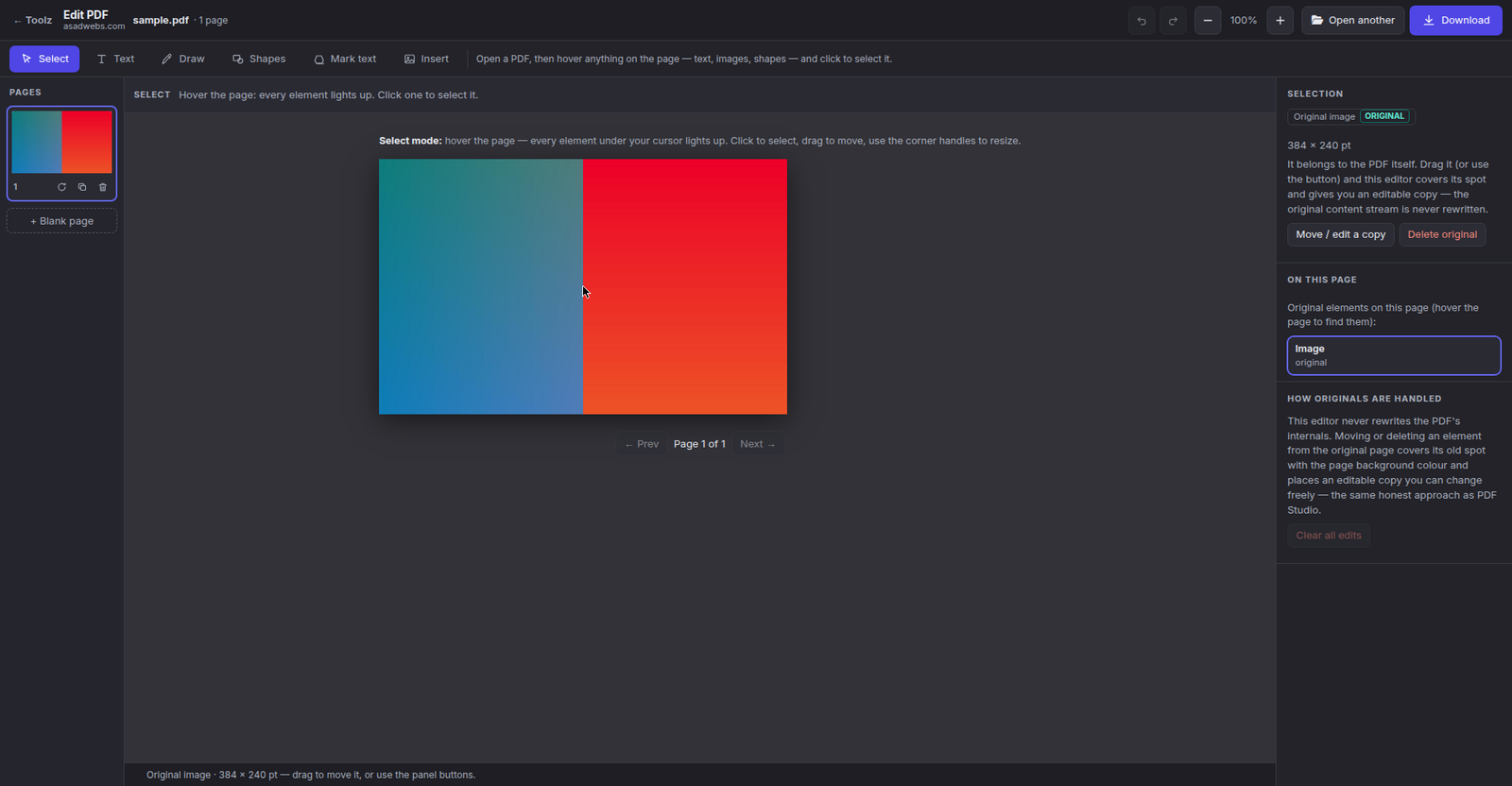
The editor's party trick, caught mid-job: an original image on the page is selected, handles out, with the selection panel open beside it. Click the screenshot to open Edit PDF and try it on your own file.
Hover the page, click anything: selecting the originals
Most PDF editors make you draw a box over the thing you want to change, or bury it under panels of settings. Edit PDF works the other way round. The moment your file opens, the page itself becomes the interface: slide the pointer across it and each element underneath highlights as you reach it. The selectable originals are the real building blocks the PDF was made from — blocks of text, embedded images, and the vector shapes drawn onto the page, including filled header bands, border outlines and hairline rules only a pixel or two wide.
Because pages stack elements on top of each other, the editor always picks the smallest element under the cursor. A tiny icon sitting on a wide coloured band is still individually grabbable, instead of dragging the whole band with it. Click, and the element gains selection handles while the status bar along the bottom reports exactly what you have hold of — during testing, clicking the main picture on our sample page reported "Original image · 384 × 240 pt", size in points included. The selection panel then offers the two honest routes for an original: Move / edit a copy, or Delete original.
Move it, size it, turn it
Once selected, an element behaves the way you would expect from any design tool. Drag it to a new position. Pull the corner handles to resize it. Grab the handle above the selection to rotate it. That is the complete gesture vocabulary — there are no modes to switch into before an original will move, and no dialog standing between you and the drag.
Restyle it — or just retype it
With an element selected, the floating toolbar and the right-hand panel restyle it: change its colours and fill, adjust line width, soften it with opacity, or set a new font size for text. And when the words themselves are wrong, double-click a text block and retype it in place. Fix a date, swap a phone number, correct the spelling of a name — the edit happens where the text sits, at the size it already is.
What happens to the original underneath
The editor never rewrites a PDF's internals, and it is worth knowing the method, because every honest browser editor works this way. Moving or deleting an original covers its old spot with the surrounding page background colour and places a fresh, fully editable copy in its place. On a plain page the cover is invisible. It also means the original still exists underneath the patch — hidden, not destroyed — so treat Edit PDF as an editor, never as a redaction tool.
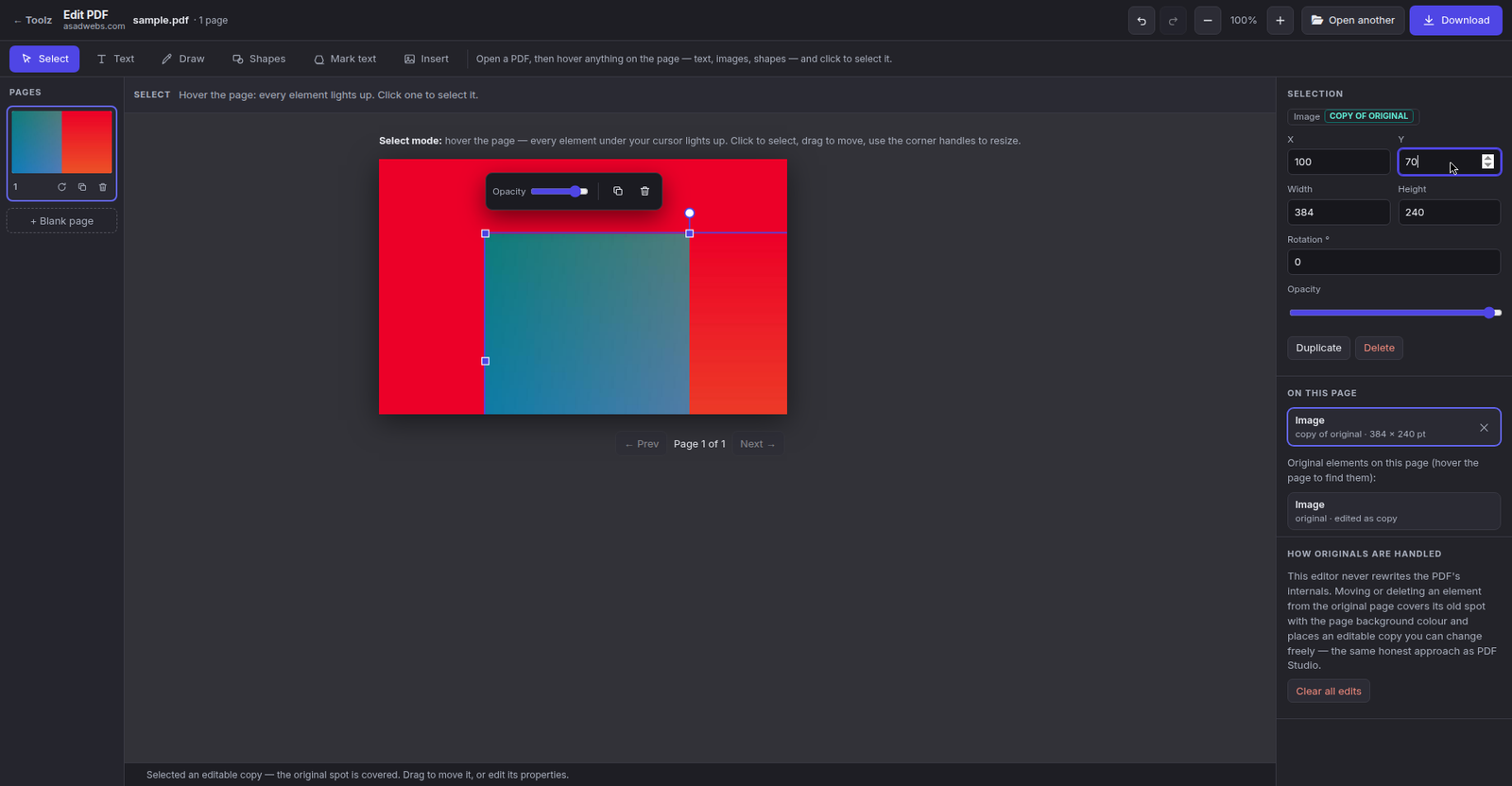
An original element after a move and a restyle, with the style controls that did the work still on screen.
Six modes for adding your own content
Fixing originals is only half the toolbar. Six modes along the top add new material to the page:
| Mode | What it does |
|---|---|
| Select | Hover-select originals and your own additions; move, resize, rotate, restyle or delete them |
| Text | Click on the page and type to place new text exactly there |
| Draw | Freehand strokes, kept as smooth vector paths |
| Shapes | Rectangles, ellipses, stars, clouds and arrows |
| Mark text | Highlight, underline and strikethrough that snap precisely onto the text line |
| Insert image | Place a picture from your device anywhere on the page |
The Mark text mode deserves a mention of its own: instead of asking you to drag a shaky freehand band over a sentence, its highlight, underline and strikethrough lock onto the line of text itself, so review mark-up looks deliberate rather than scribbled.
Page tools: straighten, copy, remove, insert
Down the left side, a thumbnail strip shows every page, and each thumbnail carries its own small toolkit: Rotate 90° for the scan that arrived sideways, Duplicate for a page you want twice, and Delete for the blank or outdated sheet that should not be there. A separate button adds a fresh blank page wherever you need breathing room — a cover sheet, a divider, a notes page at the back.
These operations copy pages rather than re-rendering them, so any page you leave alone keeps its exact original quality in the exported file. Nothing is recompressed behind your back.
Handy habit: before a heavy restyling session on an important page, duplicate that page first. You keep a pristine copy inside the same file while you experiment, and you can delete whichever version loses.
Worked example: last season's price on this season's flyer
A small tour operator keeps a printed flyer as a PDF — the same file goes to hotel desks and out by email. This season the headline price has changed from $49 to $59, and the meeting-point line sits uncomfortably close to the logo. The original design file is long gone; the PDF is all that exists.
In Edit PDF she opens the flyer, hovers the price line until the text block lights up, double-clicks and retypes it as $59, then selects the line and nudges its font size up so the new price still fills the space the old one did. Next she hovers the meeting-point line, drags it a few millimetres lower, away from the logo, and downloads the corrected file — ready to re-send within minutes, with no designer, no source files and no rebuilt layout. If a hotel then asks for a picture of the flyer for its social feed instead of the document, the same free toolbox can turn the finished PDF page into a crisp PNG, or produce a lighter JPG version of the page for a quick share.
Your edits stay real PDF content
Nothing you add is flattened into a screenshot of the page. Typed text is embedded as text — a reader can select it, copy it and search for it. Shapes and pen strokes are stored as vector paths, so they stay sharp at any zoom and print cleanly. Highlights sit on the text as translucent marks rather than painted pixels. And because page operations copy pages losslessly, the parts of the document you never touched arrive in the export exactly as they started. The file you download opens in any standard PDF reader, looking like a document that was always that way.
Edit PDF or PDF Editor Studio — which one do you open?
Edit PDF is one of two PDF editors in the toolbox. Its bigger sibling, PDF Editor Studio, is the full document workshop — templates, genuine fillable form fields, signatures, merging and protected export — covered in our complete PDF Editor Studio guide. The quick way to choose:
| Your job | Open | Why |
|---|---|---|
| Fix a price, date or phone number in an existing PDF | Edit PDF | Hover-select and retype in place; nothing to set up first |
| Move, recolour or delete a logo, line or shape | Edit PDF | Every drawn element on the page is individually selectable |
| Straighten, duplicate, drop or add a page | Edit PDF | Thumbnail page tools, with lossless copying |
| Fill in and sign a form or contract | PDF Editor Studio | Signature pad, form detection and protected export |
| Build a form other people can fill in | PDF Editor Studio | Genuine fillable fields, not pictures of fields |
| Design an invoice, certificate or flyer | PDF Editor Studio | Templates, design fonts, tables and QR codes |
| Permanently destroy sensitive text | Neither | Covering hides content; use the Redact PDF tool instead |
The honest limits
Edit PDF is unusually open about how it works, and four limits follow directly from its method:
- Moved text changes font family. A text block you move or retype is re-set in the closest of the standard fonts — Helvetica, Times or Courier — matched for size, weight and colour. The words are right; the letterforms can differ slightly from the document's original embedded font.
- Covers can show on busy backgrounds. The patch left behind is the page's flat background colour: invisible on plain pages, but it can read as a rectangle over photographs, patterns or gradients.
- Grouped artwork arrives piece by piece. A logo exported from design software as forty separate paths is detected as forty selectable elements, exactly as it was drawn — there is no group to grab in one click.
- Locked files stay locked. A password-protected PDF cannot be opened here; unlock it first, then edit the unlocked copy.
Fully free, unlimited usage
"Free" on this tool means the plain version of the word, not a trial wearing a costume:
- No sign-up. No account, no email gate, nothing to create before the editor opens.
- No daily limits. No credits and no export counter — the tenth PDF you fix today is treated exactly like the first.
- No watermarks. The file you download is the file you made, unbranded, at every size.
- Nothing is uploaded. Editing happens in your browser, on your device. The contents of your documents — prices, contracts, personal details — never travel to a server, and closing the tab ends the session.
Frequently asked questions
Is Edit PDF really free, with no usage limits?
Yes. It is fully free: no sign-up, no daily allowance, no credits and no watermarks on the PDFs you download. Edit as many files as you like, as often as you like.
Is my PDF uploaded to a server while I edit it?
No. The editor runs entirely in your browser, so your file and everything in it stay on your device. Close the tab and the session is gone — nothing is stored anywhere.
Can Edit PDF change text that is already inside a PDF?
Yes. Hover the text block to select it, double-click, and retype. The editor covers the old spot with the page background colour and places an editable copy, re-set in the closest standard font at the same size, weight and colour.
What exactly can I select on the page?
Text blocks, embedded images and vector shapes — including thin lines, outlines and header bands. The smallest element under your cursor is the one selected, so small items layered on big ones stay reachable.
Will editing one page reduce the quality of the rest?
No. Additions are stored as real text and vector content, and page operations copy pages losslessly, so untouched pages and elements keep their exact original quality in the export.
Can I edit a password-protected PDF?
Not directly — a locked file cannot be opened in the editor. Unlock the PDF first, then open and edit the unlocked copy as normal.
Should I use Edit PDF or PDF Editor Studio?
Open Edit PDF for fast visual fixes to an existing file: moving, restyling, retyping, deleting and tidying pages. Open PDF Editor Studio for document work: designing from templates, building fillable forms, signing, merging files and exporting with password protection.
Fix that PDF now
Open Edit PDF, drop in your file and hover the page — most fixes are one click and one drag away. And if the document is fine but your website is the thing that needs work — a new site, an online store, or a custom tool of your own — book a free consultation and tell us what you are planning.
Be the first to share a useful question or thought.