
PDF Editor on Asad Webs — the tool's own header calls it PDF Studio — is a complete free PDF editor that runs entirely in your browser. Open any PDF and you can change the text and images already on its pages, add signatures, tables and QR codes, build fillable forms that genuinely work, design new documents from templates, merge files, and export — optionally behind AES-256 password protection. There is no sign-up, no daily allowance and no watermark, and because every file is processed on your own device, nothing is ever uploaded to a server. We put the studio through its paces feature by feature; this guide is the full report, honest limits included.
PDF Studio in 30 seconds
- Edit what exists: click the PDF's own text and images to change, replace, move or remove them.
- Add almost anything: text boxes, framed photos, shapes, freehand drawing, highlights, signatures, QR codes, tables, icons and charts.
- Build real forms: text, checkbox, radio, dropdown, signature and date fields that stay fillable in ordinary PDF readers.
- Create from scratch: six page sizes and a searchable gallery of 207 templates — certificates, invoices, posters, resumes, flyers, menus and more.
- Finish the job properly: merge PDFs, stamp watermarks and page numbers, and export with optional AES-256 password protection.
- Free in the full sense: no account, no usage cap, no watermark — and your files never leave your device.
Tool preview: PDF Studio in action
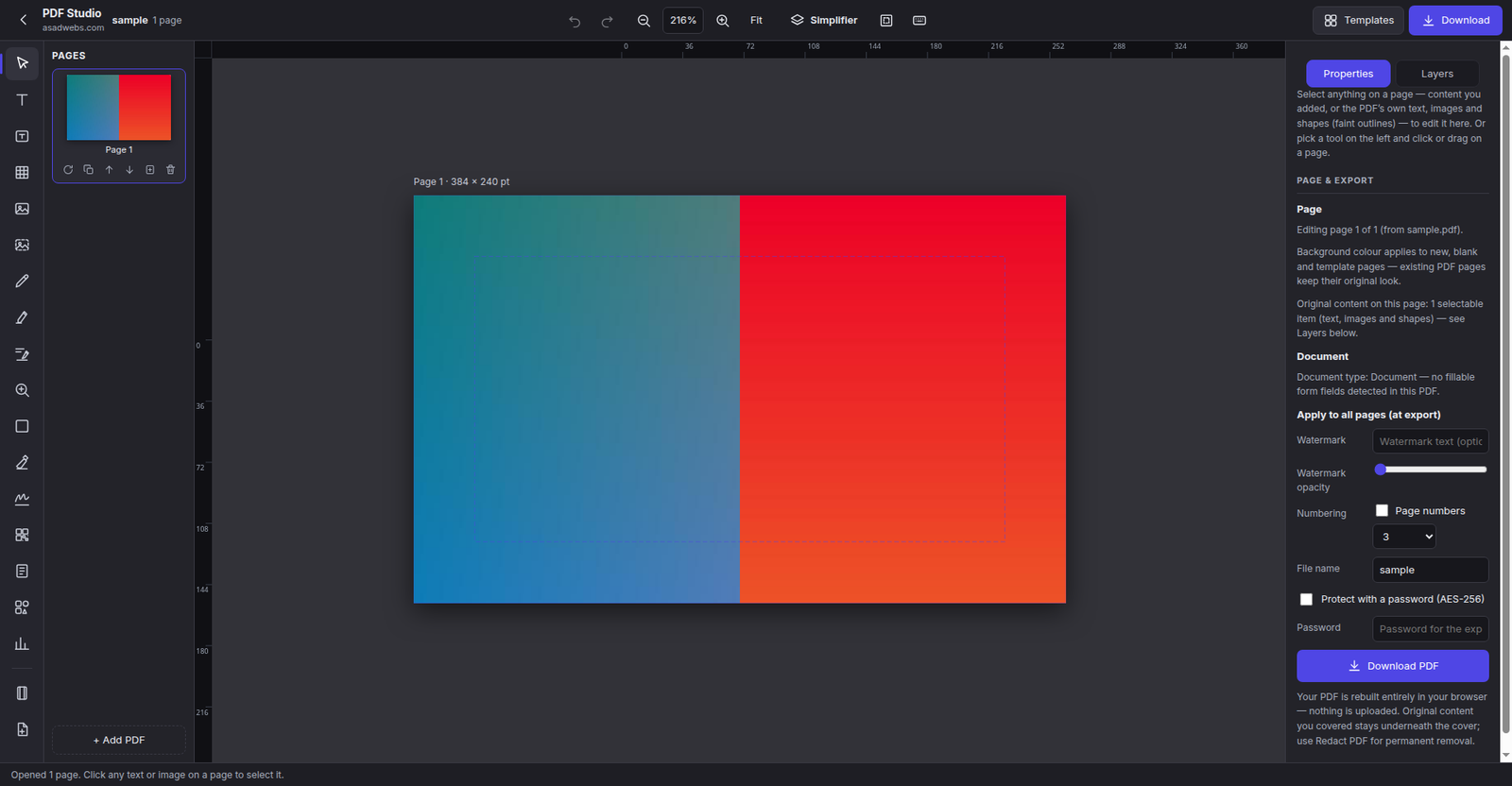
The studio with a document open: editing tools down the left, the page in the middle, and the Pages, Properties and Layers panels one click away. Click the screenshot to open the PDF editor and load a file of your own.
Two ways in: fix a PDF you have, or create the one you need
Most free PDF tools do exactly one job — merge, or compress, or sign. PDF Studio is built the other way round: it is a workshop you open when a document needs several kinds of attention at once. Hand it an existing PDF and it studies the page before you touch anything, mapping every line of text and every embedded picture so each one becomes a clickable object. Or ignore existing files completely: start from a blank page in a standard size, or from a designed template, and build the document from nothing.
Whichever way in you choose, the working method is the same. Objects — yours and the document's own — are selected, dragged, resized and restyled on a canvas that behaves more like a design tool than a form-filler. Panels for properties, pages and layers sit around the canvas, and everything, from opening the file to exporting the finished PDF, happens inside the one browser tab.
Editing the PDF's own text and images
This is the capability that separates a real editor from an annotation tool. With the Select tool active, click anything on the page. Objects you added behave as you would expect, but so do the PDF's original contents, which the studio outlines faintly so you can see what is grabbable.
Click a line of original text and the studio covers the original line, then places an editable text box holding the same words at roughly the same size on top. Retype the date, correct the name, fix the total — the replacement sits exactly where the old text lived. Click an original image and three routes open up: cover it away entirely, swap in a different picture fitted into precisely the same space, or lift the image as a movable copy you can drag to a new home on the page.
Every object, original or added, can be moved, resized, rotated, recoloured, duplicated and moved up or down the layer stack. A drag-box (marquee) gathers several objects at once, and Shift+click adds or removes individual items from a selection — the small courtesies that make tidying a busy page quick instead of fiddly.
Why the covering step? Because it is what every browser-based editor actually does, and the studio is upfront about it on its own page: the covered original still exists underneath in the exported file. On screen and in print, the change is complete. But content that must be destroyed rather than hidden needs a different tool — see the honest limits section below, because the distinction matters for contracts and personal data.
Tip: when objects overlap and clicking keeps grabbing the wrong one, open the Layers panel and select from the list instead. Every object on the page is named there, in stacking order.
Adding your own content
The left-hand toolbar holds the full kit for putting new material on a page:
| You can add | What it is for |
|---|---|
| Text box | Blocks of writing — addresses, terms, notes — that wrap and reflow as you resize the box, with colour-range highlighting inside the text editor |
| Image frame | Rectangle, rounded or circular frames; the picture is cover-fitted and clipped to the shape, in the export as well |
| Shapes | Rectangles, circles and more for callouts, covers and simple designed layouts |
| Draw | Freehand pen strokes for circling, underlining and quick sketches |
| Highlight | Marker-style emphasis over the lines that matter |
| Whiteout | A fast visual cover for a stray mark or a superseded detail |
| Signature | A signature drawn on the sign pad with mouse, finger or stylus, placed on the page as an image |
| QR code | Generated on your device from a link or short text, then placed as an image on the page |
| Table | Rows and columns with an optional header row, inserted in one step |
| Icons and charts | An icons library and ready-made chart elements in the top strip, for designed documents |
Text boxes deserve a closer look, because they are where most editing time goes. Unlike the fixed one-line fields in simpler tools, a studio text box behaves like a small word processor frame: stretch it wider and the words re-wrap; make it taller and the text reflows to fill. Inside the text editor you can also highlight a range of the text with a colour — handy for drawing a reader's eye to the one clause that changed.
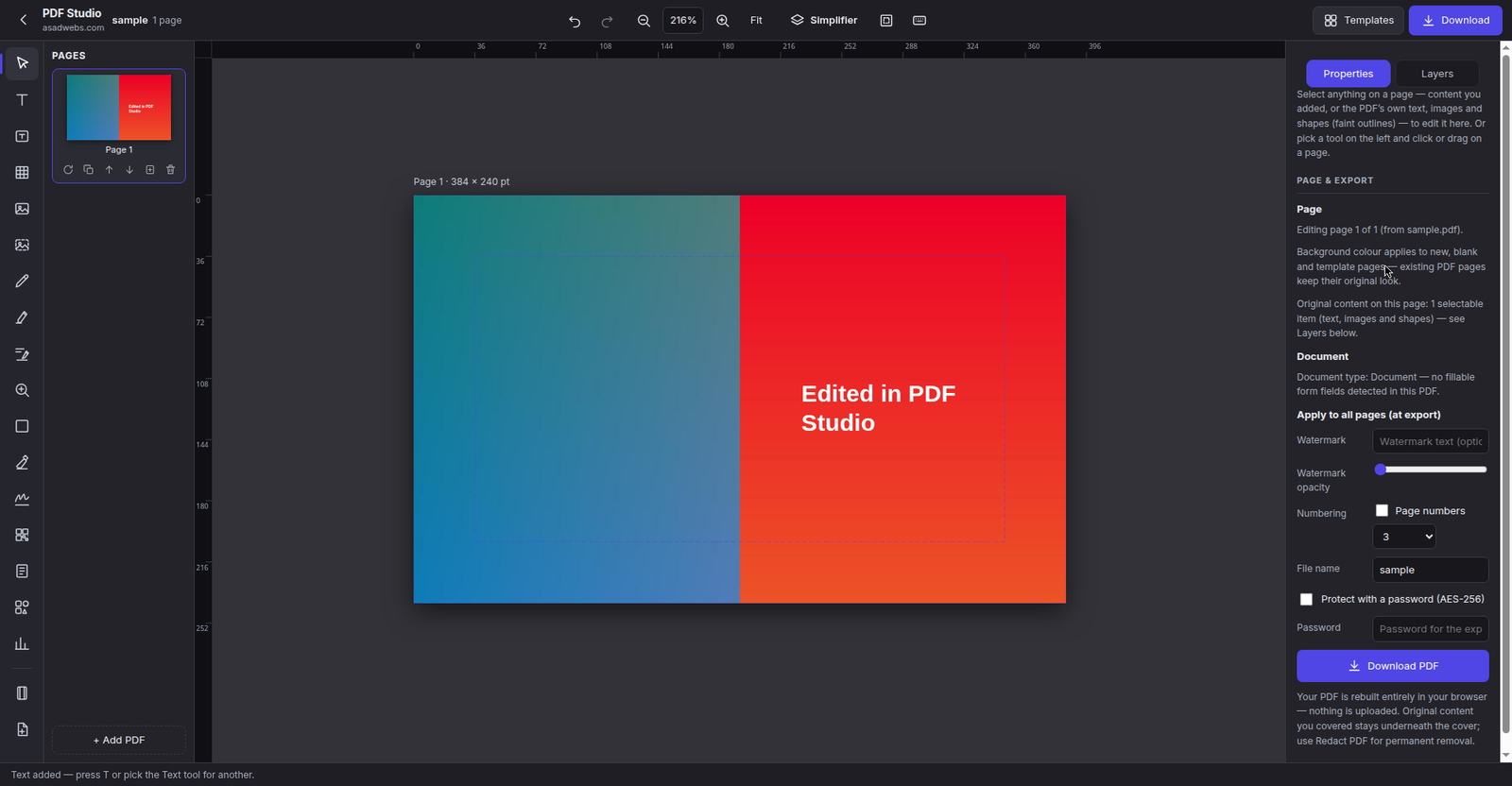
A text box placed on the page during our test — drawn out, typed into and styled from the Properties panel. Click the screenshot to open the editor and place one yourself.
Image frames work the way designers expect. Draw the frame first — rectangle, rounded rectangle or circle — then drop the picture in; it is cover-fitted and clipped to the frame's shape, and the clipping survives into the exported PDF. Double-click the frame afterwards to drag the photo around inside it until the crop sits right. The signature pad opens as its own dialog: draw your signature, and it lands on the page as a clean image you can size and position like any other object. QR codes are generated locally on your device — paste a payment link, a menu URL or a Wi-Fi password, and the code is ready to place, no external generator involved.
Fillable forms that are genuinely fillable
The feature that lifts PDF Studio clear of most free editors is its form builder — because the fields it adds are not drawings of fields. They are genuine AcroForm fields, the real PDF form technology, and they stay fillable in any standard PDF reader and in dedicated form-filling tools. The field types on offer:
- Text field and multiline field for names, addresses and longer answers
- Checkbox for yes/no confirmations and consent ticks
- Radio buttons for pick-one-of-several questions
- Dropdown for choosing from a fixed list — package, branch, category
- Signature field, exported as a real signature field in the PDF
- Date field, exported as a text field with the date format shown as a hint
The studio works the other direction too: open a PDF that already contains a form and the fields are detected automatically as the file loads — during our testing the document info reported plainly when a file held no fillable fields, rather than pretending. If you have ever printed a "fillable" form, filled it with a pen and scanned it back in, this is the fix: build the form once, send the PDF, and get back answers typed into real fields that other software can read.
Creating from scratch: page sizes and templates
For documents that do not exist yet, the New menu offers six page sizes, and the Templates gallery holds 207 designed starting points — the count is shown in the gallery itself — searchable, and organised by category: certificates, invoices, event posters, resumes, letterheads, brochures, flyers, menus, social posts, YouTube thumbnails, presentation slides, report covers and more. Six reader favourites:
| Page sizes | Templates |
|---|---|
| A4 — everyday documents, letters, agreements | Certificate — awards and course completion |
| Letter — the North American standard | Invoice — billing with a proper table layout |
| A4 Landscape — wide documents and certificates | Event poster — announcements that need size |
| Presentation 16:9 — slides that export as PDF pages | One-page resume — a compact, tidy CV |
| Instagram Post — the square social format | Instagram post — designed for the square size |
| Instagram Story — the tall 9:16 social format | Business flyer — offers and local promotion |
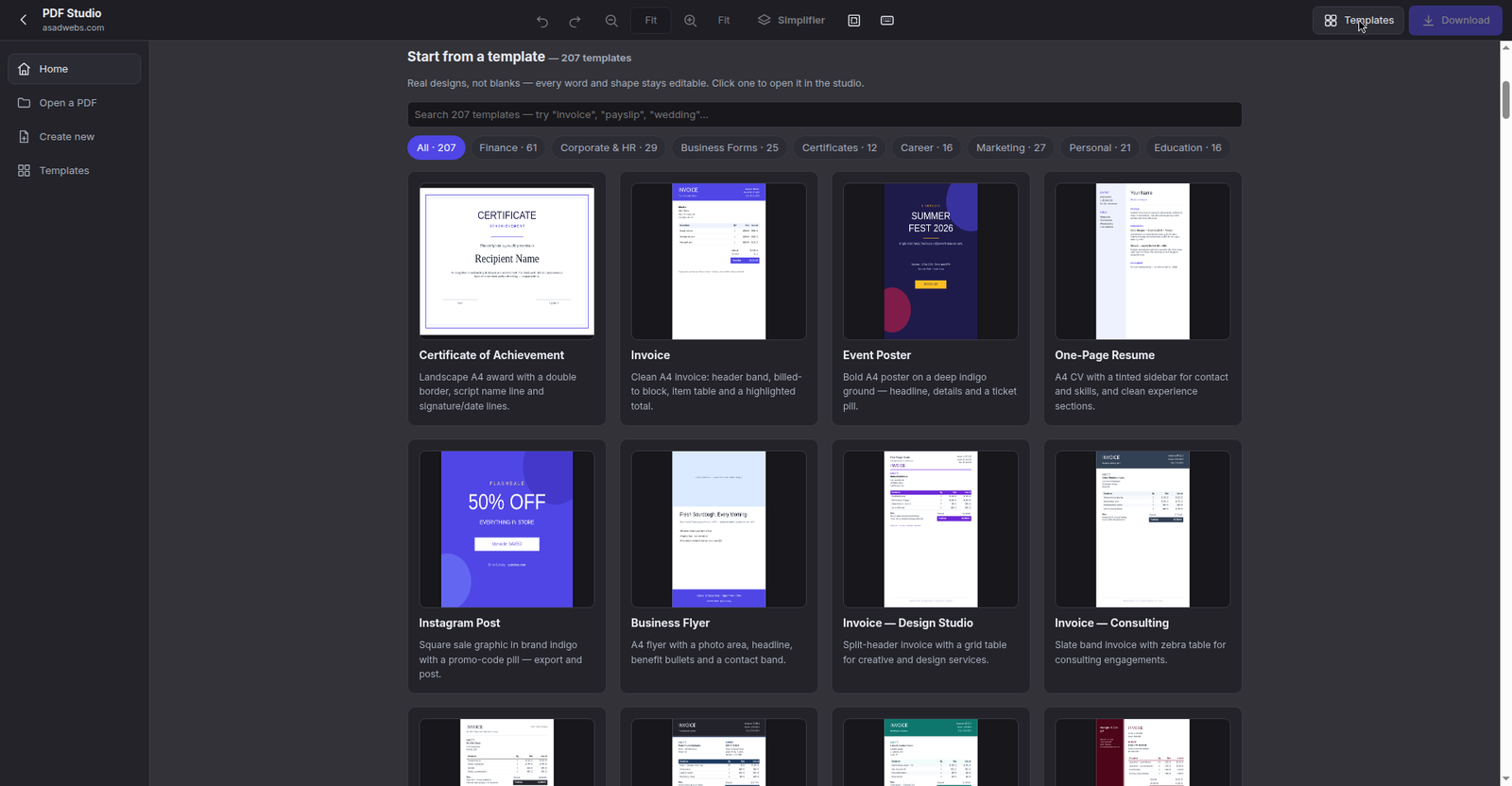
The template gallery: 207 searchable designs, and every word, colour and shape in them can be changed. Click the screenshot to browse the gallery in the studio.
Templates here are starting points, not straitjackets — every element in them is ordinary text or shapes, so the certificate's name, the invoice's rows and the poster's headline are all yours to rewrite. Type is properly handled as well. Helvetica, Times and Courier are built into every PDF and need no embedding. The studio's design fonts — Montserrat, Playfair Display and Dancing Script, all open-licensed — are embedded into the exported file, so your document looks the same on the recipient's machine. Beyond those, the font menu offers 136 Google Fonts that load on demand and embed in exactly the same way.
Pages, merging and the export panel
Multi-page work lives in the Pages panel. From there you can rotate a page that arrived sideways, duplicate a page you need twice, drag pages into a new order, delete the ones you do not need, and insert blank pages wherever a gap helps. The panel's Add PDF button goes further: it appends a whole second document to the one you are editing — merging — while keeping every edit you already made on the earlier pages.
Finishing touches sit in the Page & Export panel. A watermark can be stamped across all pages, page numbers can be added throughout, and you can name the output file before it downloads. The serious option is the password checkbox: tick it and the export is protected with real AES-256 encryption, powered by the open-source QPDF engine. One more thoughtful detail — every exported PDF carries an embedded copy of the editable project. Reopen that file in the studio later and every object, field and layer comes back fully editable, instead of flattened. The trade-off is stated plainly: the file is somewhat larger for carrying its own project.
| Export option | What it does |
|---|---|
| Watermark | Stamps your chosen text across every page, with opacity control |
| Page numbers | Numbers all pages in one step |
| File name | Names the downloaded PDF before export |
| Password (AES-256) | Encrypts the export using the open-source QPDF engine |
| Embedded project | Stores the editable project inside the PDF, so reopening restores every object |
The comfort layer: Simplifier, layers, setup and shortcuts
Four quieter features make long documents bearable. Simplifier mode gathers a page's scattered text fragments into large document blocks, so editing reads like working in a word processor rather than nudging lines one at a time — and it is form-aware: open a fillable form and Simplifier detects it and switches itself off. The Layers panel lists everything on the current page in stacking order, the reliable way to select, reorder or find objects that overlap. Page setup offers margins, a choice of units (points, millimetres or inches), rulers, and printable-area and centre-line guides — all view-only helpers that never appear in the exported file.
The keyboard is fully wired, too: Ctrl/⌘+Z to undo (with redo alongside), Ctrl/⌘+S to export, Ctrl/⌘+D to duplicate the selection, bracket keys to move objects through the layer order, arrow keys to nudge by 1 pt (10 pt with Shift held), Enter or F2 to edit the selected text, PgUp/PgDn to move between pages, and Esc to put everything down. On a ten-page document, those shortcuts are the difference between minutes and an afternoon.
Worked example: correcting an invoice minutes before it goes out
A freelance designer has already exported invoice 1042 when the client spots that the agreed total changed after a scope adjustment. Rather than rebuilding the document, she opens the PDF in PDF Studio, clicks the total, and retypes the corrected figure into the editable copy that appears over the covered original. A short text box under the table adds the revised payment note. Because the client pays by phone, she generates a QR code from her payment link and places it beside the total. She signs in the signature pad, stamps page numbers from the export panel, ticks the password box, and sends an AES-256-protected PDF — corrected, signed and payable by scan, from one browser tab, with the original invoice software never opened.
Fully free, unlimited usage — what that means here
"Free" is a word that often hides a trial, so here is precisely what it means on this tool's own page, confirmed in our testing:
- No sign-up. No account, no email wall — open the page and start working.
- No daily limits. No credits, no export counter, no queue. The fiftieth document of the day is treated exactly like the first.
- No watermarks. Nothing is stamped on your pages at any point; watermarks appear only if you deliberately add your own.
- Nothing is uploaded. Editing, form building and even the encryption all run in your browser. The password you set never leaves your device, and closing the tab ends the session completely.
Honest limits, stated plainly
Read this before relying on the studio for sensitive documents
- Covering is not rewriting. Edited originals stay underneath their covers in the file. Visually gone is not the same as destroyed — for permanent removal of text, use the Redact PDF tool instead, built for exactly that job.
- Whiteout is visual only, for the same reason: it hides on screen and in print, but the content beneath still exists.
- The signature is a picture — a visual stamp of your handwriting, not a certified digital signature with a certificate or tamper detection.
- Very large documents are bounded by your device's memory. Split a huge file into parts before editing it.
- Password-protected PDFs must be unlocked first before the studio can open them.
When a smaller tool is the better tool
A full studio is not always the fastest route. If your whole job is hovering over one page and nudging a logo, recolouring a heading or deleting a stray line, the quick Edit PDF editor, covered in its own guide, gets you there with no panels to learn. When a client needs a document as images rather than a PDF, follow the steps to turn each PDF page into a JPG instead. And if your raw material is a folder of photos, it is quicker to combine images into one tidy PDF first, then bring that file into the studio for text, signatures and finishing touches.
Frequently Asked Questions
Is PDF Editor (PDF Studio) really free to use?
Yes — fully. There is no sign-up, no account, no daily limit or credit system, and no watermark on exported files. Every feature described in this guide, including templates, form fields and password-protected export, is available to every visitor at no cost.
Are my PDF files uploaded to a server?
No. The studio runs entirely in your browser, so your documents, images, signatures and even the password you set for an export are processed on your own device and never transmitted anywhere. Closing the tab wipes the session.
Can PDF Studio change text that is already inside a PDF?
Yes. Click the original line and the studio covers it, placing an editable text box with the same words at about the same size for you to retype. Bear in mind the covered original still exists under the cover in the file — for permanently destroying content, use the Redact PDF tool instead.
Can I create a form that other people can fill in?
Yes. The fields you add are genuine AcroForm fields — text, multiline, checkbox, radio, dropdown, signature and date — that work in ordinary PDF readers. The studio also detects fillable fields automatically when you open an existing form PDF.
How does the password protection on export work?
Tick the password option in the export panel and the downloaded PDF is encrypted with AES-256, applied by the open-source QPDF engine, entirely in your browser. Note the mirror rule: a PDF that is already password-protected has to be unlocked before the studio can open it for editing.
Which fonts can I use in my documents?
Helvetica, Times and Courier are built into the PDF format itself. Montserrat, Playfair Display and Dancing Script are embedded into your export, and the font menu also offers 136 Google Fonts that load on demand and embed the same way, so documents look right on the recipient's machine too.
Can I merge two PDFs and keep editing afterwards?
Yes. The Add PDF button in the Pages panel appends a whole second document while preserving the edits already made. And because each export embeds the editable project inside the PDF, reopening an exported file in the studio restores every object as editable again.
Open PDF Studio and edit your first PDF
It costs nothing and there is nothing to install: start editing in PDF Editor — open a document, fix what needs fixing, and export it finished. And if your document problems keep tracing back to your website — customers emailing scanned forms, invoices rebuilt by hand every month — book a free consultation and tell us what you would like to work better.
Be the first to share a useful question or thought.