
You can convert a PDF to JPG online for free in a couple of minutes: open the free PDF to JPG Converter, add your PDF, choose the output resolution, and download one JPG for every page. The resolution choice is the whole game: too low and text turns to mush, too high and you are emailing twenty-megabyte pages nobody needed.
PDFs are the world's default document format, yet plenty of places refuse them: application portals that only accept image uploads, slide software, social platforms, marketplace listings, and people who need one page — a certificate, a menu, a flyer — as a picture. Converting page-by-page into JPG is the bridge. This guide covers the resolution maths in plain terms, what happens to multi-page documents, and the cases where PNG does the job better.
PDF to JPG in 4 Steps
- Open the converter. Go to the PDF to JPG Converter in your browser.
- Add the PDF. Drag the file in. A long document will produce a JPG per page, so know roughly how many pages you are creating.
- Set the resolution. 150 DPI for quick previews and small web images, 200 DPI as the all-round default, 300 DPI when the page may be printed or zoomed into.
- Download and spot-check. Open the busiest page — small text, fine lines — at 100% zoom and confirm it reads cleanly before you send anything.
Tool preview: a PDF page becomes a JPG
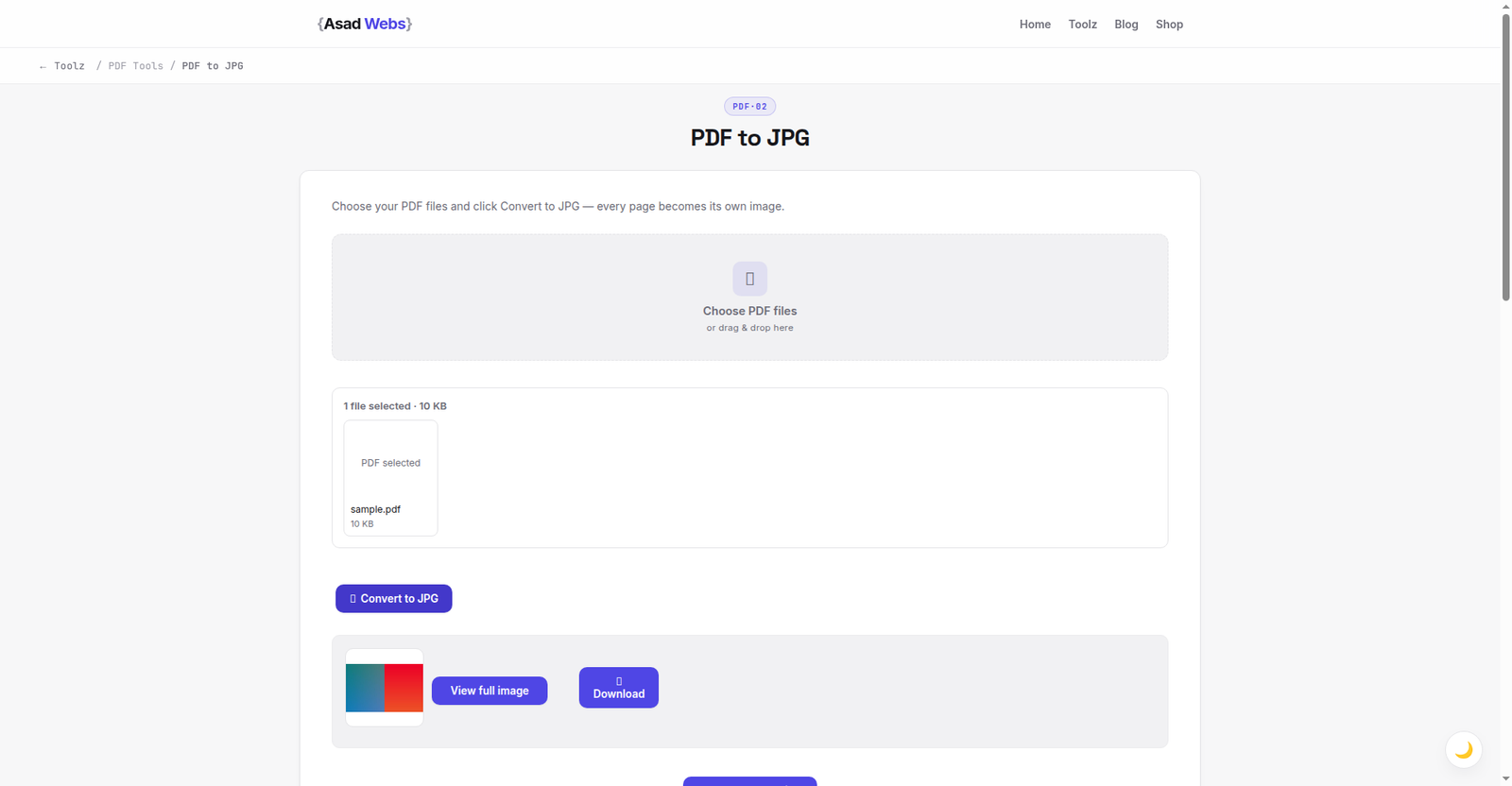
The live converter with a PDF page already rendered as a JPG, ready to download — the DPI choice below is what decides how sharp it is. Click the preview to convert your own PDF.
DPI Explained Without the Jargon
DPI (dots per inch) decides how many pixels each page becomes. An A4 page at 150 DPI renders at about 1,240 × 1,754 px — fine on a phone screen, soft if someone zooms in. At 200 DPI it is roughly 1,654 × 2,338 px, which keeps body text crisp on full screens. At 300 DPI — print standard — it is about 2,480 × 3,508 px and several megabytes per page as JPG.
The practical rule: convert for the most demanding realistic use, not the most demanding imaginable one. Portal uploads and slides live happily at 150–200 DPI. Documents someone will print, or pages with dense small print (contracts, certificates with fine print), deserve 300. The chart below shows what that choice does to file size for one typical text page.
One A4 text page as JPG, by rendering resolution (MB, illustrative) — hover or tap each bar for details.
DPI by Destination: The Quick Table
The DPI section above gives the reasoning; this table is the shortcut. Find the row that matches where the image is actually going:
| Destination | DPI | Why that is enough |
|---|---|---|
| Application portals and form uploads | 200 | Reviewers read on screens; files stay under typical upload caps |
| Social media posts | 150 | Platforms resize and recompress anyway |
| Slides and presentations | 200 | Projected large but viewed from a distance |
| Print handouts and reprints | 300 | Print shows softness first — this is the print standard |
| Pages you will zoom into (fine print, plans) | 300 | Zoom spends pixels; only a high render survives it |
JPG or PNG for PDF Pages?
For photographic pages and general documents, JPG at quality 85–90 is compact and accepted everywhere. For pages that are mostly sharp text, line diagrams or screenshots, PNG keeps edges perfectly clean where JPG can add a faint fuzz around letters — at the price of much bigger files. The honest summary is in the table; if a portal gives you a strict file-size cap, that usually decides for you: JPG.
If you go the PNG route, our dedicated guide to converting PDF to PNG covers its settings. And if your flow runs the other way — assembling images into a document — see converting images to a single PDF.
| Page type | Better format | Why |
|---|---|---|
| Photo-heavy brochure or catalogue page | JPG | Much smaller, no visible difference at q85+ |
| Text document, contract, certificate | PNG (or JPG q92) | Keeps letter edges perfectly sharp |
| Slide or presentation page | JPG at 200 DPI | Slides are shown, not zoomed; size stays friendly |
| Page for print | PNG or JPG at 300 DPI | Print reveals compression artefacts first |
Multi-Page Documents and Page Order
A 40-page PDF becomes 40 JPGs, normally named in page order — keep that numbering intact when you upload or share them, because alphabetical sorting only works if the names are zero-padded (page-01, page-02 … page-40, not page-1, page-2 … page-40, which sorts 1, 10, 11, 2). If a converter's names are unpadded, rename before sending a set anywhere order matters.
Also decide whether you actually need every page. Pulling three relevant pages out of a report — converting the whole file and deleting the rest is normal — beats sending a 40-page PDF to someone who asked for one chart. Be the person who sends exactly the page that was requested, as a clean image with a sensible filename.
Worked Example: A 12-Page Supplier Catalogue for a Portal
A building-materials supplier must upload its price catalogue to a trade portal that accepts only JPG images, maximum 2 MB each. The catalogue PDF has 12 pages. Converting at 300 DPI and quality 100 — the "be safe" instinct — produces pages around 4–5 MB: every one rejected. Converting at 200 DPI and quality 88 produces pages around 0.8 MB (the chart above shows the shape of this trade): comfortably accepted, and the price tables — the only content anyone will actually read closely — stay crisp at full screen.
The second decision saves more: the portal's product form needs only the four pages covering the supplier's listed ranges, not all twelve. The finished upload is four named files (page-03-prices-timber.jpg and its siblings) totalling about 3 MB, instead of a twelve-file, fifty-megabyte wrestling match. Right DPI plus honest page selection beats maximum settings every time.
Quality Checks and Common Problems
Three problems account for nearly every bad result. Blurry text means the DPI was too low for how the page will be viewed — reconvert higher; there is no way to sharpen the small render after the fact. Enormous files mean the DPI (or page count) overshot the need — drop to 200 DPI and quality 85. And washed-out colour usually means the PDF was built in CMYK for print; the JPG is showing screen-RGB conversion, which is correct behaviour — the page will look as intended when printed, and the screen version is the honest preview.
Password-protected PDFs need the password removed or supplied first — a converter cannot (and should not) open a document its owner locked. Once converted, remember the JPGs are pictures of pages: text is no longer selectable or searchable, which is one more reason the PDF stays your master copy. More document tools are on the free tools page, and the blog covers the workflows around them.
Five PDF-to-JPG Mistakes
- Converting at screen-default resolution. Renders made at 72–96 DPI look fine as thumbnails and turn to mush at reading size. Documents start at 200 DPI unless the destination table says otherwise.
- Sending every page when one was requested. A 40-image dump makes the recipient do your filing. Convert the document, keep the pages that answer the request, name them clearly.
- Unpadded page names. page-1, page-10, page-11, page-2 — that is the order your set will display in. Zero-pad (page-01 … page-40) before the files go anywhere.
- Quality 100 "for safety". It roughly doubles or triples file size versus q90 for a difference documents do not show, and it is the usual reason uploads bounce off size caps.
- Converting a form and expecting it to stay a form. A JPG is a picture: nobody can type into it, tick its boxes or sign it digitally. If the recipient must fill the document in, send the PDF — conversion is for viewing and upload portals only.
Need more than images back — want to fix the PDF itself? The PDF Editor Studio guide shows how to edit a PDF's own text and pages, free and in your browser.
Turning documents into web content regularly? The Asad Webs blog has practical guides on documents, images and website speed — and the converter above handles the pages themselves.
Turning PDFs into web images for a catalogue or website? Book a free consultation — we build product and document workflows for online stores, so PDFs become fast, searchable web content instead of dead downloads.
Frequently Asked Questions
How many JPGs will I get from my PDF?
One per page. A 12-page PDF produces 12 JPGs, numbered in page order. Check the filenames keep that order (page-01, page-02) if you will upload them as a set.
What DPI should I choose?
200 DPI is the safe default for screens and portals. Use 150 DPI for quick previews, and 300 DPI only when the page will be printed or needs to survive heavy zooming.
Will the text in the JPG be selectable?
No. A JPG is a picture of the page, so text becomes pixels — visible and readable, but not selectable, editable or searchable. Keep the PDF as your master document.
PDF to JPG or PDF to PNG — which is better?
JPG for photo-heavy pages and anywhere file size is capped; PNG for text- and line-heavy pages where perfectly clean edges matter more than size.
Can I convert a password-protected PDF?
Not without the password. Unlock the document first with its password in your PDF reader, save an unlocked copy, and convert that.
Can I convert just one page of a PDF?
Yes, in practice: convert the document and keep only the page image you need — the rest can be deleted. Some PDF readers also offer an export or snapshot of a single page, but the convert-and-keep route works everywhere and keeps the page numbering obvious in the filenames.
Why does my JPG look blurry when the PDF looks fine on screen?
A PDF page is mostly resolution-independent content — text and vector shapes that render sharply at any zoom. The JPG freezes one render of it at your chosen DPI. If the freeze happened at 150 DPI and you are viewing at 200% zoom, it looks soft. Reconvert at 300 DPI; there is no way to add the missing detail to the small render afterwards.
Be the first to share a useful question or thought.