
You can convert images to a PDF online for free in a few minutes: open the free Image to PDF Maker, add your JPG or PNG files, drag them into the order you want, pick a page size and orientation, and download a single PDF. One file, pages in sequence, that opens exactly the same on every phone, computer and email client.
Sending six separate photo attachments invites chaos — they arrive out of order, one gets missed, and the person at the other end assembles your document wrong. A PDF fixes the order, the layout and the story: page 1 is page 1 everywhere. That is why landlords, universities, embassies, clients and accountants all ask for 'one PDF' — and why knowing how to build one properly, at a size email will accept, is a small skill that pays off constantly.
Images to PDF in 5 Steps
- Open the maker. Go to the Image to PDF Maker in your browser — no account, and files stay on your device.
- Add your images. Drag in JPGs or PNGs — scans, photos of documents, screenshots.
- Order the pages. Drag each image into sequence. Read the set top to bottom as the reader will: cover or ID first, supporting pages after.
- Choose page settings. A4 for documents that may be printed, 'fit to image' for photo sets; portrait for documents, landscape for slides and wide screenshots.
- Create and check the PDF. Download it, open it, and flip through every page before sending — order, orientation and legibility are your responsibility, not the tool's.
Tool preview: an image becomes a PDF page
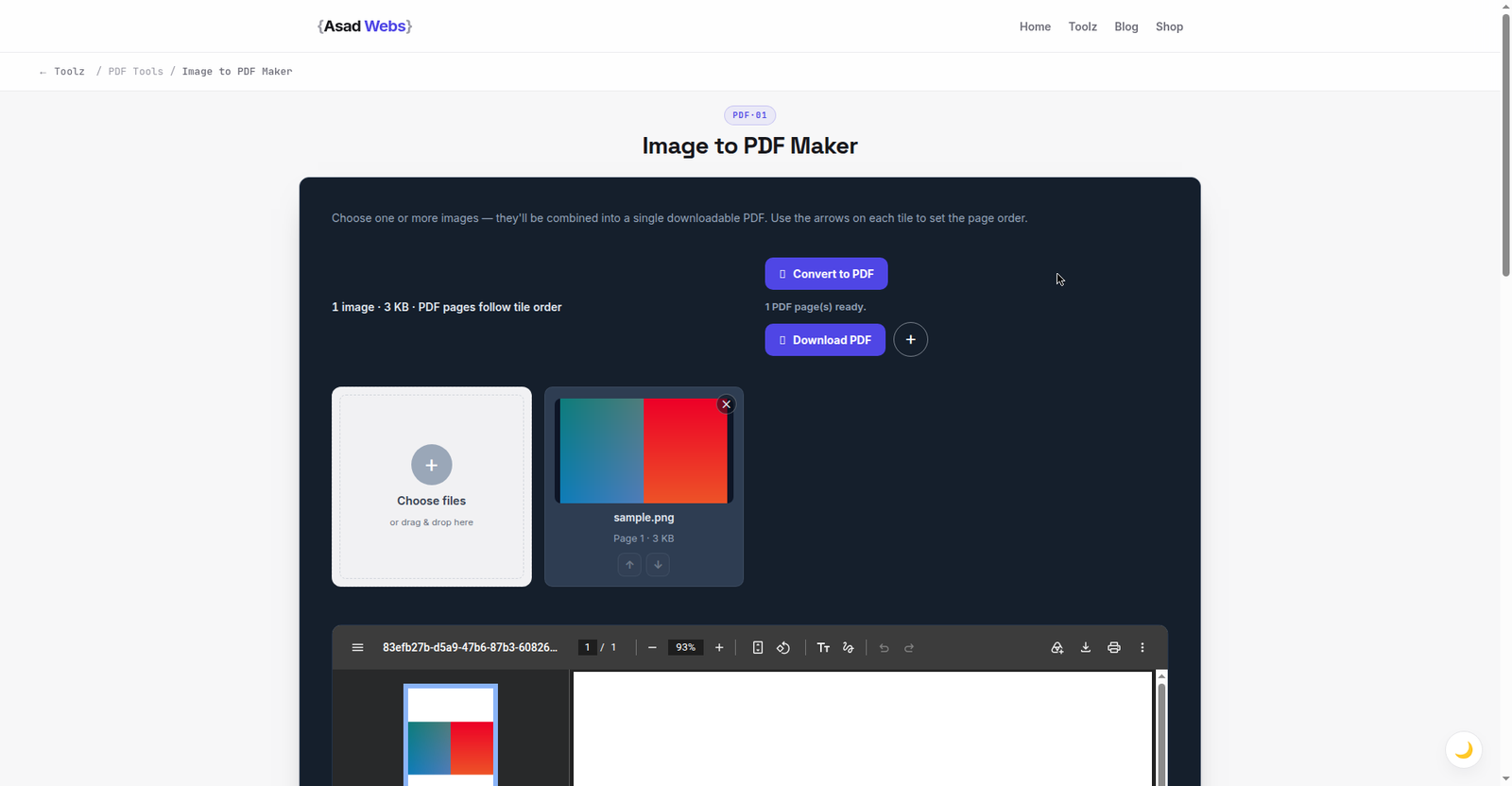
The live maker with an image already in place as Page 1 and the PDF built, ready to download. Click the preview to build your own.
Page Size and Orientation: The Two Settings That Matter
Most image-to-PDF jobs need one of two approaches. If the PDF may be printed — applications, signed forms, invoices — build it on a real page size (A4 in most of the world, Letter in the USA) so it prints without scaling surprises, with each image centred on the page. If the PDF is purely for screen viewing — a photo set, a portfolio, screenshots — choose 'fit page to image' so no borders are added and each page is exactly its image.
Orientation follows the content, not the container: a portrait document squeezed onto a landscape page arrives tiny and sideways. Mixed sets are fine — a good maker lets each page follow its own image. What you should avoid is rotating images inside the PDF to fix a sideways scan; rotate the image file first, then rebuild, so the PDF is correct in every viewer, including the strict ones built into email apps.
Size of a 10-page PDF by how the images were prepared (MB, illustrative) — hover or tap each bar for details.
Keeping the PDF Small Enough to Send
Email systems commonly reject attachments above roughly 10–25 MB, and many application portals cap uploads at 2–5 MB per file — a PDF built from full-resolution phone photos can blow past all of those. The fix happens before conversion: shrink the images, not the PDF. Resize photos to about 1,600–2,000 px on the long edge and compress them; for text documents that is still sharper than any reader needs, and the resulting PDF usually lands under 2 MB.
The table shows typical results for a 10-page document. If your images are still scans in TIFF, convert them first with the TIFF to JPG workflow, which was written for exactly this handoff.
| 10-page PDF built from | Typical PDF size | Suitable for |
|---|---|---|
| Full-resolution phone photos (≈4 MB each) | ≈35–40 MB | Almost nothing — too big to email |
| Resized photos, 2,000 px, quality 85 | ≈3–4 MB | Email and most portals |
| Resized scans, 1,600 px, quality 82 | ≈1.5–2 MB | Strict portals with 2 MB caps |
| Black-and-white document scans | ≈0.6–1 MB | Anywhere, including slow connections |
Worked Example: A Visa Application Pack That Passes the Portal
An applicant must upload one PDF, maximum 2 MB, containing: passport page, ID card front and back, a passport photo, and six months of bank statements photographed page by page — eight images in total. Built from the raw phone photos, the first attempt weighs about 30 MB: rejected before a human ever sees it.
The rebuild applies this guide in order. The photos are resized to 1,600 px and compressed first (see the table above), bringing the set to roughly 2 MB in total. Pages are ordered as the checklist lists them — passport first, ID next, photo, statements last — rather than in the order they happened to be photographed. The statements, shot in B&W-friendly light, are converted as document pages so their text stays crisp. The final file, named family-name-visa-documents.pdf, lands at about 1.9 MB: accepted by the portal, readable at full zoom, and in the order the officer expects. Nothing about the documents changed — only their preparation did.
Order, Names and the Reader's Experience
A PDF is read in the order you build it, by someone who cannot see your folder or your intentions. Put the page that explains the set first — the ID, the signed form, the summary — and supporting evidence after. Then name the file like the reader would search for it later: 'Asad-passport-and-visa-scans.pdf' survives in an inbox; 'document(3).pdf' does not.
If your source pages are currently one multi-page scan or a stack of mixed formats, standardise them first: one image per page, same orientation, similar brightness. Five minutes of tidying before conversion is the difference between a PDF that looks assembled by a professional and one that looks photographed in a hurry — because it was. The free tools page has the converters for each preparation step.
Photographing Documents with Your Phone: Get the Pages Right
Most image-to-PDF jobs start as phone photographs of paper, and the PDF can only be as good as those photographs. Four habits make the difference. Light: shoot in bright, even light — near a window in daytime — and keep your own shadow off the page; a flash in a dim room creates a hot spot in the middle and dark corners. Flat and square: lay the page flat, hold the phone directly above it parallel to the paper, and fill the frame with the page so its edges are straight, not keystone-shaped. No glare: laminated IDs and glossy pages reflect — tilt the document slightly or move the light, never accept a reflection across the text. Check before you move on: zoom into the smallest print on the phone immediately; a retake costs ten seconds now and the whole application later.
When a PDF Is the Wrong Container
PDF preserves pages; it does not preserve editability or data. Do not send a PDF when the other side needs to edit the content (send the document), extract figures (send the spreadsheet), or print photographs at full quality (send the image files, or build the PDF at full resolution knowing it will be large). And if a portal asks for JPG uploads page by page, give it exactly that instead — our guide to converting PDF pages back to JPG covers the reverse trip.
Five Images-to-PDF Mistakes
- Burying the key page. The ID or signed form arrives on page 7 behind six statements, and the reviewer has to hunt for it. Order the set as the reader's checklist does, not as your camera roll does.
- Building at full resolution "to be safe". A 38 MB PDF is not safer; it is undeliverable. Resize first, verify legibility at 100% zoom, and let the file be small on purpose.
- Rotating pages inside the PDF. Some viewers honour the rotation, strict ones ignore it, and the page prints sideways. Rotate the source image and rebuild.
- Naming the file document(3).pdf. The recipient files hundreds of documents; a name that states whose it is and what it holds is the difference between found and lost.
- Trying to fix bad photographs at the PDF stage. Shadow, glare and blur are baked into the image before conversion starts. Retake the page in better light — it is faster than every repair.
Working with the finished PDF afterwards — editing its text, adding pages or signing it? Our complete guide to PDF Editor Studio covers the free editor feature by feature.
Building documents for a business — proposals, portfolios, onboarding packs? The Asad Webs blog covers the practical side of running a business website, and the maker above builds the PDF itself.
Preparing documents or image packs for clients? Presentation matters as much as content. Book a free consultation — we build websites and portfolios that present your work as professionally as you deliver it.
Frequently Asked Questions
Is the Image to PDF Maker free, and are my files uploaded?
It is free and runs in your browser, so your images stay on your device rather than being uploaded to a server — the right pattern for IDs, contracts and personal documents.
Can I mix JPG and PNG files in one PDF?
Yes. Add both formats in the same set; each becomes a page in the order you arrange. Standardising sizes first gives the tidiest result, but it is not required.
What page size should I choose?
A4 if the document may be printed (Letter in the USA), or 'fit to image' for screen-only sets like photo portfolios where added borders would look wrong.
My PDF is too big to email. What do I do?
Rebuild it from smaller images: resize to about 1,600–2,000 px on the long edge and compress at quality 82–85 before converting. Shrinking the source images shrinks the PDF far more effectively than any PDF setting.
How do I fix a sideways page in the PDF?
Rotate the original image file so it opens correctly, then rebuild the PDF. Rotating inside the PDF works in some viewers and not others, so fixing the source is the reliable route.
Can I add a page to a PDF I have already made?
Not by editing the finished file in a maker like this — the reliable route is to rebuild: keep your ordered set of source images together, add the new page image in position, and generate a fresh PDF. It takes a minute and guarantees the order and page settings are uniform throughout.
Will the PDF look the same on phones and computers?
Yes — that consistency is the main reason to use PDF. Page order, layout and appearance are fixed in the file, so the recipient sees what you checked, on any device or email app.
Be the first to share a useful question or thought.