
To pick a colour from any image, open a free colour picker in your browser, add your photo or screenshot, and click the exact pixel you want. The tool reads out that pixel's colour as a HEX, RGB and HSL value, ready to paste into a website, a design file or a document. The whole thing takes under a minute, and there is nothing to install. Our free color picker works exactly this way — and because it runs in your browser, the image you use never leaves your device.
People reach for this tool constantly: matching a client's brand colour from their logo, copying the exact shade from a photo for a presentation, or rebuilding a palette they saw on another website. Here is why the picker gets used, based on the requests we see most often:
Why people pick a colour from an image (editorial estimate) — hover or tap each bar for details.
Step by step: pick a colour from an image
The process is the same whether your starting point is a holiday photo, a product shot or a logo file:
- Open the picker and add your image. Upload it from your device, or paste it straight from the clipboard if you have just copied or screenshotted it.
- Click the exact spot you want. The picker samples the pixel under your cursor. For a flat area of colour, click near the middle of it rather than on an edge or a highlight.
- Read the values. You will see the colour in several formats at once — typically HEX, RGB and HSL. They all describe the same colour; they are just written differently.
- Copy and use the value you need. Paste it into your CSS, your design tool's colour panel, or your document's custom colour box.
Zoom in if the area you want is small. A single pixel on the boundary between two colours is often a blend of both, so sampling a few pixels inside the shape gives you the true colour.
Tool preview: one colour, every format at once
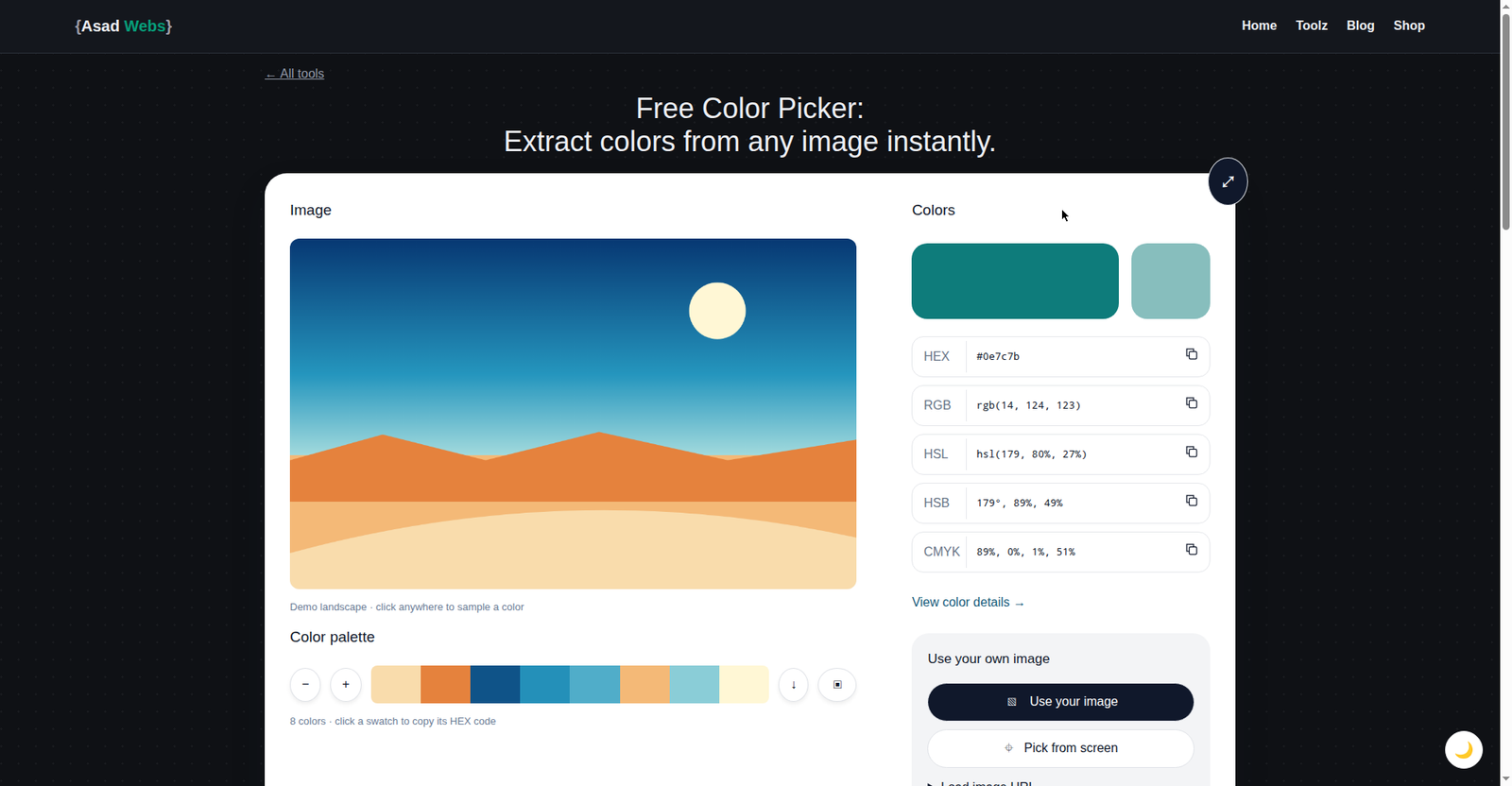
The live color picker with a teal (#0E7C7B) inspected: RGB, HSL, HSB and CMYK side by side — the same values the palette sections below are built from. Click the preview to open the tool and inspect a colour from your own image.
Picking a colour from a website
Websites do not hand you their image files, but the screenshot method works on any site, in any browser. Open the page, take a screenshot of the part you like (on Windows, Windows key + Shift + S; on a Mac, Cmd + Shift + 4), then paste or upload that screenshot into the picker and click the colour you want. On desktop Chrome and Edge there is also a built-in eyedropper inside the developer tools' colour panel, but the screenshot route works everywhere — including on a phone, where developer tools do not exist. Once you have the value, you can reuse that colour in your own site, slides or social graphics so everything matches.
Privacy note: a browser-based picker processes your image on your own device. Nothing is uploaded to a server, so it is safe to use with client logos, unreleased product photos and other images you would not want to send to a random website.
Which value should you copy? HEX, RGB or HSL
The picker gives you the same colour in several notations. Which one you need depends on where the colour is going:
| Format | Best for | Example |
|---|---|---|
| HEX | Websites and CSS, design-tool swatches, sharing a colour in an email or brief | #0E7C7B |
| RGB | Design software, presentation tools, anywhere you set red, green and blue channels separately | rgb(14, 124, 123) |
| HSL | Adjusting a colour by eye — making it lighter, darker or more muted while keeping the same hue | hsl(179, 80%, 27%) |
A useful rule of thumb: copy HEX for anything web-related, because it is compact and unambiguous. Use HSL when you like a colour but need variations of it — keep the first number (the hue) fixed and move only the lightness slider, and you get a family of shades that automatically harmonise.
Building a whole palette from one picked colour
One colour is rarely enough for a design. Once you have a hero colour, colour harmonies tell you which companion colours to pair with it. They are all based on positions around the colour wheel:
| Palette | Base colours | How it works |
|---|---|---|
| Monochromatic | 3 | One hue, varied by lightness — calm, safe, very tidy |
| Analogous | 3 | Neighbours on the wheel — natural, low-contrast, good for backgrounds |
| Complementary | 2 | Opposites on the wheel — maximum contrast, great for buttons and calls to action |
| Split-complementary | 3 | A colour plus the two neighbours of its opposite — contrast with less tension |
| Triadic | 3 | Three colours evenly spaced — bold and balanced, common in branding |
| Tetradic | 4 | Two complementary pairs — rich, but needs one colour to dominate |
Colours in common harmony palettes — hover or tap each bar for details.
Worked Example: Pulling a Whole Palette Out of One Logo File
Here is the process end to end, on a typical job: a café has only a JPG of its logo — no brand guidelines, no designer to ask — and needs matching colours for a menu board and a simple website. Four samples, each taken from the flattest, most central pixel of its area, produce the whole working palette:
| Role | Sampled from | HEX | RGB |
|---|---|---|---|
| Primary | The logo's main teal shape | #0E7C7B | rgb(14, 124, 123) |
| Text | The lettering | #22303C | rgb(34, 48, 60) |
| Background | The logo's cream field | #F7F3EA | rgb(247, 243, 234) |
| Accent | A small tomato-red icon | #D95D39 | rgb(217, 93, 57) |
Two checks turn those four readouts into a palette you can trust. First, consistency: sample each flat area in three different spots. If the three readouts agree exactly, the file is clean; if they wobble by a digit or two, the JPG has been re-saved and you take the most common value. Second, contrast: the charcoal text on the cream background measures about 12.2:1, comfortably readable at any size; white text on the teal measures about 5.0:1, which is why the teal works for buttons; the coral measures about 3.4:1 on the cream, so it stays an accent for icons and large headings, never body text. The whole job — sampling, checking, assigning roles — takes a few minutes, and the café now has values it can hand to any printer, developer or sign-writer and get the same colours back.
Matching brand colours accurately
Sampling a logo is the fastest way to recover a brand colour, but a few things can quietly shift the result. JPEG compression adds noise, so a logo that has been re-saved many times may read a shade or two off from the original. Gradients and drop shadows mean the "same" logo contains dozens of colours — always sample the flattest, most central area. And screens differ: the value you pick is exact, but it may look slightly warmer or cooler on another monitor. For screen work that is fine. For print, treat the picked HEX as a starting point and confirm the final colour with the brand's official guidelines or a printed proof.
Watch the edges: pixels on the border between a logo and its background are anti-aliased — a deliberate blend of the two colours. Clicking there gives you a muddy in-between value that matches neither. Always sample well inside the shape.
Why Two Pickers Sometimes Read the Same Image Differently
Occasionally two tools — or the same tool on two devices — report slightly different values for what looks like the same click. Three causes explain almost every case. The first is the click itself: zoom levels differ, and a pixel that looked safely inside the shape on one screen was on the anti-aliased edge on the other. Zoom right in and sample again before blaming the tool.
The second is colour profiles. Images can carry an embedded profile (sRGB is the web standard; photos from newer phones may use a wider profile), and software that ignores the profile shows and samples the raw numbers slightly differently from software that honours it. For web work the safe habit is simple: treat sRGB as the reference, and if a value matters, share the HEX itself rather than a screenshot of it — a screenshot can be re-interpreted by every screen it crosses, a number cannot.
The third is the image changing between reads: a messaging app or social platform that re-compressed the file, a screenshot taken at a different display scaling, or a transparent colour sampled over a different background. When a colour really matters, go back to the earliest, least-processed copy of the file you can find, and sample that.
Five Colour-Picking Mistakes That Quietly Ruin a Match
- Sampling the edge pixel. Border pixels are anti-aliased blends of the shape and its background. The readout matches neither colour, and everything built on it looks subtly wrong. Always sample well inside the flattest area.
- Working from a re-saved copy. A logo that has been through a messaging app or a social platform carries compression noise in every flat area. Sample the earliest copy you can find — ideally the file the designer originally sent.
- Picking from a photograph for a brand colour. Photos record light, not paint: the same wall reads three shades across one picture. Photos are perfect for mood palettes; brand values come from flat artwork — a logo, a swatch, a product render.
- Describing the colour instead of sending the value. "The teal from the logo" looks different on every screen it is described to. Send the HEX. The number is the colour; the screen is only a preview of it.
- Sampling a gradient or a shadow as if it were flat. A gradient contains every value between two colours, and a shadowed area is the base colour darkened by the lighting. If the design underneath is a gradient, sample both ends deliberately and record both values.
Ready to try it? Open the free colour picker, drop in a photo or screenshot, and click the colour you have been trying to describe as "that greeny-blue". Building a full page around your new palette? Our image compressor keeps the page fast, the QR code generator can carry your colours into print, and the Asad Webs blog has more free-tool guides like this one. Start with ours on choosing a website colour palette — it turns one picked colour into a complete scheme.
Found a colour you love and want a website built around it? Book a free consultation — send us the colour and we will show you how it can anchor a complete, professional design.
Frequently Asked Questions
Can I pick a colour from a photo on my phone?
Yes. Open the picker in your phone's browser, add the photo from your gallery or take a screenshot of whatever is on screen, and tap the colour you want. The HEX, RGB and HSL values work exactly the same as on a desktop.
Is the colour I pick exact?
It is exact for the pixel you clicked. Bear in mind that compressed images and anti-aliased edges contain blended pixels, so for logos and flat graphics, sample the middle of a solid area. That gives you the colour the designer actually used.
What is the difference between the HEX and RGB values?
Nothing in meaning — they are two notations for the same colour. HEX packs the red, green and blue amounts into a short code like #0E7C7B for use in web code, while RGB lists them as three numbers, rgb(14, 124, 123), which design tools often prefer.
Can I pick a colour from a website without taking a screenshot?
On desktop Chrome and Edge, yes — the developer tools include an eyedropper that can sample anything on the page. The screenshot method in this guide works in every browser and on mobile, which is why we recommend it as the universal approach.
Is my image uploaded anywhere when I use the picker?
No. The picker runs entirely in your browser, on your device. Your image is never sent to a server, which makes it safe for client work and unreleased designs.
Why does the same colour look different on my phone and my monitor?
Because screens render colours with different brightness, calibration and colour profiles, while the underlying value is identical. That is normal and mostly harmless — but it is exactly why professionals share the HEX value rather than a screenshot when a colour has to match somewhere else.
Can I pick a colour from a PDF or a document?
Yes, indirectly: open the document, display the page at a large size, take a screenshot of the area you want, and pick from the screenshot. The value you get describes the rendered page you sampled, which for matching on-screen colours is precisely what you need.
Be the first to share a useful question or thought.