
To convert an RGB colour to CMYK, enter its values into the free RGB to CMYK converter and it returns the four ink percentages your printer needs — for example, the bright screen blue RGB(0, 114, 206) becomes C100 M45 Y0 K19. Converting before you print matters: screens build colour from light, presses build it from ink, and a colour that glows on your monitor can come off the press dull, dark or shifted. This guide explains the maths in plain language, works through real examples step by step, and finishes with the checklist professional designers run before sending anything to print.
RGB and CMYK in plain terms
RGB is additive. Your screen mixes red, green and blue light, and the more light it adds, the brighter the colour — add all three at full power and you get white. It is a system built for glowing rectangles, and it can produce very bright, saturated colours, especially blues, greens and neon tones.
CMYK is subtractive. A press lays down cyan, magenta, yellow and black ink on paper. Each ink absorbs (subtracts) some of the light bouncing off the sheet, so the more ink, the darker the result. Paper cannot glow, which means the CMYK colour range — its gamut — is smaller than RGB's. Conversion is the process of finding the closest printable colour, and for out-of-gamut colours "closest" can be visibly different.
Tool preview: the converter running a real blue
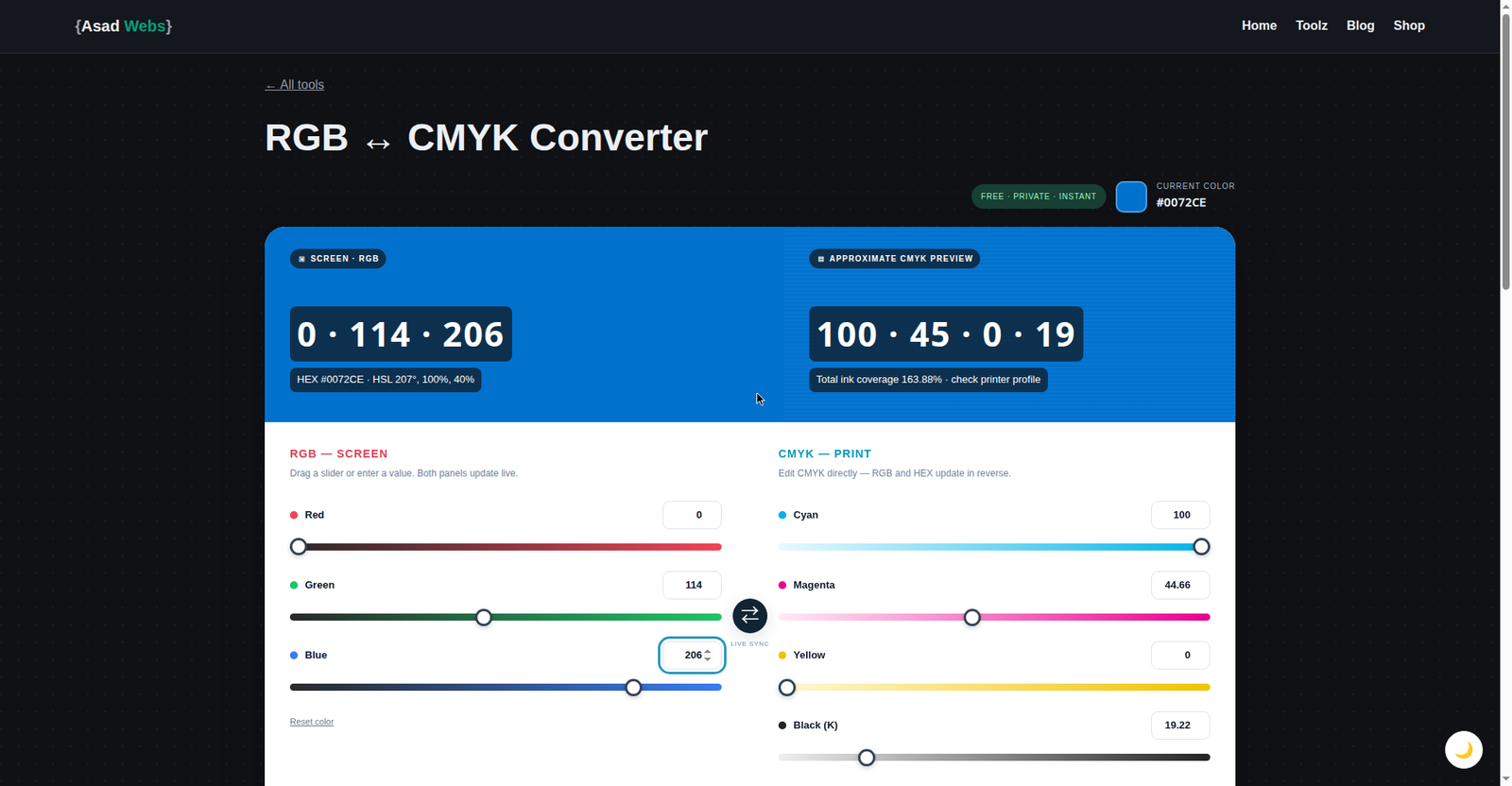
The live converter doing the trip this guide explains: RGB 0, 114, 206 becomes HEX #0072CE and CMYK 100%, 44.66%, 0%, 19.22% — and the same panel converts back from CMYK to RGB. Click the preview to open it and run your own colour.
The conversion formula, step by step
The standard formula is simple arithmetic, and the converter above runs exactly these steps. First, divide each RGB value by 255 to get numbers between 0 and 1. Then:
- Find K (black): K = 1 − the largest of the three values. Black ink replaces the grey component shared by all three colours.
- Find C, M and Y: for each colour, subtract that colour and K from 1, then divide by (1 − K). So C = (1 − R − K) ÷ (1 − K), and likewise for M and Y.
- Multiply by 100 to get the percentages a printer works with.
Worked through for the bright blue RGB(0, 114, 206): dividing by 255 gives R 0, G 0.447, B 0.808. The largest value is 0.808, so K = 1 − 0.808 = 0.192, about 19%. Then C = (1 − 0 − 0.192) ÷ (1 − 0.192) = 100%, M = (1 − 0.447 − 0.192) ÷ 0.808 ≈ 45%, and Y = 0%. The chart shows the result:
Bright blue RGB(0, 114, 206) converted to CMYK — hover or tap each bar for details.
Notice the missing yellow: this blue is built purely from cyan and magenta plus a little black for depth. Run the same steps for a strong brand red, RGB(228, 0, 43), and you get the mirror image — no cyan at all, full magenta, and a heavy dose of yellow:
Brand red RGB(228, 0, 43) converted to CMYK — hover or tap each bar for details.
Worked examples at a glance
| Colour | HEX | RGB | CMYK |
|---|---|---|---|
| Bright blue | #0072CE | 0, 114, 206 | 100, 45, 0, 19 |
| Brand red | #E4002B | 228, 0, 43 | 0, 100, 81, 11 |
If you already have a HEX value and want its RGB numbers before converting, the free colour picker shows HEX, RGB and HSL together and lets you nudge a colour until it sits safely inside the print range.
Worked Example: Converting a Brand Green, Step by Step
The two charts above were converted by the tool. Here is one done by hand, slowly, so the formula stops being abstract. Take a brand green, RGB(0, 150, 90) — the kind of colour a landscaping or health brand might use. Step one, divide by 255: R 0, G 0.588, B 0.353. Step two, find K: the largest value is G at 0.588, so K = 1 − 0.588 = 0.412, about 41% black. Step three, each ink in turn. Cyan: (1 − 0 − 0.412) ÷ (1 − 0.412) = 0.588 ÷ 0.588 = 100%. Magenta: (1 − 0.588 − 0.412) ÷ 0.588 = 0 ÷ 0.588 = 0%. Yellow: (1 − 0.353 − 0.412) ÷ 0.588 = 0.235 ÷ 0.588 ≈ 40%.
So the green prints as C100 M0 Y40 K41. Read it back and it makes sense: full cyan plus a strong dose of yellow is exactly how presses build green, magenta would only dull it, and the heavy black component explains why this green prints deeper and moodier than it glows on screen. Whenever a conversion surprises you, decompose it like this — the four numbers always tell you why the colour moved.
Why prints look duller — and what to do about it
Three things conspire against you. First, the gamut gap: vivid screen blues, greens and oranges often have no CMYK equivalent, so conversion substitutes a flatter neighbour. Second, paper is not a light source — even a perfect match looks less luminous than the same colour glowing on a monitor. Third, uncoated paper absorbs more ink, muting colours further.
The fixes are practical: design print work in CMYK from the start so you only choose colours that exist in print; soften-proof in your design software to preview shifts while you can still adjust; and order a printed proof for anything brand-critical. Expecting the shift is most of the battle — designers who convert early are rarely surprised.
Tip: if a brand colour must survive print, slightly reduce its brightness and increase its contrast in the CMYK version. The eye reads contrast as vibrancy, so a deeper, cleaner colour often looks "brighter" on paper than a washed-out exact conversion.
Rich black: the recipe that saves large dark areas
Converting pure screen black, RGB(0, 0, 0), gives C0 M0 Y0 K100 — 100% black ink only. On a small headline that is fine, but across a large background it prints as a washed-out dark grey, because one thin layer of ink cannot fully cover the sheet. Printers instead use rich black: a commonly used recipe is C60 M40 Y40 K100, where the supporting inks deepen the black into a solid, neutral darkness. Recipes vary by printer and paper, so confirm yours before the run. And keep small text at K100 only — four inks never align perfectly, and tiny type set in rich black can look fuzzy.
Total Ink Coverage: The Number Nobody Checks
Add the four percentages of any colour together and you get its total ink coverage — how much ink lands on each square of paper. The rich black recipe above, C60 M40 Y40 K100, totals 240%. That sum matters because paper can only absorb so much: too much ink and colours go muddy, dark areas fill in, and sheets dry slowly or mark each other in the stack. Printers therefore set a coverage ceiling for each stock — coated papers tolerate more, uncoated and newsprint considerably less — and artwork over the ceiling gets flagged or silently darkened.
The practical habit: when a design has large dark photographs or deep brand backgrounds, check the total in your design tool before export, and ask the printer for their ceiling for your stock rather than assuming one. Rich black at 240% is a sensible default precisely because it sits comfortably under most ceilings while still printing deep.
Print-ready checklist
- Convert all colours — and images — to CMYK in the final artwork, not at the printer.
- Set images to 300 DPI at the size they will actually print.
- Ask your printer which CMYK output profile they want (for example a FOGRA or GRACoL standard, or their house profile) and export the PDF with it.
- Use rich black for large dark areas, plain K100 for small text.
- Order a printed proof on the real stock for brand colours. If your artwork starts as images, assemble the pages with the image to PDF maker — but send the printer a proper print PDF from your design tool whenever you can.
Watch out: the most common print disasters are converting at the last minute and discovering your hero blue has gone flat, sending an RGB PDF and letting the printer's software convert it blindly, and judging the result on an uncalibrated screen. Every one of them is avoided by converting early and proofing on paper.
The Reverse Trip: When Someone Hands You CMYK Values
Conversion also runs backwards. A printer, an agency or an old brand-guideline PDF hands you CMYK values, and your web team needs the screen version. The maths inverts: each RGB channel is 255 × (1 − ink) × (1 − K). Run it for this guide's bright blue in its printed form, C100 M45 Y0 K19: red is 255 × 0 × 0.81 = 0, green is 255 × 0.55 × 0.81 ≈ 114, and blue is 255 × 1 × 0.81 ≈ 207 — giving RGB(0, 114, 207), within a single point of the RGB(0, 114, 206) the colour started as. That one-point drift is rounding, not error: the published CMYK percentages were rounded to whole numbers, and a rounded value cannot remember the exact original.
Two expectations to set. First, a reverse conversion recovers the screen approximation of the printed colour — perfect for websites and documents, which is what it is for. Second, it cannot resurrect an out-of-gamut original: if the colour began life as a neon screen colour that print flattened, the reverse trip gives you the flattened version back. The converter linked in this guide runs in both directions, so whichever values you are handed, you can get the other set in seconds.
Five RGB-to-CMYK Mistakes
- Converting at the last minute. The conversion is not the problem — discovering it at deadline is. Convert while you can still adjust the design, and the gamut shift becomes a choice instead of a surprise.
- Letting the printer's software convert blindly. An RGB PDF sent to a printer still gets converted — by default settings you did not choose. The same file, converted by you with the printer's profile, keeps the shifts under your control.
- Setting small text in rich black. Four inks on small letterforms invite misregistration fuzz. Body text and fine print stay K100 only; rich black is for areas, not type.
- Judging print colours on an uncalibrated screen. A bright, cool monitor flatters every colour. Soft-proof in CMYK, then judge a printed proof on the real stock under ordinary light.
- Ignoring total ink coverage. Deep colours that sum past the stock's ceiling print muddy and dry badly. Add the four numbers for your darkest colours before export.
Convert your colours now: enter any RGB value in the free RGB to CMYK converter and get print-ready percentages in seconds — it shows the HEX alongside, and converts back from CMYK to RGB when you need the screen version. For more image and colour guides, browse the Asad Webs blog.
Sending a website design to print — or printing for a brand? Colour conversion mistakes are expensive at the printer. Book a free consultation — we prepare brand colours with print-accurate CMYK values documented from the start.
Frequently Asked Questions
Is RGB to CMYK conversion exact?
The maths is exact, but the colour match is not always: colours inside the CMYK range convert faithfully, while vivid screen colours outside that range are replaced by the nearest printable colour. That substitution — not the formula — is where the dulling happens.
Why did my bright blue turn dull or purplish in print?
Bright screen blues sit near the edge of, or outside, the CMYK gamut. To print them, the conversion leans on cyan and magenta, and the magenta can pull the result toward purple while the loss of screen brightness makes it look flat. Soft-proofing in CMYK while you design lets you steer the colour before it reaches paper.
Should I use rich black for text?
No — keep small text at K100 only. Rich black (such as C60 M40 Y40 K100) is for large backgrounds and panels; four inks on tiny letterforms can misalign slightly and make type look blurred.
Can I convert a JPG to CMYK for print?
Yes, image editors and many converters can convert a JPG's colour mode to CMYK, and you should do it yourself rather than letting the printer's software guess. Remember the resolution rule too: the image needs roughly 300 DPI at its printed size to stay sharp.
Does converting to CMYK change how my design looks on screen?
The CMYK file will look slightly duller on screen, because it only contains colours a press can print — that is the point. Keep your RGB master for web use and treat the CMYK version as the print edition of the same design.
What is total ink coverage, and why does it matter?
It is the sum of a colour's four percentages — the rich black in this guide totals 240%. Paper absorbs a limited amount of ink, so printers cap coverage per stock. Colours over the cap print muddy, fill in shadow detail and dry slowly, which is why the total is worth checking on dark designs before export.
My printer gave me CMYK values — how do I get RGB or HEX for our website?
Convert the values in reverse: each RGB channel is 255 × (1 − ink) × (1 − K), and the converter on this site runs in that direction too — enter the CMYK percentages and read off the RGB and HEX. Expect the result to sit within a point or two of any original, because the CMYK percentages were rounded when they were published.
Be the first to share a useful question or thought.