
You can convert a PDF to PNG online for free in a couple of minutes: open the free PDF to PNG Converter, add the PDF, set the rendering resolution, and download one PNG per page. Pick PNG over JPG when the page is mostly text, line art, diagrams or a design asset — anywhere a faint compression fuzz around the edges would be visible and unwelcome.
JPG earns its size savings by approximating; on photographs nobody notices, but on black text against white paper, on charts and on logos taken from a brand PDF, that approximation shows up as a faint grey halo. PNG stores the rendered page exactly, so a certificate stays certificate-crisp and a diagram's thin lines stay solid. The cost is real — PNG pages are several times larger — so this guide is honest about when the cost is worth paying and when it is not.
PDF to PNG in 4 Steps
- Open the converter. Go to the PDF to PNG Converter in your browser — no sign-up, files processed on your device.
- Add the PDF. Drag the file in and note the page count; every page becomes its own PNG.
- Set the resolution. 200 DPI for screen and design placement, 300 DPI for print or heavy zoom, 150 DPI only for thumbnails and previews.
- Download and inspect. Zoom into the smallest text and the thinnest lines at 100% — they should be perfectly clean, with no halo.
Tool preview: a PDF page becomes a PNG
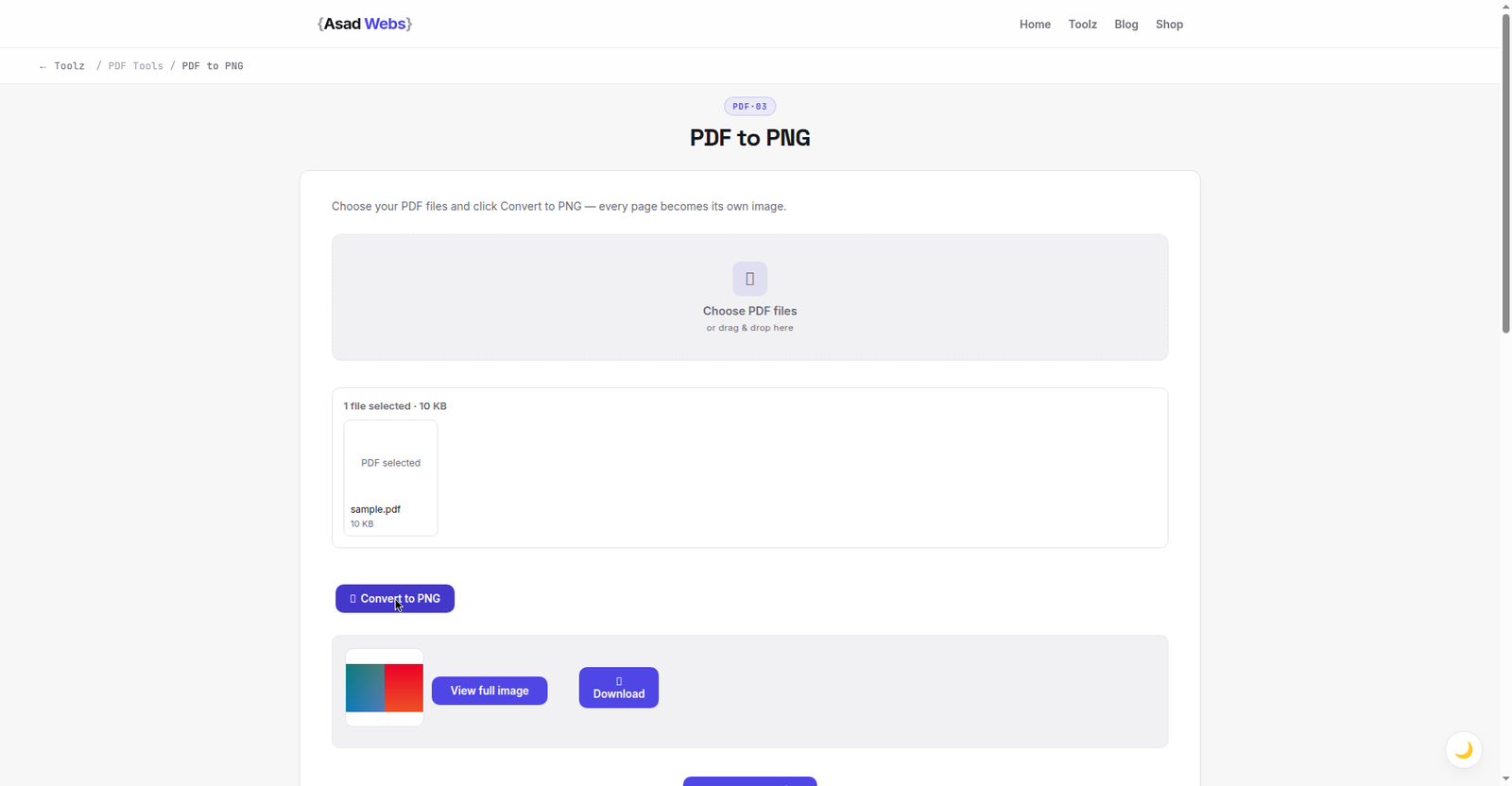
The live converter with a PDF page already turned into a clean PNG, ready to download. Click the preview to convert your own PDF.
Why Designers Reach for PNG
Three jobs dominate PDF-to-PNG conversion. First, extracting assets: a logo page from a brand-guidelines PDF, an icon sheet, a chart from a report — content a designer needs inside another layout, where JPG's artefacts would contaminate the new design. Second, documentation and support: screenshots of rendered pages for manuals and help articles, where readers zoom in and fuzz reads as sloppiness. Third, print preparation at 300 DPI, where the PNG is a faithful intermediate on the way to a press-ready file.
In all three, the viewer gets close to the pixels. That is PNG's home ground. Where the viewer stays at arm's length — a photo page in a slide deck, a catalogue page on a phone — JPG's savings win and our PDF to JPG guide is the better route.
One A4 text page at 300 DPI by format (MB, illustrative) — hover or tap each bar for details.
Worked Example: Pulling One Clean Chart out of a Long Report
A consultant needs a single chart from a 60-page market report inside a client presentation. Converting all 60 pages at 300 DPI would produce roughly 250 MB of PNGs to use exactly one image, so the workflow runs the other way: convert, then keep only the page carrying the chart — page 17 — and delete the rest.
The numbers explain the choices. An A4 page at 300 DPI renders at about 2,480 × 3,508 pixels, and the chart page comes out at just under 5 MB — large, but irrelevant, because the file that matters is the crop. Cropped to the chart area (about 2,200 × 1,400 pixels) and placed in the deck at 1,200 pixels wide, the gridlines stay one clean pixel wide and the axis labels stay readable when the slide is projected. The same page rendered at 150 DPI to "save space" would give a crop of roughly 1,100 × 700 pixels for the full page — already below the placed width before cropping, so the chart would arrive in the deck pre-softened. The lesson generalises: render for the largest size the image will actually be shown, crop hard, and let the unused pages go.
The Size Bill, Itemised
PNG's exactness is priced in megabytes. A single A4 text page rendered at 300 DPI is commonly 3–6 MB as PNG against well under 2 MB as a good-quality JPG; a 20-page document can pass 100 MB as PNGs. That is fine for design hand-offs and archives, and a problem for email and capped upload portals. Plan the DPI down to the real need: halving DPI quarters the pixels, and design placement at final size rarely needs 300.
| Use | Recommended DPI | Typical A4 PNG size | Notes |
|---|---|---|---|
| Thumbnail / preview | 150 | ≈0.8 MB | For listings and quick looks only |
| Design placement, screen | 200 | ≈2 MB | The working default for most design jobs |
| Documentation readers will zoom | 250–300 | ≈3–5 MB | Keeps small print legible |
| Print intermediate | 300 | ≈4–6 MB | Match the printer's requested resolution |
Text, Lines and the Halo Test
There is a five-second test that tells you whether a page needed PNG: open the JPG version (if you made one) at 200% zoom and look at small black text on white. A faint dirty shadow hugging the letters is JPG compression, and on professional documents it is the visual equivalent of a typo. PNG has none of it — edges are the exact pixels the PDF rendered. Charts benefit the same way: gridlines stay one clean pixel wide instead of smudging, and flat colour areas stay flat instead of mottling.
The same logic explains why screenshots and interface captures should travel as PNG through your whole workflow, and why the reverse journey — images assembled into a PDF — should start from PNG sources when the pages are text and diagrams. Each lossy step in a chain adds its own artefacts; keeping text lossless until the final delivery format keeps the chain clean.
Colour and Greyscale: Why Some Pages Convert Differently
Two pages from the same PDF can produce surprisingly different PNGs. A page built for print may carry CMYK colours, which the converter renders into the RGB colours a screen can show — close, but occasionally a deep print blue or a rich black lands slightly differently on screen than it did on paper. That is a rendering reality, not a conversion error: if the PNG is heading back into a print workflow, judge colours from a proof, not from the screen copy.
Greyscale and text-only pages sit at the other extreme. With no colour information to store, their PNGs are far smaller than a colour page at the same DPI — one reason scanned documents and certificates convert so economically. And a page that mixes a large photograph with text follows the photograph's rules for size: the photo's millions of distinct colours are what PNG must store exactly, which is why photo-heavy pages are the ones that belong in the JPG route instead.
After Conversion: Placing PNG Pages Well
A converted PNG placed into a website, document or design still needs sizing discipline. Placed at its natural pixel size it will look perfect; scaled up it softens exactly like any raster image, so export at or above the largest size it will be shown. On websites, follow the same optimisation habit as any image — the guide to compressing images without losing quality covers resizing to display size, which for PNG pages usually matters more than compression settings. And if a page eventually needs a transparent background for compositing, start from the PDF's vector content in a design tool rather than trying to knock out a white PNG background — the rendered page's background is baked into its pixels.
All of the document converters mentioned here live together on the free tools page, alongside the image converters and calculators.
Five PDF to PNG Mistakes That Waste Time or Quality
- Rendering everything at maximum DPI. A 100-page document at 300 DPI is hundreds of megabytes and a long wait, when the job usually needs three pages at 200. Decide the pages and the DPI first; convert second.
- Putting raw PNG pages on a website. A 4–5 MB page image in a web page undoes every speed optimisation around it. Resize to the display width first — the crispness survives, the megabytes do not.
- Converting photo-heavy PDFs to PNG. Photographs gain nothing from lossless storage at several times the size. If the page is mostly photo, JPG is the right output and PNG is an expensive habit.
- Expecting a transparent background. A rendered page is flattened exactly as it would print, white background included. Transparency lives in the PDF's vector elements, not in the rendered PNG — extract those in a design tool instead.
- Chaining lossy steps afterwards. Saving the PNG as a JPG "for email" and later converting that JPG back for design work bakes the halo in permanently. Keep the PNG as the master and derive throwaway copies from it, never the reverse.
To go further with a PDF — edit text, merge files, add a watermark or set a password — open the free PDF Editor, which handles the full job in your browser.
Preparing documents and assets for a business website? The workflows on the Asad Webs blog cover images, documents and speed in practical terms — start with the converter above for the pages themselves.
Turning PDFs into web images for a catalogue or website? Book a free consultation — we build product and document workflows for online stores, so PDFs become fast, clean web images instead of dead downloads.
Frequently Asked Questions
Why choose PNG over JPG for a PDF page?
PNG is lossless, so text, diagrams and flat colour stay perfectly clean with no compression halo around edges. JPG is smaller and fine for photographic pages; PNG is for pages readers will zoom into or designers will reuse.
Does PNG keep the PDF's transparent elements transparent?
A rendered page is flattened as it would print — page backgrounds included. If you need a transparent asset, extract the vector element in a design tool rather than converting the rendered page.
What DPI do I need for design work?
200 DPI covers most screen design placement; 300 DPI for print or anything that will be zoomed heavily. Every DPI step up multiplies file size, so match it to the real use.
Why are my PNG files so large?
Exact storage of millions of pixels costs space, especially at 300 DPI. If the destination is a screen, re-render at 200 DPI — the file typically drops by more than half with no visible difference at final size.
Can I convert just one page of a long PDF?
Convert the file and keep only the pages you need — the rest can be deleted. Each page is its own PNG, so picking one out is simply a matter of filenames and page order.
Why does my PNG look blurry when I place it in a document or slide deck?
Almost always a sizing issue: the image is being displayed larger than its pixel dimensions, so the program stretches it. Check the placed size against the PNG's actual pixels — an A4 page at 200 DPI is about 1,654 × 2,338 pixels, and it stays crisp at or below that size on screen. Re-render at a higher DPI rather than enlarging the existing file.
How do I make a PNG smaller without losing the crisp edges?
Shrink the pixels, not the quality: resize the PNG down to the largest size it will actually be displayed at, or re-render the PDF page at a lower DPI. Both keep PNG lossless — every remaining pixel is still exact — while cutting the file size far more than any compression setting can.
Be the first to share a useful question or thought.