
You can edit text online for free in your browser in seconds: open the Text Editor, paste or type your draft, tidy it, and copy it out clean. It is the right tool for the jobs a full word processor makes heavy: cleaning a product description copied from a PDF, drafting a caption, checking a word count before pasting into a form with a limit.
A browser text editor earns its place by being instant and private — the text stays on your device, and there is no account, ribbon menu or file format to fight. This guide covers what to use it for, the clean-up jobs that matter most, and the honest limits: when you genuinely do need a full word processor instead.
Edit Text Online in 3 Steps
- Open the editor. Go to the Text Editor — it loads as a clean writing space.
- Paste or write. Bring text in from anywhere: a PDF, an email, a supplier sheet, your notes app. Formatting oddities come with it — the next section fixes the common ones.
- Clean, count and copy. Fix spacing and line breaks, check the word and character count against your target, then copy the text into its destination and proofread it there once, in context.
Tool preview: the editor at work
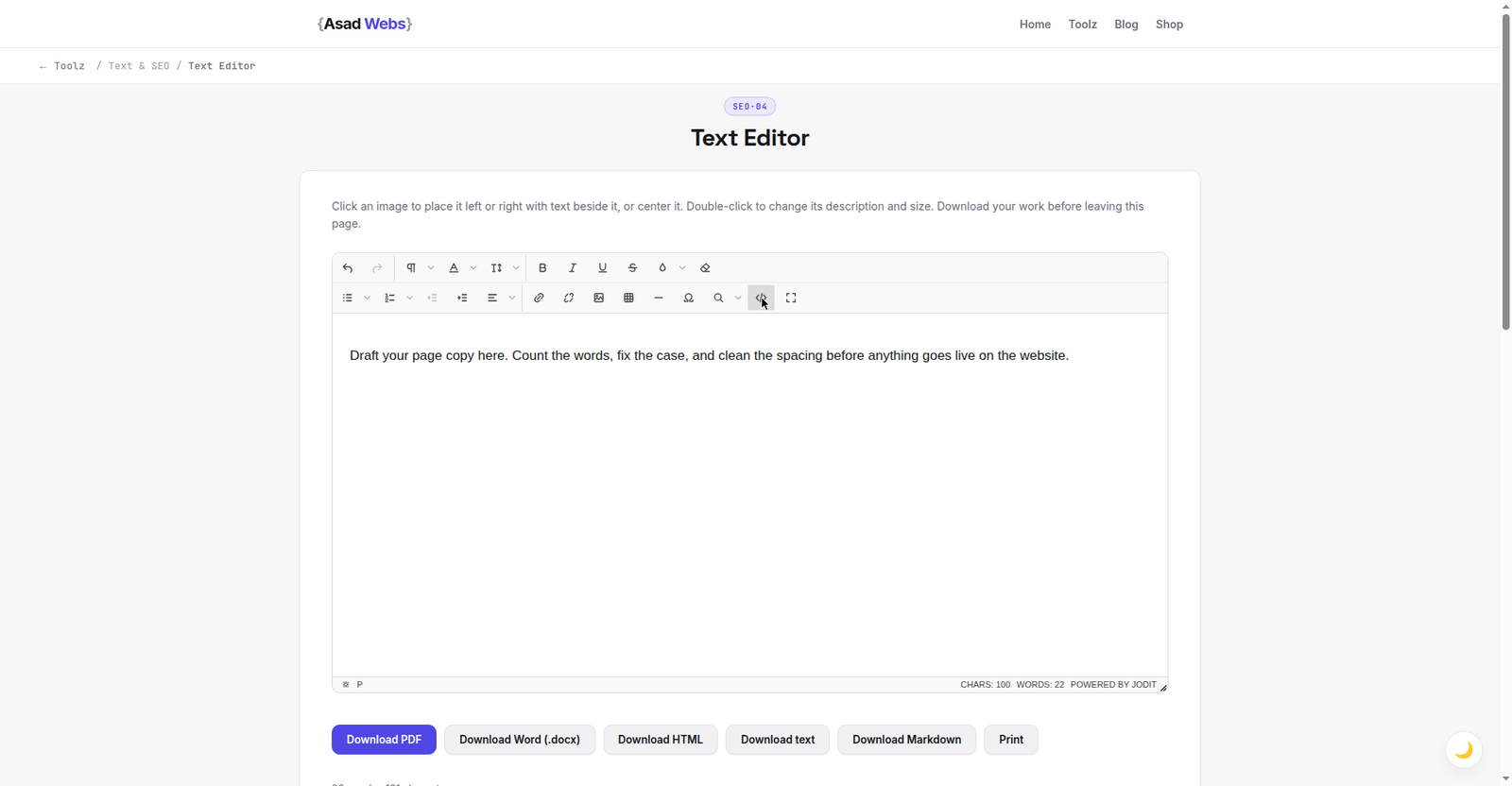
The live editor with a draft paragraph in place — 22 words, 121 characters, counted as you type. Click the preview to open the editor.
The Five Clean-Up Jobs Everyone Meets
Text copied from PDFs and web pages arrives with predictable damage. Hard line breaks split every line mid-sentence — join them so paragraphs reflow properly. Double spaces after full stops and between words look untidy and break exact-match searches. Trailing spaces and empty lines pile up at paragraph ends. Smart quotes and odd dashes pasted from office documents can break forms, code and some CMS fields — plain straight quotes are the safe default for anything technical. And inconsistent case — headings in three styles in one document — is fixed fastest by selecting a case style and applying it uniformly.
Do these passes in order — breaks, spaces, characters, case — and most 'messy draft' problems disappear in a couple of minutes. For case specifically, the dedicated Text Case Converter handles whole lists line by line.
Worked Example: Rescuing a Product Description Copied from a PDF
A supplier PDF gives you this, exactly as copied:
"The Aurora desk lamp features a dimmable
LED panel with three colour temperatures. Its
aluminium arm folds flat for storage, and the
lamp remembers its last setting — so it is “ready
the moment you sit down.”
Four passes fix it. Join the hard line breaks so the sentences reflow. Collapse the double space after "temperatures." to one. Straighten the curly quotes around "ready the moment you sit down" if the text is headed anywhere technical. The result reads as it was meant to:
The Aurora desk lamp features a dimmable LED panel with three colour temperatures. Its aluminium arm folds flat for storage, and the lamp remembers its last setting — so it is "ready the moment you sit down."
Nothing was rewritten — the words are the supplier's. Editing like this is removal, not authorship: you are stripping the damage the PDF format added, which is why it is fast and why it is safe to do even with text you did not write.
Share of everyday writing jobs by type (illustrative) — hover or tap each bar for details.
Word Counts and Character Limits That Actually Apply
Counting is the second job of a text editor, because so much publishing is boxed in by limits. The table lists the ones people hit most. Draft to the limit in the editor rather than in the destination form — forms that silently truncate at the limit have destroyed many carefully written endings, and a pasted-over-limit description in a CMS often loses its call to action first.
For article writing, the count is a planning tool, not a quality score: our own publishing standard is 1,200+ words for a guide like this one because the topic needs it, not because length itself ranks. Write until the subject is covered properly, then check the number.
| Where the text goes | Typical limit | What to watch |
|---|---|---|
| Google meta description | ~150–160 characters shown | Front-load the reason to click |
| Blog article (guide) | 1,200+ words for depth | Coverage matters, not padding |
| Product description | 150–300 words | Benefits first, specs after |
| Social caption | Varies by platform | First line carries the hook |
| Form / application answer | Often 300–500 words | Draft and count before pasting |
Cleaning Text Destined for a Website
Pasting straight from Word or a PDF into a website CMS is the commonest way business pages end up with mystery fonts, odd indents and gaps that no one can explain: the paste carries hidden formatting with it. The reliable routine is to pass the text through a plain editor first. Plain text carries words only — no fonts, no colours, no invisible spacing characters — so the page takes its styling from your site's design, exactly as it should. Add headings, bold and links inside the CMS afterwards, on purpose.
Watch two invisible troublemakers in particular: non-breaking spaces, which glue words together and break lines in strange places on mobile, and copied bullet characters that are actually letters, not list formatting, so they refuse to align. If a paragraph behaves oddly after pasting, retyping that one paragraph from scratch in the editor is faster than hunting the invisible character.
When a Browser Editor Is Not Enough
Be honest about the boundary. Tracked changes and comments for a legal document, complex tables and mail-merge, automatic tables of contents, and offline work on a 200-page manuscript all belong in a real word processor or a collaborative doc tool. A browser editor is for drafting, cleaning and counting text — the 90% of everyday writing jobs that never needed those features.
Privacy is the other consideration, and here the browser tool wins: text edited locally is not uploaded, stored or scanned. For sensitive drafts — HR wording, unreleased pricing, a resignation letter — that is a genuine advantage over cloud documents that sync by default. The rest of the writing toolkit is on the free tools page.
A Simple Drafting Workflow That Works Anywhere
Write the ugly first draft in the editor without formatting — no bold, no headings, just words in order. Read it aloud once; clumsy sentences announce themselves when spoken. Then do the mechanical passes (breaks, spaces, case), check the count, and only at the end paste into the destination and format it there. Separating writing from formatting this way is faster in every tool, and it is why plain-text drafting survives every software fashion. If the destination is a blog post, our keyword density guide shows the final SEO sanity check to run on the finished text.
Five Text-Editing Mistakes That Waste Real Work
- Editing directly inside the destination form. A session timeout or a stray click can erase a long answer with no copy anywhere. Draft in the editor, paste when finished.
- Keeping the only copy in a browser tab. Tabs close, browsers restart, laptops sleep. Finished text belongs in its destination or a document you control — the editor is a workbench, not a drawer.
- Trimming to a limit by cutting the ending. When text must shrink, tighten the middle. Endings carry the call to action and the conclusion; cutting them to satisfy a counter wastes the whole piece.
- Leaving smart quotes in technical text. Curly quotes and long dashes pasted into code, configuration fields, URLs or some CMS inputs can break them silently. Technical text gets straight quotes, always.
- Skipping the in-context proofread. Text that read perfectly in the editor can clash with the page around it — a heading duplicated, a link sentence orphaned. One read in its final place catches what the workspace cannot.
Drafting content for a business website? The Asad Webs blog covers what to write, how long it should be, and how to get it found — once the text itself is clean.
Editing text for a website or product launch? Words are half the build. Book a free consultation — we structure and polish website content as part of every project, so your pages read as well as they rank.
Frequently Asked Questions
Is the online text editor free?
Yes. The Text Editor is free, needs no account, and runs in your browser — your text stays on your device.
Can I see a word count while I edit?
Yes, word and character counts are the core companions of a text editor, which makes it ideal for drafting to a form limit or an article target.
Why does pasted text from a PDF look broken?
PDFs store text as positioned lines, so copying inserts hard line breaks and odd spacing. Joining the lines and normalising spaces in an editor restores normal paragraphs.
Does the editor save my text if I close the tab?
Do not rely on it. A browser editor is a workspace, not storage — copy finished text into its real destination, and keep important drafts in a document you control.
What is the difference between this and the text case converter?
The editor is the general workspace for writing and cleaning text. The Text Case Converter specialises in changing upper/lower/title case across whole texts and lists.
How do I remove line breaks from text copied out of a PDF?
Paste the text into the editor and join the broken lines: delete each mid-sentence break so the paragraph becomes one flowing block, keeping the genuine paragraph breaks (usually shown as a blank line). Then collapse any double spaces the joins leave behind. Long documents are fastest done paragraph by paragraph.
Can I edit text on my phone?
Yes — the editor runs in any modern mobile browser, which makes it handy for drafting a caption, trimming an answer to a character limit, or cleaning text copied from another app before you post it. For long documents a keyboard and a bigger screen still win, but for the everyday jobs in this guide a phone is enough.
Be the first to share a useful question or thought.