
You can convert TIFF to JPG online for free in a couple of minutes: open the free TIFF to JPG Converter, add your .tif or .tiff file, leave quality around 85–90, and download a JPG that opens in any app, email or upload form. The saving is dramatic — a scanned page that weighs 25 MB as TIFF is commonly 1–3 MB as JPG, with no visible difference on screen.
TIFF is the format scanners, archives, print shops and older cameras produce because it stores every pixel faithfully. That faithfulness is exactly the problem for everyday use: files are enormous, many browsers and phones will not open them, and email and web forms reject them. JPG is the universal delivery format. The right workflow keeps both — TIFF as the master you archive, JPG as the copy you actually share.
TIFF to JPG in 4 Steps
- Open the converter. Go to the TIFF to JPG Converter in your browser.
- Add the TIFF file. Drag in the .tif or .tiff file. Very large scans may take a few seconds to load — that is your own device doing the work.
- Set quality. 85–90 is the sweet spot for scans and photos: visually faithful, a fraction of the size. Use 92+ only if the JPG itself is the final deliverable.
- Download and check. Open the JPG at 100% zoom and compare a detailed area — text on a scan, faces in a photo — before you delete or move anything.
Tool preview: 1.14 MB in, 10 KB out
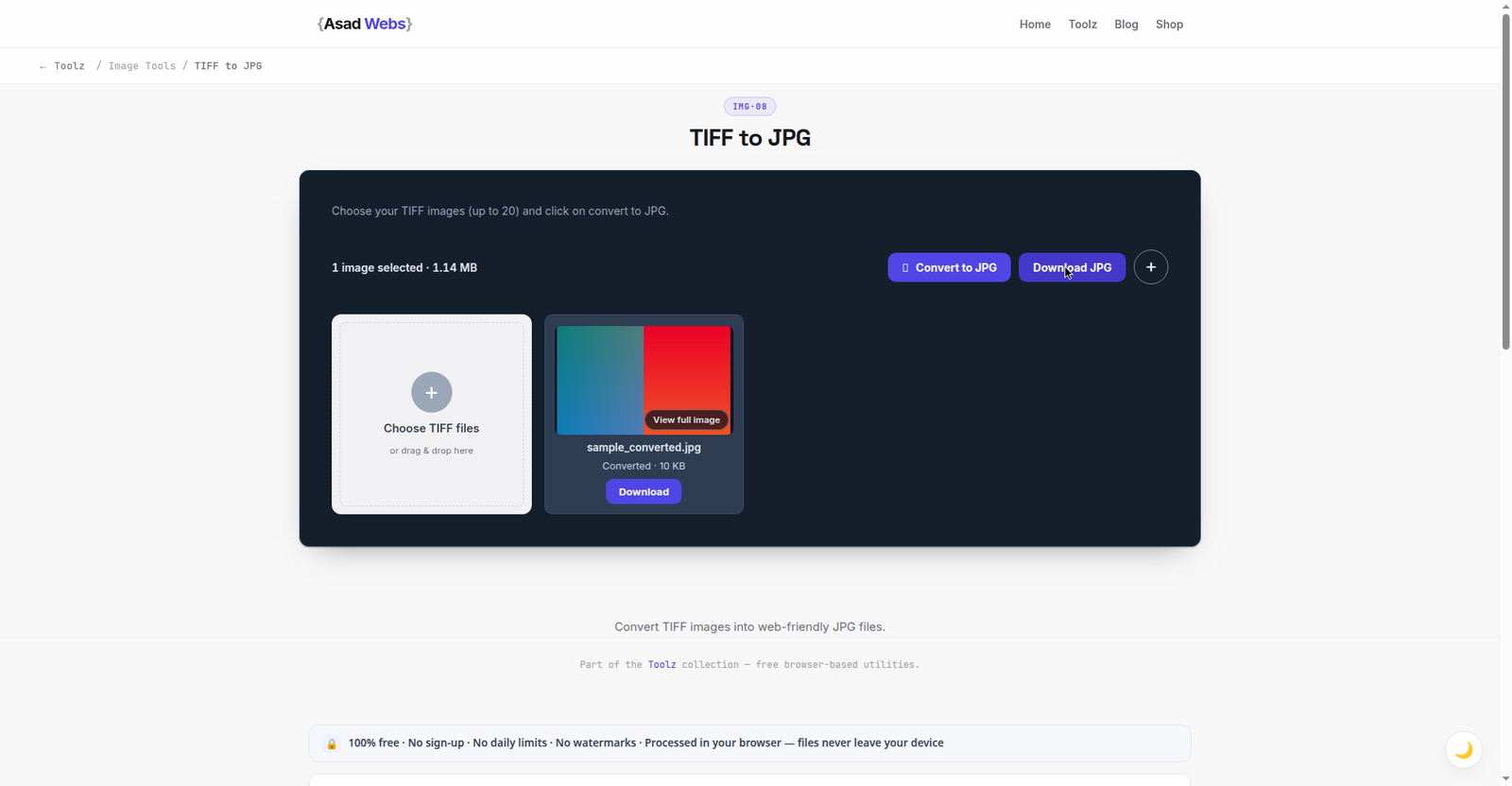
The live converter performing the exact shrink this guide is about: a 1.14 MB TIFF becomes a 10 KB JPG. Click the preview to convert your own TIFF.
Why TIFF Files Are So Big (and Why That Is Sometimes Right)
A TIFF typically stores image data uncompressed or with lossless compression, at high bit depth, sometimes with several pages inside one file. A single A4 page scanned at 300 dpi can be 25 MB or more. Nothing is thrown away — which is exactly what you want for an archive master, a print job or a document you may need to re-process later, because every conversion to JPG discards a little data permanently.
The mistake is not owning TIFFs; it is using them as the everyday format. Send a client a TIFF and their phone may show a blank icon. Upload one to a web form and it is rejected. Convert a JPG copy for delivery and sharing, and keep the TIFF untouched in your archive folder. That two-file habit costs a little disk space and prevents every compatibility headache.
Typical file size before and after conversion, A4 scan at 300 dpi (MB, illustrative) — hover or tap each bar for details.
How Much Smaller Is the JPG, Really?
Savings depend on content: flat scanned documents compress hardest, detailed photographs least. The table and chart below show typical results for common TIFF sources at quality 88. Treat them as planning figures, not guarantees — your files will vary, but the order of magnitude is consistent.
| Source TIFF | Typical TIFF size | Typical JPG (quality 88) | Saving |
|---|---|---|---|
| A4 document scan, 300 dpi | ≈25 MB | ≈1.2 MB | ≈95% |
| Photo scan, 600 dpi | ≈60 MB | ≈5 MB | ≈92% |
| Camera TIFF export | ≈45 MB | ≈6 MB | ≈87% |
| Line-art / drawing scan | ≈8 MB | ≈0.9 MB | ≈89% |
Scanning Settings That Make Conversion Easy (or Hard)
If you control the scanner, the conversion result is decided before the file exists. The settings that matter are resolution and colour mode, and both should follow the document's real destination:
| What you are scanning | Resolution | Colour mode | Why |
|---|---|---|---|
| Documents to read, file or email | 300 dpi | Greyscale (B/W for pure text) | Crisp text at a sane file size; colour doubles weight for no benefit on paperwork |
| Photos you may reprint | 600 dpi | Colour | Print needs the extra data; the TIFF master earns its size here |
| Line art, logos, drawings | 600 dpi | B/W or greyscale | Edges stay clean; JPG artefacts show worst on line art, so keep the master faithful |
| Anything web-only | 200–300 dpi | Colour | Screens will never show more; scanning higher just makes conversion slower |
The commonest waste is scanning plain text documents in full colour at the scanner's maximum resolution: the TIFF balloons to hundreds of megabytes, conversion crawls, and the JPG still has to throw nearly all of it away. Match the scan to the purpose once, and every later step gets easier.
What Happens to Multi-Page TIFFs and Colour?
Many scanners save a whole document as one multi-page TIFF. Browser-based converters normally render the first page, or offer pages one at a time — so after converting, open the JPG and confirm it shows the page you expected. For a long document, the better delivery format is usually PDF: convert each page, or use our guide to combining images into a PDF once your pages are JPGs.
Colour needs one check: TIFFs from print workflows may use the CMYK colour space, while JPGs for screens are RGB. A CMYK scan converted carelessly can look dull or shifted on screen. If your converted photo looks washed out rather than just compressed, colour space is the likely cause — reconvert from an RGB export of the scan if your scanner software offers one. Our explainer on HEX, RGB, CMYK and HSL colour formats shows how to spot the difference.
The Archive Habit: Naming Masters So You Can Find Them
The two-file workflow (TIFF master, JPG delivery copy) only works if future-you can tell which is which at a glance. A naming habit that scales: keep the master and its copies in the same folder, with the same base name and a suffix that states the role — for example 2026-contract-alnoor-master.tif beside 2026-contract-alnoor-web.jpg. Sorts by date, reads in plain language, and nobody emails the 25 MB master by accident because the file names announce themselves.
Two more rules complete the habit: never edit the master (always convert or export a copy and edit that), and keep one copy of the masters folder outside the machine — an external drive or cloud folder — because an archive that exists in one place is a single accident away from not existing. The JPGs are replaceable in minutes; the masters, once lost, mean rescanning everything.
JPG Copies for the Web: One Extra Step
If the JPG is headed for your website, conversion is only half the job — a 6 MB JPG still slows a page down. Resize it to the size it will actually be displayed at, then run it through compression. The workflow in our guide to compressing images without losing quality takes a converted scan or photo down to a web-friendly weight with no visible change. The full set of converters lives on the free tools page.
Five TIFF Conversion Mistakes
- Deleting the TIFF once the JPG looks fine. "Looks fine on screen" is today's test; the print job, the legal dispute or the re-edit next year needs the master. Archive first, delete never (or at least, not the only copy).
- Converting at quality 100 to "keep everything". A quality-100 JPG is still lossy — just bigger. If everything matters, that is the TIFF's job; the JPG's job is efficient delivery at 85–90.
- Expecting every page of a multi-page TIFF in one JPG. A JPG is a single image. Multi-page documents come out one page at a time, or belong in a PDF assembled from the page JPGs.
- Skipping the 100% zoom check. Small previews hide soft text and compression artefacts exactly where scans are weakest. Ten seconds at full size is the whole quality-control department.
- Scanning everything at maximum settings "to be safe". Colour 1200 dpi scans of plain letters create giant files, slow conversions, and no visible benefit. Purpose-matched settings, per the table above, are the safe option.
Working through a backlog of scans or supplier images for a website? The Asad Webs blog has practical guides on image formats, compression and site speed — and the converter above handles the files themselves.
Dealing with print files, scans or a designer's TIFF exports? Book a free consultation — we handle the full image workflow for business websites and print projects, so files arrive ready for either medium.
Frequently Asked Questions
Does converting TIFF to JPG lose quality?
JPG is lossy, so data is discarded — but at quality 85–90 the difference is not visible on screen for scans and photos. Keep the original TIFF as your archive master so you always have the full-quality source.
Why will my phone not open a TIFF file?
Many phones, browsers and email apps simply do not support TIFF, especially multi-page or high-bit-depth files. A JPG copy opens everywhere, which is why it is the standard delivery format.
My TIFF has several pages. What will I get?
Most browser converters convert the first page or let you pick pages individually. Check the downloaded JPG shows the page you need, and consider PDF if you must deliver the whole document as one file.
What quality setting is best for scanned documents?
Quality 85–90 keeps text edges clean while cutting size by roughly 90% or more. Go lower only for thumbnails or previews, where a little softness does not matter.
Is it safe to convert confidential scans online?
The TIFF to JPG Converter runs in your browser, so the file stays on your device rather than being uploaded to a server — the safer pattern for contracts, IDs and invoices.
Can I convert a TIFF to JPG on my phone?
Yes — the converter runs in your phone's browser, so a TIFF received by email or message can become a shareable JPG on the spot. Very large scans (hundreds of megabytes) may be slow on older phones; for those, a computer is the calmer route.
TIFF or PNG: which should I keep as the master?
Both are lossless, so either preserves quality. TIFF is the traditional master for scans and print work (it carries high bit depth, CMYK and multiple pages), while PNG suits screenshots and graphics and opens in more everyday apps. If your files arrived as TIFF from a scanner or print workflow, keep them TIFF; convert delivery copies as needed.
Be the first to share a useful question or thought.