
You can convert HEIC to JPG online for free in about a minute: open a browser-based converter, upload the .heic file from your iPhone, and download the same photo as a .jpg that opens on any device. HEIC is the space-saving format modern iPhones use by default, storing photos in roughly half the space of JPG — but many Windows PCs, websites and apps still cannot open it. JPG is the universal format that works everywhere. Converting changes the container, not the photograph: it looks the same, just opens wherever you need it.
This guide explains HEIC, walks through conversion step by step using the free HEIC to JPG Converter on this site, and compares the alternatives honestly.
What Is HEIC, and Why Does Your iPhone Use It?
HEIC (High Efficiency Image Container) is the format Apple adopted for iPhone photos from iOS 11 onwards, using modern compression to store photos in far less space than JPG. HEIC also supports extras JPG cannot: transparency, multi-image files (Live Photos, bursts) and a wider colour range.
The trade-off is compatibility. JPG is understood by virtually every device, browser and app ever made. HEIC support has improved — recent Windows and Android versions and most browsers can display it, sometimes only after installing an extension — but it stays unreliable where it matters: website uploads, older PCs, and systems built assuming JPG.
File size of a typical 12MP photo by format (MB, illustrative) — hover or tap each bar for details.
Tool preview: the converter, ready for a batch
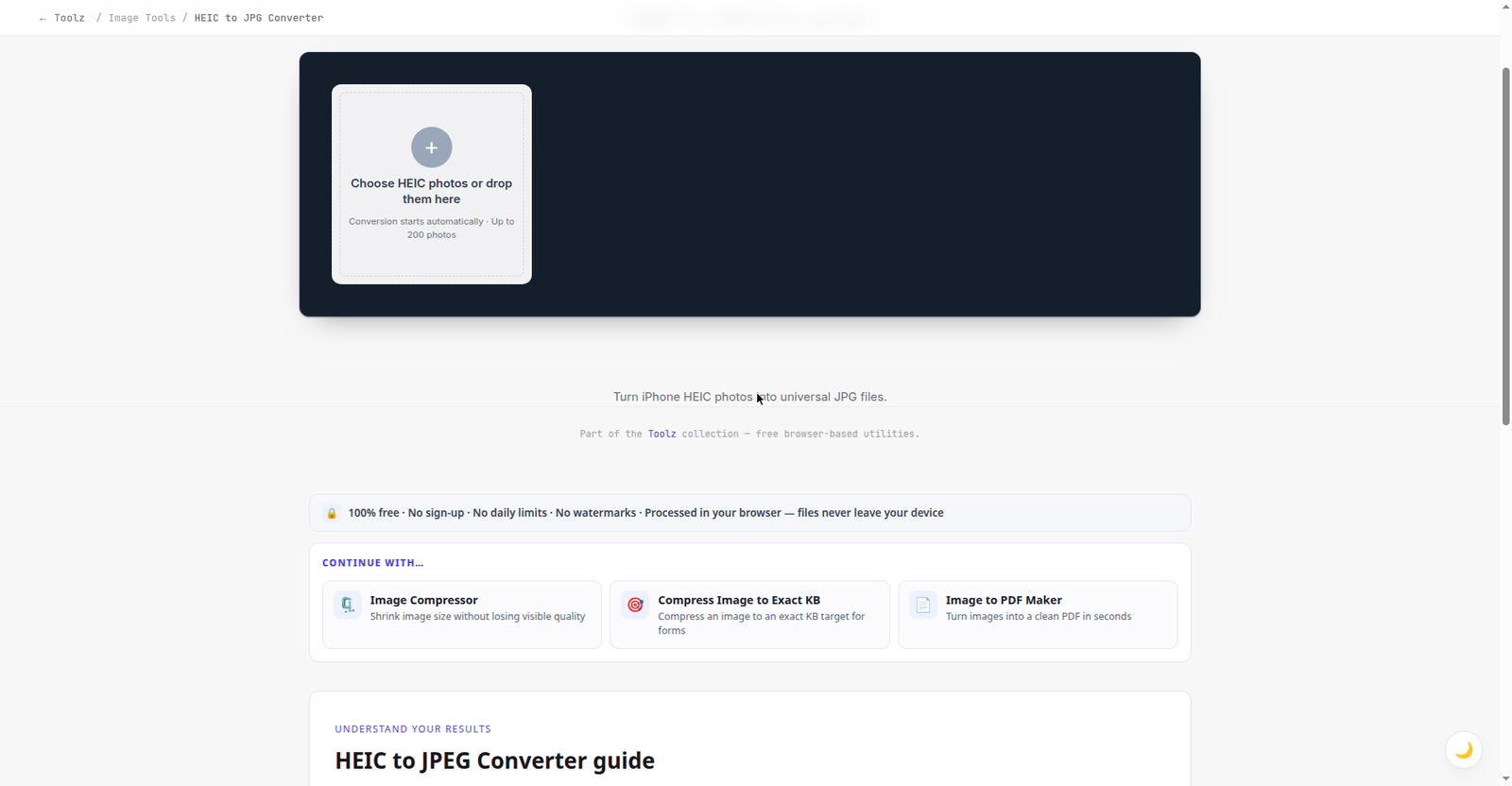
The live converter as you will meet it: drop up to 200 iPhone HEIC photos in one batch and convert them all to JPG. Click the preview to open it.
The Storage Maths: What HEIC Actually Saves You
The chart above gives the per-photo numbers — about 1.9 MB for HEIC against 3.8 MB for JPG on a typical 12-megapixel shot. Multiplied across a real photo library, the gap stops being abstract. A library of 10,000 photos occupies roughly 19 GB as HEIC and 38 GB as JPG: the same photographs, a 19 GB difference. Even a single year of casual shooting — say five photos a day, 1,825 photos — comes to about 3.5 GB in HEIC against about 6.9 GB in JPG.
That arithmetic explains both sides of this guide. On the phone, where storage is finite and photo libraries grow for years, HEIC's efficiency is a genuine feature, not a quirk — it is why Apple made it the default. And it cuts the other way too: converting your whole library to JPG to "fix" compatibility would roughly double its size to solve a problem that only affects the photos you actually share. Convert the travellers, keep the archive in HEIC.
HEIC vs JPG at a Glance
HEIC optimises for storage on your phone; JPG for being openable anywhere.
| HEIC | JPG | |
|---|---|---|
| File size | Small — roughly half an equivalent JPG | Larger, but predictable |
| Compatibility | Native on modern Apple devices; patchy on Windows, the web and older systems | Universal — opens on virtually every device |
| Quality | Excellent at small sizes; wider colour range | Excellent at sensible quality settings |
| Transparency | Supported | Not supported |
| Best use | Storing photos on your iPhone | Sharing, uploading, printing, websites |
Step by Step: Convert HEIC to JPG Online
The online route needs no software or account — just the HEIC file itself. If the photo is still on your iPhone, get it onto your device first (send it to yourself, download from your cloud library, or use a cable), then follow these steps with the free HEIC to JPG Converter:
- Open the converter in any modern browser.
- Add your HEIC file — upload or drag in the .heic (or .heif) photo.
- Convert. Start the conversion; a single photo typically takes a few seconds.
- Download the JPG. Same name, .jpg extension — now opens in any viewer, editor or upload form.
- Check the result. Open the JPG and confirm orientation, colours and sharpness match the original.
The Alternatives, Honestly Compared
An online converter is the fastest option for occasional use, but not the only one — each alternative has a genuine drawback, stated plainly.
| Method | How it works | Strengths | Drawbacks |
|---|---|---|---|
| Online converter (this site) | Upload HEIC, download JPG in the browser | Free, no install, any device, converts existing photos | One or a few files at a time |
| iPhone setting: "Most Compatible" | Settings → Camera → Formats: the iPhone shoots JPG from now on | No conversion needed for future photos | Nothing for existing photos; JPGs use roughly double the storage |
| iPhone automatic transfer | Settings → Photos → "Transfer to Mac or PC" → Automatic converts during copying | Built in and automatic; HEIC originals stay on the phone | Only when transferring to a computer; phone uploads stay HEIC |
| Mac Preview | Open the HEIC in Preview, then File → Export and choose JPEG | Free, built into macOS, good quality control | Mac only; slow for large batches |
| Windows Photos / extensions | Recent Windows can view HEIC once the HEIF/HEVC extensions are installed | Lets you at least view files on a PC | Availability varies by Windows version; viewing is not converting |
Compatibility score by platform for JPG vs HEIC (editorial, 1–5) — hover or tap each bar for details. ■ JPG (navy) ■ HEIC (teal)
Which Method Should You Use?
| Your situation | Best method | Why |
|---|---|---|
| One or a few photos, right now | Online converter | Fastest route to a usable JPG, nothing to install |
| A website or form is rejecting your uploads | Online converter | Convert just the photos you need; keep originals as they are |
| You always share photos with Windows users | iPhone "Most Compatible" setting | Future photos are JPG as you take them |
| You regularly copy photos to your own computer | Automatic transfer setting, or Mac Preview | Conversion happens within a transfer you already do |
| A large archive to convert in bulk | Desktop software | Batch tools suit hundreds of files; web tools suit smaller numbers |
What Happens to Live Photos, Bursts and Your Edits
A HEIC file can hold more than one image, and JPG cannot — so it is worth knowing what a conversion keeps. A Live Photo pairs a still with a few seconds of video; converting gives you the still image as a JPG, and the motion stays behind in the HEIC original. If the moving version matters, that original is the only place it exists. A burst similarly holds a run of frames in one container, and a converter takes the primary frame — for a burst where the best shot is frame three, pick that frame on the phone first and convert that.
Edits follow the same logic. Crops, filters and adjustments you made in the Photos app are part of how the photo is presented, and the version you convert should be the edited one you actually see — if a tool ever shows you an unedited-looking result, export the edited photo from the app first and convert the export. Portrait-mode photos convert to the finished, background-blurred picture you see; the depth information a phone uses to re-adjust the blur does not travel into a JPG. None of this is a flaw in conversion — it is the difference between a container built to hold a small photo system and a format built to hold one picture, everywhere.
Troubleshooting Common Problems
The file will not open anywhere. This is the classic HEIC problem, not a damaged photo. Convert it to JPG and open the copy. If a file fails to convert, check the extension really is .heic or .heif — a renamed file in another format will not convert.
The converted photo is sideways. iPhones store orientation as metadata, which some older viewers ignore. Open the JPG in a current photo app, rotate once and save — the rotation is then baked in and displays correctly.
You have dozens of photos to convert. Work in small batches, keeping JPGs in a separate folder. For very large numbers, use a desktop batch tool (see the decision table).
You are worried about losing quality. A single conversion at a good quality setting is visually indistinguishable from the original for viewing, sharing and typical prints. Quality erodes only through repeated back-and-forth converting, or many edit-and-resave cycles — so keep the HEIC original as your master copy. For a website-bound JPG, run it through the Image Compressor afterwards.
When NOT to Convert
Conversion is for sharing and compatibility, not storage. HEIC originals take up about half the space of JPG versions and hold at least as much quality — the best master copies. Keep them archived, and treat JPGs as copies made when a photo needs to travel — to a website, a Windows PC, a client or a print shop. Deleting HEIC originals after converting is the one move here that cannot be undone.
Five HEIC Mistakes
- Deleting the HEIC originals after converting. The JPG is a copy for travelling; the HEIC is the master. Storage pressure is solved by archiving originals off the phone, not by destroying them.
- Switching the camera setting to fix old photos. "Most Compatible" only changes photos you take from now on. The existing library stays HEIC, and every future photo takes roughly double the storage.
- Sending HEIC files and assuming they open. Emailing a .heic to a Windows user, a school or an office often sends a photo the other side cannot view. When the recipient is not on a modern Apple device, send the JPG.
- Re-converting copies instead of the master. Converting a JPG copy again — or converting a photo that arrived via a messaging app — starts from an already-compressed version. Always convert from the HEIC original.
- Forgetting that metadata travels. A converted JPG typically carries the photo's capture date and, where recorded, its location. That is useful for your own archive and worth checking before posting a photo publicly.
Dealing with phone photos across a whole product catalogue or website? Book a free consultation — we set up image workflows for online stores and business sites so every upload arrives web-ready, in the right format and size.
Frequently Asked Questions
Is it free to convert HEIC to JPG online?
Yes — the converter on this site is free, in your browser, with nothing to install: upload the .heic file, download the .jpg. It suits individual photos and small numbers of files.
Does converting HEIC to JPG lose quality?
A single conversion at a good quality setting produces a JPG that looks the same in normal viewing, sharing and typical print sizes. JPG is lossy, so repeatedly re-saving it degrades it — keep the HEIC file as your original and convert copies as needed.
Why are my iPhone photos saved as HEIC instead of JPG?
Apple made HEIC the default from iOS 11 onwards because it stores photos in roughly half the space. To switch to JPG: Settings → Camera → Formats → Most Compatible — at the cost of more storage per photo.
Can Windows open HEIC files without converting them?
Sometimes: recent Windows versions display HEIC photos once the HEIF and HEVC extensions are installed, though availability varies. Even then, many apps, upload forms and older programs cannot use the files — converting to JPG remains the reliable option.
Can I convert HEIC photos in bulk?
Converting files one after another online is fine for small batches. For hundreds of photos, a desktop program is more practical — and the JPG Converter and other toolbox tools can prepare the files for the web.
What happens to a Live Photo when I convert it?
You get the still photograph as a JPG. The few seconds of video that make it "live" live in the HEIC container and do not carry into JPG — another reason to keep the HEIC original archived rather than deleting it after converting.
Does the converted JPG keep the photo's date and location?
Typically, yes: JPG carries EXIF metadata, and conversions generally preserve the capture date and, where the phone recorded it, the location. That keeps your own library organised — but check a photo's details before sharing it publicly if you would rather not publish where it was taken.
Conclusion
HEIC is a smart format for storing iPhone photos and an awkward one for almost everything else. When a photo must open on any device, upload to a website, or reach someone on Windows, converting to JPG is the fix: upload it to the free HEIC to JPG Converter, download the JPG, keep the HEIC original as your master copy. For more free utilities and guides, explore the Asad Webs blog.
Be the first to share a useful question or thought.