
To convert images to WebP online for free, open our free Image to WebP converter, add your JPG or PNG files, keep the quality setting around 80 if one is shown, and download the converted WebP files. It runs in your browser — nothing to install, no sign-up, and your images are not uploaded to a server. WebP files are typically 25–35% smaller than the same photo saved as JPG at similar quality, so the same pictures weigh roughly a third less on your pages.
Converting to WebP is one of the cheapest speed wins a website owner can make. This guide explains why the format wins on the web, when you should keep JPG or PNG instead, the exact conversion steps, and how to choose a quality setting that keeps photos looking sharp.
Why WebP Wins on the Web
WebP was built by Google specifically for web images. A lossy WebP photo is typically 25–35% smaller than a comparable JPG, and the format also covers the jobs of two other formats: it supports transparency like PNG and animation like GIF. One format can therefore carry your photos, your logos and your simple animations.
That matters because images are usually the heaviest part of a page. If your hero image and product photos lose a third of their weight, the whole page loads sooner — and the hero image is very often the element that decides your Largest Contentful Paint score. Smaller images also mean less bandwidth on every visit, which adds up fast on busy sites, as the second chart below shows.
Typical file size before vs after converting to WebP (KB, illustrative) — hover or tap each bar for details. ■ Before (navy) ■ WebP (teal)
Tip: start with your heaviest images — hero banners and product photos. Converting the ten heaviest files on a page usually delivers most of the total saving, so you do not have to do everything at once.
Tool preview: a PNG becomes a WebP
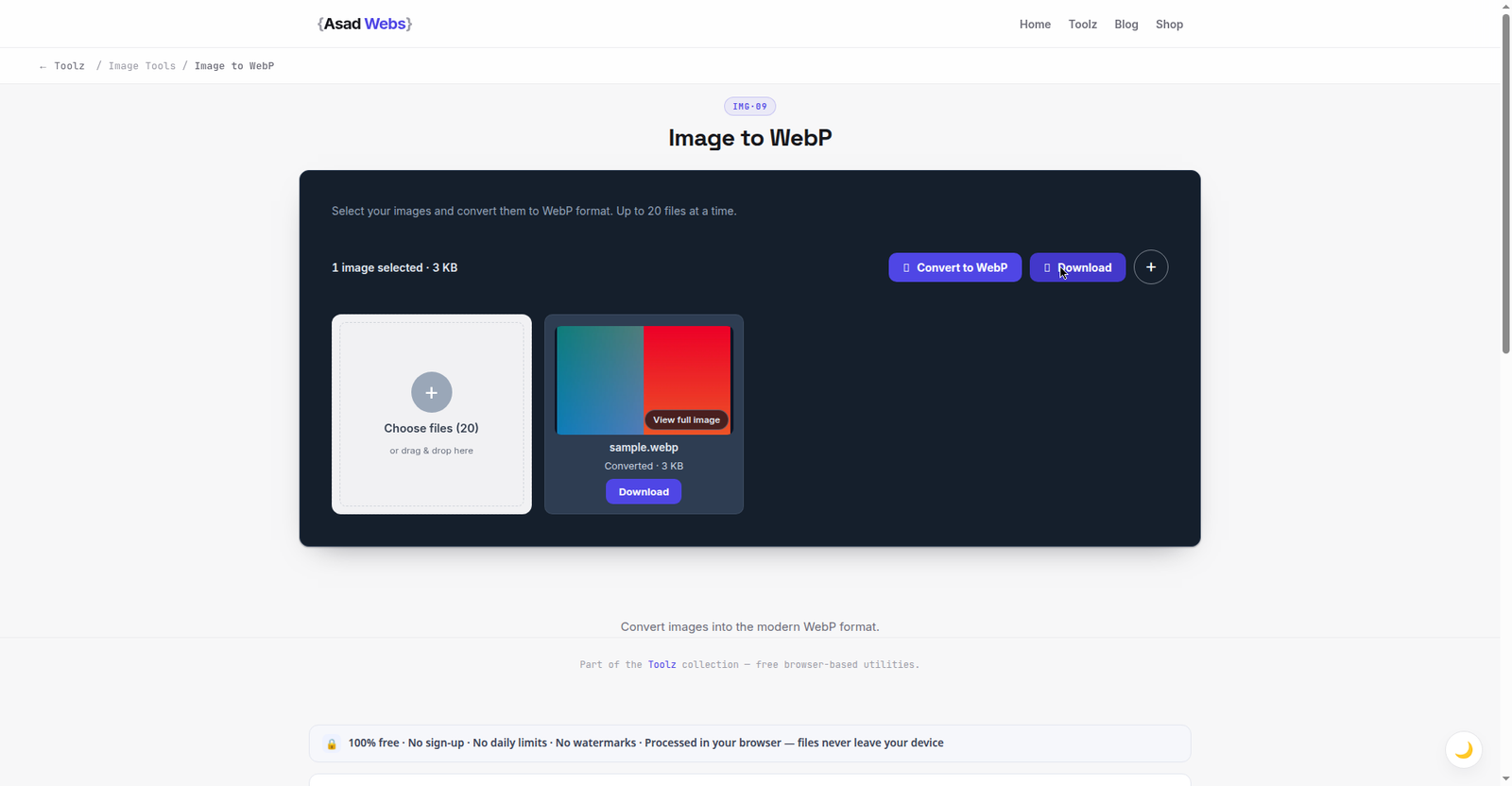
The live converter doing the swap this guide recommends: a PNG in, a 3 KB WebP out. Click the preview to convert your images.
When to Keep JPG or PNG
WebP is the right default for images displayed on your website, but it is not the right format for everything. Keep the original format when the image is headed somewhere WebP support is patchy:
- Email: some email clients and older desktop mail apps still fail to display WebP images.
- Print: print workflows expect JPG, TIFF or PNG; WebP support in print tools is unreliable.
- Older software and office documents: older versions of Word, PowerPoint and some upload forms simply reject .webp files.
- Your master copies: always keep the original JPG or PNG as your archive version, and treat WebP files as delivery copies.
Need the reverse? If you already have WebP files that a client, app or platform refuses to accept, our separate guide shows how to convert WebP back to JPG — and the free WebP to JPG converter does it in your browser.
WebP at a glance — pros: around a third smaller than JPG at similar quality; transparency and animation in one format; supported by every modern browser. Cons: patchy support in email, print and older software; you still need to keep your originals as masters.
Step-by-Step: Convert Your Images to WebP
- Open the converter. Go to the Image to WebP converter — it works in any modern browser, on desktop or mobile.
- Add your files. Select the JPG or PNG images you want to convert, starting with the heaviest ones on your pages.
- Choose a quality setting. If the converter shows a quality option, set it around 80 — the sweet spot explained in the next section. If there is no option, the default is chosen for exactly this balance.
- Convert and download. Run the conversion and save the .webp files to your device.
- Replace and keep the originals. Swap the new files into your pages, then archive the original JPG and PNG versions somewhere safe — do not delete them.
One more lever: if an image is far larger than the size it is displayed at — a 4,000-pixel photo shown at 800 pixels, say — resizing matters more than format. Run oversized files through our free image compressor as well, and you will often save more than conversion alone achieves.
Choosing a Quality Setting
Most converters express quality on a 0–100 scale: lower means smaller files and softer images. Where you land depends on what the image is doing:
| Quality setting | Best for | What to expect |
|---|---|---|
| 100 (lossless) | Logos, icons, graphics with sharp text | A pixel-perfect copy — the safest choice, but the largest files |
| 85 | Hero images and important photos | Visually near-identical to the original for almost every viewer |
| 75–85 | Most website photos — the sweet spot | Around a third smaller than JPG with no visible difference in normal use |
| 60–70 | Thumbnails and small images | Slight softening is possible, but at small display sizes it is hard to spot |
What the Savings Add Up To
Individual savings of tens of kilobytes sound trivial — until you multiply them by traffic. Take a deliberately conservative average saving of 90 KB per image (the examples in the first chart above saved between 60 and 160 KB). A page carrying ten images then sheds 900 KB on every single view. Per thousand views, the saving looks like this:
Bandwidth saved per 1,000 page views (computed) — hover or tap each bar for details.
Multiply those figures by your monthly page views and the saving stops being abstract: less bandwidth on your hosting bill, and noticeably faster pages for visitors on slow connections — the visitors most likely to give up on a heavy page.
Worked Example: One Product Page, Weighed Before and After
Take a typical product page and weigh it with the figures from the first chart: one hero photo (320 KB as JPG), four product photos (180 KB each as JPG), and one banner graphic (450 KB as PNG). Before conversion the page's images total 1,490 KB. After converting the same six files to WebP at sensible quality settings — 210 KB, four times 120 KB, and 290 KB — they total 980 KB.
That is 510 KB gone from every single page view, a cut of about 34%, with no visible change a shopper could spot. Notice where the saving came from: not one dramatic file, but a consistent third shaved off everything. That is the honest shape of a WebP migration — no heroics, just every image on the page quietly weighing less, on every visit, forever.
Serving WebP Without Stranding Older Browsers
If your audience includes genuinely old browsers or in-app web views, you do not have to choose between WebP and compatibility. The standard pattern is the HTML <picture> element: the page offers the WebP version first and keeps the JPG as a built-in fallback, and each browser simply takes the best format it understands. Most modern site platforms, CDNs and image tools now do this negotiation for you automatically — serving WebP where it is supported and the original elsewhere — which is why the practical advice is unchanged: convert your delivery copies to WebP, keep your originals as masters, and let the fallback mechanism handle the rare visitor who needs the older file.
Using WebP in WordPress
WordPress has accepted WebP uploads since version 5.8 and displays them natively in posts, pages and the media library, so for most sites no plugin is needed at all. Converting your images before upload still pays off even if your host or CDN offers automatic conversion: your media library and backups stay smaller, there is no plugin subscription or extra plugin weight, and pre-converted files work on any hosting, including basic shared plans where server-side conversion tools may not run.
After replacing images, view the updated pages on a phone and clear your cache or CDN so returning visitors actually receive the new, lighter files.
Five WebP Conversion Mistakes
- Deleting the originals after converting. WebP files are delivery copies. The day a client, printer or platform refuses one, the untouched JPG or PNG master is the file you will wish you had kept — archive originals off the website, always.
- Using maximum quality for everything. Lossless or quality-100 WebP photos can be barely smaller than the originals. Photos belong in the 75–85 range; reserve the top settings for logos and graphics with sharp text.
- Converting without resizing first. A 4,000-pixel photo converted to WebP is still a very large file — just in a newer format. If an image is displayed at 800 pixels, resize it to near that size as well; the resize usually saves more than the format change.
- Re-converting a WebP into WebP. Running a lossy WebP through the converter again compresses an already-compressed image and costs quality for almost no size gain. Always convert from the original master, never from a delivery copy.
- Converting images that never appear on the web. Email attachments, print files and office documents gain nothing from WebP and may fail to open at the other end. Convert for web delivery; leave the other destinations in the formats they expect.
Ready to lighten your pages? Convert your heaviest images with the free converter above, then browse our blog for more practical guides on website speed, tools and costs.
Converting images one by one for a whole website? There is a faster way to work. Book a free consultation — we set up stores and sites where WebP conversion and compression happen automatically on upload.
Frequently Asked Questions
Does converting to WebP hurt image quality?
At quality settings between 75 and 85, most viewers cannot tell a converted photo from the original — that range is the sweet spot for website use. For logos, screenshots and graphics with sharp text, use the lossless option instead, and always keep your original files as masters.
Do all browsers support WebP?
All modern browsers do — Chrome, Edge, Firefox and Safari (from version 14 onwards) all display WebP images. Only genuinely obsolete browsers lack support, so for website delivery WebP is safe to use today.
Will converting to WebP help my SEO?
Indirectly, yes. Search engines do not reward the WebP format itself, but smaller images load faster, and page speed and Core Web Vitals do influence rankings and, just as importantly, whether visitors stay on the page. Treat conversion as a speed improvement, not a ranking trick.
Can I convert WebP files back to JPG?
Yes — converting back is just as easy, and sometimes necessary for email, print or older software. Our separate guide and converter cover that direction; this article is only about converting to WebP for your website.
Should I delete my original JPG and PNG files after converting?
No. Keep the originals as your master copies, stored off the website itself. WebP files are delivery copies for the web; if a platform ever refuses a WebP file, you will be glad the untouched original is still on your drive.
Why is my WebP file sometimes bigger than the JPG?
It happens with very small images and with source files that were already compressed hard: the format's overhead stops being repaid by compression gains, and a lossless WebP of a simple graphic can also exceed a heavily compressed JPG. If a converted file comes out larger, keep the smaller original for that image — conversion is a tool, not a rule.
Can I convert a whole folder of images to WebP at once?
For a handful of files, add them to the converter together. For whole folders — a product catalogue, a media library — follow the batch workflow in our guide to converting and compressing multiple images at once: consistent settings, one naming pattern, and a spot-check of a few files before you replace anything live.
Be the first to share a useful question or thought.