
You can convert and compress multiple images at once instead of processing them one by one: open the free Multi Image Converter & Compressor, add the whole set, choose one output format and quality setting for the batch, and download the results together. A folder of 200 product photos that would take an afternoon one-by-one takes a few minutes as a batch.
Batch processing is not just faster — it is more consistent. Every image leaves with the same format, the same quality and the same sizing rules, which is exactly what an online store, a blog or a client gallery needs. The danger is the mirror image of the benefit: one wrong setting applied 200 times is 200 wrong files. This guide is built around that reality — prepare once, verify on a sample, then let the batch run.
The Batch Workflow, Step by Step
- Gather and copy. Put the images in one folder and work on a copy — batches should never be the only version of your originals.
- Choose the output format for the destination. WebP or JPG for websites and stores, PNG only where transparency or sharp editing demands it.
- Set one quality and one size rule. Quality 80–85 for photos; resize to the largest display size the images will actually get (for example 1,600 px wide for store product images).
- Run a sample of three first. Convert three representative images — one detailed, one flat, one dark — and inspect them at 100% zoom before committing the whole folder.
- Run the batch and rename. Convert everything, then rename with a consistent pattern (product-name-angle-view) before uploading anywhere.
Tool preview: two files, one batch
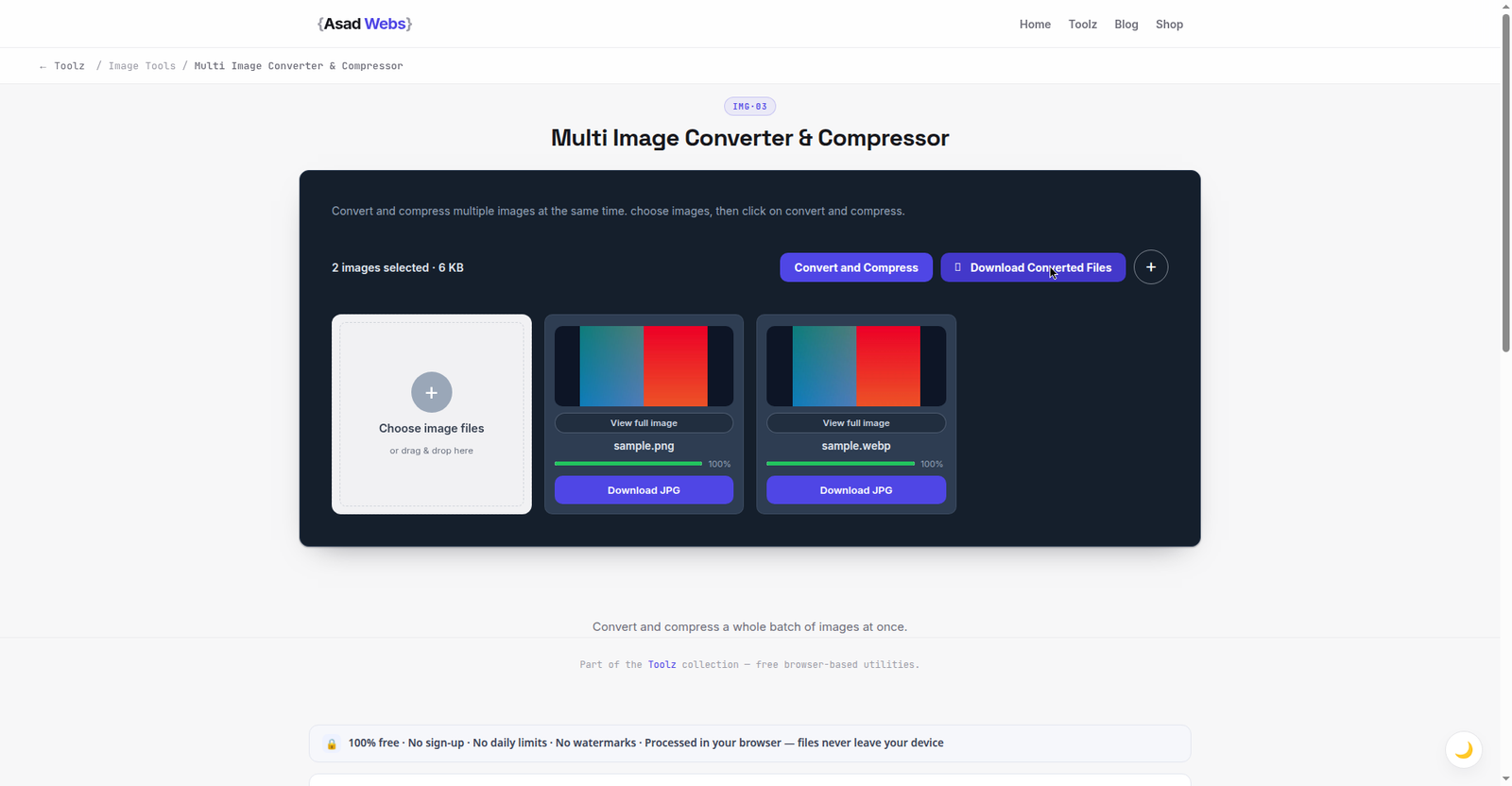
The live batch tool doing the job of this guide: two images loaded together, converted in one pass, each with its own JPG download. Click the preview to run your own batch.
Pick One Setting Set — and Write It Down
Most batch failures are really decision failures: half the folder at one quality, half at another, because the job was interrupted and restarted from memory. Decide the recipe before you start and note it in the folder name or a text file: format, quality, maximum width, background colour if JPG is involved. Anyone — including future you — can then reproduce or extend the batch identically.
A sensible default recipe for website and store images is: WebP (or JPG where the platform demands it), quality 82, maximum width 1,600 px, metadata stripped. For document-style images and screenshots that must stay crisp, use PNG and accept the size. The chart below shows what that recipe typically does to one real-world mix of images.
Total size of a 300-image product catalogue before vs after batching (MB, illustrative) — hover or tap each bar for details.
What a Batch Does to File Sizes
The savings compound across a catalogue. A store migrating 300 phone photos at roughly 4 MB each is carrying about 1.2 GB of images; the same set batched to web-ready WebP at 1,600 px is typically under 90 MB in total. Pages load faster, backups shrink, and upload limits stop mattering. The table gives per-image planning figures for common sources.
| Source image | Typical original | After batch (WebP, q82, ≤1,600 px) | Saving |
|---|---|---|---|
| Phone photo (12 MP) | ≈4 MB | ≈280 KB | ≈93% |
| DSLR / mirrorless JPG | ≈8 MB | ≈420 KB | ≈95% |
| Supplier PNG graphic | ≈1.5 MB | ≈90 KB (WebP) | ≈94% |
| Screenshot (PNG) | ≈900 KB | ≈700 KB (PNG kept) | ≈22% |
Recipes by Destination: Copy These Settings
The default recipe above suits a website generally; where the images are going refines it. Use this table as the starting point, then let the sample-of-three check confirm it on your actual images:
| Destination | Format | Quality | Max width | Notes |
|---|---|---|---|---|
| Online store products | WebP (JPG if the platform demands) | 82 | 1,600 px | Leaves zoom headroom on product pages |
| Blog and article images | WebP | 80 | 1,200 px | Article columns rarely display wider |
| Client gallery delivery | JPG | 90 | Full size | Clients print and re-share — do not resize their copies down |
| Social media sets | JPG | 85 | 2,000 px | Platforms recompress anyway; start clean and let them |
| Document scans for the web | PNG or PDF route | — | 1,600 px | Text edges punish lossy compression; keep scans crisp |
Whatever you choose, the recipe goes in the folder name or a note beside the files — batch-82-webp-1600, for instance — so the next set, processed next month by a tired future you, matches this one exactly.
The Three Checks That Save a Batch
Check one: the sample three, already covered — never skip it. Check two: the count. Count files in and files out; a mismatch means something was skipped or failed silently, and it is far easier to find at 200 files than after upload. Check three: the extremes. Open the largest output file and the smallest. The largest is usually a detailed photo that deserves a look at full size; a suspiciously tiny file often means a blank, corrupted or wrong image slipped into the folder.
One more habit for stores and portfolios: keep the untouched originals in a clearly named archive folder (originals-2026, for example) and never let the batch tool write over them. Storage is cheap; re-shooting a product or re-requesting supplier files is not. If you only ever need single files, the individual converters — image to WebP, image to JPG — follow the same principles one file at a time, and the compression guide explains the quality settings in depth. All of them are listed on the free tools page.
When a Batch Should Not Be Uniform
One recipe per batch is the rule — with three honest exceptions worth splitting for. A hero image: the one banner or lead product photo a page is built around deserves its own pass at higher quality and full width, while the supporting images batch normally. Transparency: logos and graphics with transparent backgrounds must go to WebP or PNG, never JPG, which fills transparency with a solid colour; pull them into their own batch. Very dark or noisy photos: low-light images show compression artefacts sooner than bright ones, so if the sample check shows banding in the dark test image, raise its subset by five quality points rather than raising the whole batch and wasting the saving everywhere else.
Naming Files as Part of the Batch
A batch is the perfect moment to fix filenames, because every file passes through your hands at once. Replace camera names (IMG_4021) with descriptive ones (blue-linen-shirt-front) before upload: it helps your store's organisation, your own searching later, and gives search engines a readable clue about the image when combined with proper alt text. Keep names lowercase, hyphenated, and free of spaces so no platform mangles them. Do the renaming after conversion, on the final files, so the names you see are the names that ship.
Five Batch Mistakes That Multiply Quietly
- Running the batch over the originals. If the outputs replace the only copies, a wrong recipe is unrecoverable. Batches always start from a copied folder.
- Skipping the sample three because the folder is "all the same". It never is: one dark photo, one screenshot, one supplier graphic is hiding in almost every set, and the sample exists to catch them.
- Restarting an interrupted batch from memory. Half at quality 85, half at 80, nobody can tell which is which afterwards. The written recipe — and a fresh output folder — is the fix.
- Batching transparent graphics into JPG. Every logo comes back with a white (or black) box baked in. Transparency sets split out and go to WebP or PNG.
- Publishing phone photos with their metadata untouched. Phone photos can carry GPS location data. Re-encoding usually drops most metadata, but check one output file's properties before a batch goes public — your home address is not a marketing asset.
Preparing a full catalogue for a new store? Pair this workflow with the store guides on the Asad Webs blog — costs, platforms and launch checklists for the UAE, KSA, USA and Spain.
Processing images in batches for a store catalogue or a website rebuild? Book a free consultation — we build sites and stores where conversion and compression are automated, so you never process a folder by hand again.
Frequently Asked Questions
Can I convert images to different formats in one batch?
A batch applies one recipe — one format, quality and size rule — to every file, which is what keeps results consistent. If part of the set needs PNG (for transparency, say), split it into two batches with two recipes.
Will batch compression visibly damage my product photos?
At quality 80–85 with sensible sizing, no — that is why the sample-of-three check exists. Inspect a detailed, a flat and a dark image at 100% zoom before running the full set.
Should originals be deleted after batching?
No. Keep the unedited originals in an archive folder. Batch outputs are delivery copies; the originals are your insurance if a platform changes its requirements later.
What is the best format for a whole website batch?
WebP for photographs and general images, because it is typically 25–35% smaller than equivalent JPGs. Keep PNG only for graphics needing transparency that WebP will not be accepted for, and JPG where a platform specifically demands it.
How many images can I process at once?
The Multi Image Converter & Compressor handles batches in your browser; very large sets are best split into folders of a few hundred so downloads and checks stay manageable.
What order should resizing, converting and compressing happen in?
In a batch tool they happen in one pass, which is the point — you set the format, quality and size rule once and every file gets all three. If you ever use separate single-purpose tools instead, resize first (the largest saving), then convert and compress the smaller result; compressing a huge file and then shrinking it wastes the work.
My batch stopped halfway. How do I finish without duplicates?
Work from the counts: note how many outputs exist, and which source files they came from. Put the unprocessed remainder in its own folder, run the same written recipe on it, then merge the two output folders and run the count check (files in = files out) before uploading anything.
Be the first to share a useful question or thought.