
You can record your screen online for free with no software to install: open the free Screen Recorder in your browser, click record, choose whether to share a browser tab, an app window, or your whole screen, allow the microphone if you want narration, and stop when you are done to save the video file. The browser does the capturing, so the whole job takes under a minute to start.
A short recording replaces a thousand words of explanation. It is how you show a developer exactly what a bug looks like instead of describing it, how a two-minute tutorial answers a question your team asks every week, and how a client demonstrates the problem they see on your website from their side of the screen. This guide covers the decisions that make a recording genuinely useful — what to capture, what to say, what to check first — and the permission prompts that stop most first attempts.
How Do You Record Your Screen in 4 Steps?
- Open the recorder. Go to the Screen Recorder in a modern browser such as Chrome or Edge — browser recording uses built-in capture features, so there is nothing to download or install first.
- Click record and choose what to share. The browser asks you to pick a tab, a window, or the full screen. Choose the narrowest option that shows everything the viewer needs — the table below explains the trade-offs.
- Set your audio. Allow the microphone if you are narrating, and decide about system or tab audio where the browser offers it. Do a five-second test recording and play it back before recording anything long.
- Record, stop, and save. Work through your steps at a calm pace, then stop the recording and save the video file somewhere you can find it — the desktop or a clearly named folder, not a downloads pile.
Tool preview: the recorder, ready to go
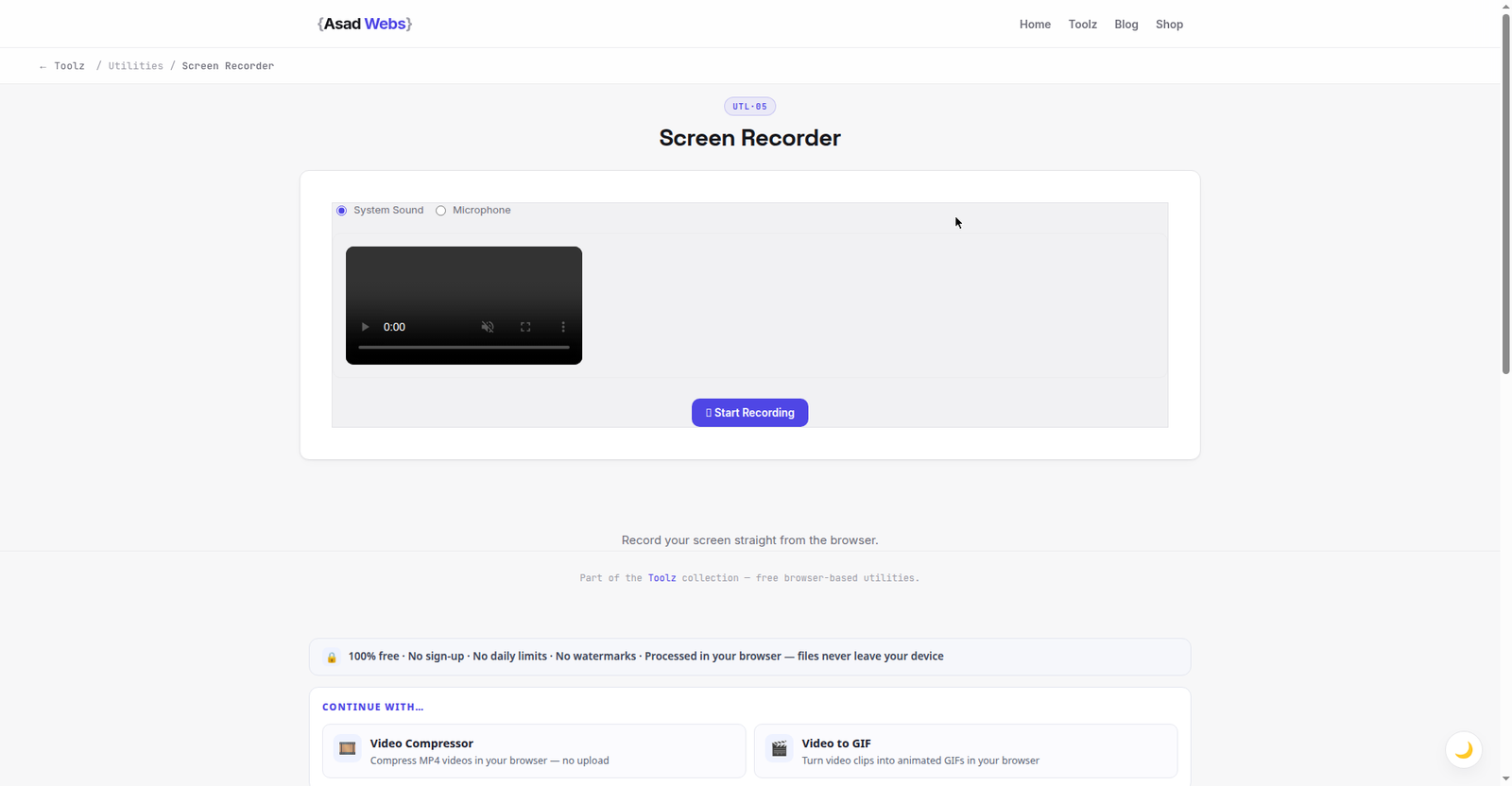
The live recorder before you press anything: pick system sound or your microphone, then hit Start Recording and choose the tab, window or full screen the next section compares. Click the preview to open it.
Tab vs Window vs Full Screen: What Should You Capture?
The share picker is the most important quality decision in browser recording, because it decides what else the viewer can see. A browser tab capture shows one web page only — perfect for website tutorials and bug reports, and the safest choice for privacy, because notifications, other tabs, and desktop files simply cannot appear. A window capture shows one application, which suits demonstrating software such as a spreadsheet or editor. A full-screen capture shows everything, including the pop-up you forgot was coming, so reserve it for recordings that genuinely move between several apps.
Tab capture has a second advantage where offered: the audio of that tab can be included alongside your microphone, which is how you record a video call replay or a product demo with its own sound. Whichever scope you pick, tidy what will be visible before you start — close unrelated tabs inside the window, hide bookmarks bars with personal links, and silence notifications. Thirty seconds of tidying is the difference between a recording you can send and one you have to redo.
| Capture choice | Viewer sees | Best for | Privacy risk |
|---|---|---|---|
| Browser tab | One web page only | Website tutorials, bug reports, demos | Lowest — everything else is hidden |
| App window | One application window | Software walkthroughs, spreadsheets | Low — other apps stay hidden |
| Full screen | Everything on the display | Flows that move across several apps | Highest — notifications and files can appear |
Typical recording length by job (minutes, illustrative) — hover or tap each bar for details.
Microphone Choices and a Recording Checklist
Narration is what turns a silent screen tour into a tutorial. A laptop's built-in microphone is acceptable in a quiet room; a headset microphone, held at a consistent distance, is noticeably clearer for anything you will share widely. Keep the microphone choice consistent through one recording — switching devices mid-flow changes the sound and can drop audio entirely. If you do not need to speak, mute the microphone deliberately rather than leaving it open: an accidentally recorded room conversation is the commonest reason a good take gets deleted.
Run this checklist before every recording that matters. It takes a minute, and it prevents the five failures that ruin most first attempts: wrong capture scope, silent audio, stray notifications, a visible private detail, and a test you skipped.
- Close and tidy: shut unrelated tabs and apps, hide personal bookmarks, turn on do-not-disturb.
- Set the scope: pick tab, window, or screen deliberately, not by habit.
- Test the audio: record five seconds, play it back, confirm your voice is clear and at a steady level.
- Prepare the path: open the pages in the order you will visit them, zoom the browser so text is readable on a phone screen.
- Rehearse the ending: know your last sentence, so the recording stops cleanly instead of trailing into silence.
Worked Example: Recording a Bug Report a Developer Can Use
The most valuable everyday recording is a bug report. Asad Webs clients use exactly this pattern to show us a website problem: instead of an email saying 'the checkout looks broken', we receive a ninety-second video that shows the fault happening, on their machine, with their account — and faults like that get fixed in a fraction of the time because there is nothing to guess. Here is the structure that makes such a recording work, with typical timings for a short report.
Start on the page before the problem, narrate what you are about to do, perform the steps slowly enough to follow, and pause for two seconds on the broken result so the viewer can read any message on screen. Mention anything relevant that the video cannot show — what device and browser you are using, whether it happens every time. Then stop, watch the recording once yourself, and send the file with one sentence naming the page and the problem. The table shows the shape; the same structure works for reporting a fault in any app or site, to any developer.
| Part | Typical length | What to do |
|---|---|---|
| Set-up | About 10 seconds | Show the starting page and say what you expected to do |
| Steps | About 40 seconds | Click through slowly, narrating each action as you take it |
| The fault | About 20 seconds | Pause on the broken result; let error messages be read |
| Context | About 15 seconds | State device, browser, and whether it happens every time |
Common Screen-Recording Mistakes
The first mistake is recording the full screen out of habit when a single tab would do — it risks private information and distracts the viewer with everything else on the display. The second is skipping the audio test: a silent or echoing recording is usually discovered only after the full take, when the moment has passed. The third is rushing. Viewers need a beat to register each click; if you perform the steps at your own working speed, the recording teaches nothing, because the audience cannot see which button mattered. Slow down by roughly a third compared with your normal pace, and move the pointer deliberately to the control before you click it.
- No test recording: five seconds of testing prevents a ruined full take.
- Recording at a tiny zoom: if the viewer watches on a phone, small text is unreadable — zoom in before you start.
- Narrating nothing: silence forces viewers to guess why you clicked; say what you are doing and why.
- One endless take: two focused three-minute recordings beat one rambling fifteen-minute one for almost every purpose.
- Sending without watching: play your own recording once — you will catch the notification, the typo, or the wrong window before your audience does.
Troubleshooting: Browser and Permission Problems
Almost every failed first recording is a permission, not a fault. When you click record, the browser itself shows the share picker; if nothing appears, check whether an earlier prompt was dismissed or blocked, and look for a camera or screen icon in the address bar that lets you re-allow access for the site. The recorder can only capture what the browser is permitted to share, so a blocked permission looks exactly like a broken tool until you reset it in the site's settings.
On macOS, there is a second gate: the operating system has its own screen-recording permission for each browser, found in the privacy and security settings, and the browser may need to be restarted after you grant it. Guidance here is general because system versions differ — the principle is stable: if the share picker opens but shows black or empty previews, suspect the system-level permission first. On any system, if recording will not start at all, close other apps that might be capturing the screen or microphone, such as a video call, and try a fresh browser tab. If audio is missing from an otherwise good recording, confirm the microphone you intended was the one selected, and that it was not muted at the system level — then re-record just the narration section if the tool you use for editing allows voice-over, or re-shoot the short recording while the steps are fresh.
What Do You Do With the Recording Afterwards?
A finished recording is a video file, usually WebM or MP4 depending on the browser, and the right next step depends on its job. For a bug report or a quick answer, send it as it is — speed beats polish, and a file under a couple of minutes needs nothing done to it. For a tutorial you will share repeatedly, trim the dead air at the start and end, and consider compressing larger files before uploading them anywhere with a size limit; the free Video Compressor reduces a heavy recording without new software. If the recording is headed for YouTube as a public tutorial, treat it like any other upload — a clear title, a proper thumbnail, and a description that says what the viewer will learn; the YouTube Thumbnail Downloader is handy for checking how published videos in your niche present themselves.
Name files like you mean it: 'checkout-error-recording-oct13' will still make sense in a month, while 'recording-final-v2' will not. Keep the original file even after you send a compressed copy, because the original holds the clearest text if anyone needs to zoom in. One caution closes the loop with where this guide started: before sharing any recording outside your team, watch it once with privacy in mind — an open tab title, an email preview, or a file name in shot is easy to miss while recording and obvious to everyone who watches.
A clear bug report or tutorial video can save days of back-and-forth on any web project. If your site has a fault a recording would explain, send it our way — Asad Webs clients do exactly that. Book a free consultation and show us what you see.
Frequently Asked Questions
Is the online screen recorder really free?
Yes. The Screen Recorder is free, needs no account, and uses your browser's built-in capture — there is no software to install before you can record.
What is the difference between recording a tab and a window?
A tab recording shows one browser page only, which is the safest and tidiest choice for website work. A window recording shows one whole application, and a full-screen recording shows everything on your display.
Why did the record button ask me to choose something?
That picker is the browser's security step: you choose exactly what to share — a tab, a window, or the screen — so a site can never record anything you did not select. Pick the narrowest option that covers your task.
Can I record my voice along with the screen?
Yes — allow the microphone when asked, and test with a five-second recording first. A headset microphone gives the clearest narration, but a laptop microphone in a quiet room is fine for short clips.
Why is my recording black or empty?
Usually a permission. On macOS, check the system privacy settings for screen recording access for your browser and restart the browser after changing it. Elsewhere, re-allow the site's capture permission from the address bar icon.
What format is the saved recording?
It depends on the browser — commonly WebM, sometimes MP4. Both play in modern browsers and upload to YouTube and most platforms; if a tool insists on MP4, convert or compress the file with a video tool first.
How long can a browser recording be?
Browser recording is best for short clips — tutorials, answers, and bug reports of a few minutes. For very long sessions, keep each recording focused and save between sections so one problem cannot cost you the whole session.
Be the first to share a useful question or thought.