
To create a QR code online for free, decide what it should open — a website link, your Wi-Fi password, a menu or a payment page — paste that content into a QR code generator, download the image, and print it at a size people can scan comfortably (at least about 2 × 2 cm for arm's-length scanning). The whole process takes under a minute with our free QR code generator. This guide walks through each step, what you can put inside a code, and the print mistakes that quietly ruin otherwise good QR codes.
Step by step: create your QR code
- Choose what the code will do. Most small businesses start with a plain URL — a menu page, a booking link, a review page or a payment link. For guests, a Wi-Fi code that joins the network with one scan is the other favourite.
- Open the generator and paste your content. Add the full link (including the https:// part) or type the Wi-Fi network name and password exactly as they appear on your router.
- Generate and download. Save the PNG image at the largest size offered — a big source file stays sharp when printed.
- Test it yourself. Scan the code on screen with your own phone, on a second phone if you have one, and check it opens the right page. Never skip this step.
- Print, then test the printout too. Paper, lighting and distance all change how a code behaves, so scan the physical copy before you produce a batch.
Tool preview: a QR code, generated live
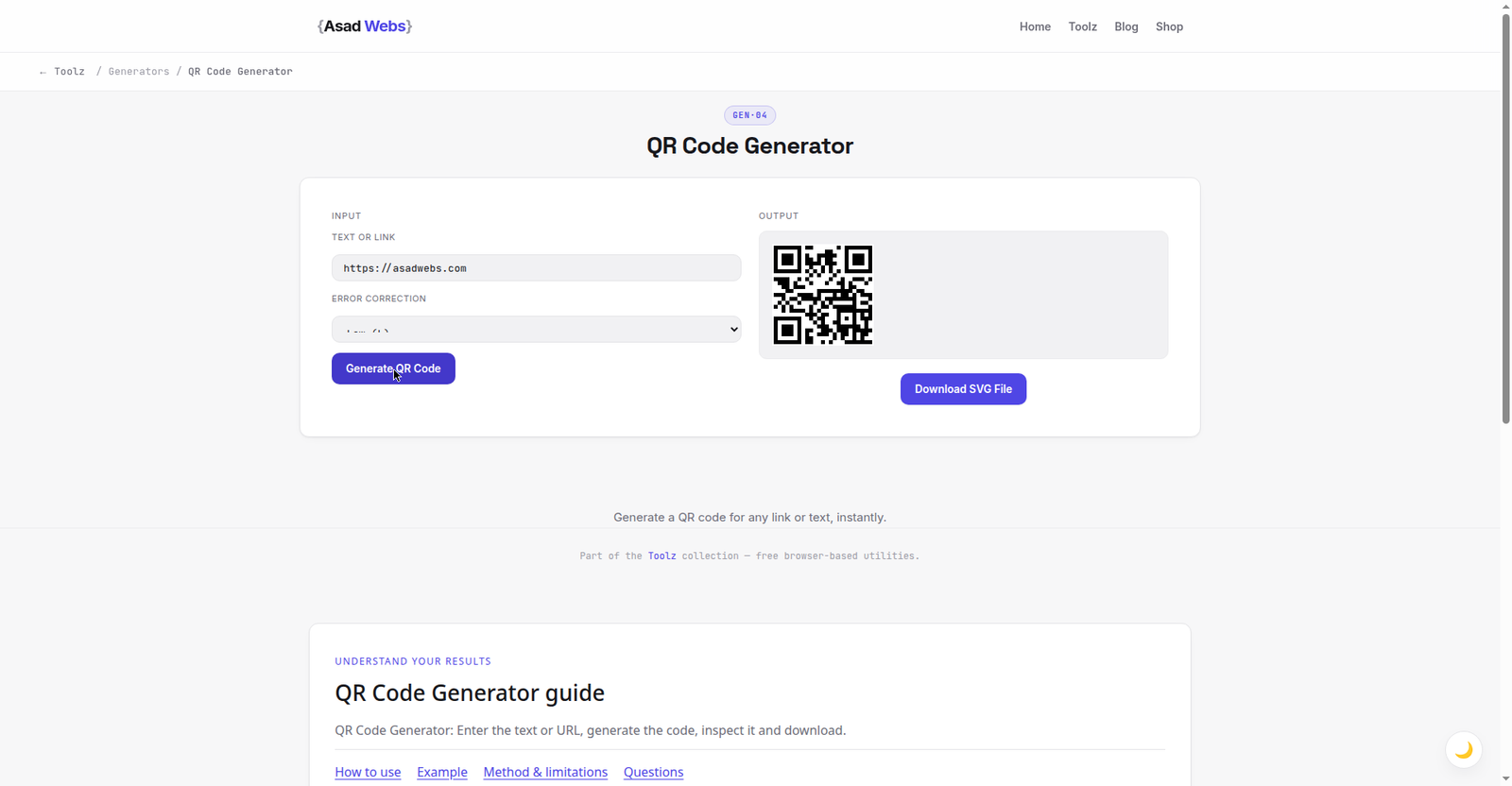
The live generator with https://asadwebs.com entered: the code renders as you type and downloads in one click. Click the preview to create your own.
What you can put inside a QR code
A QR code is simply text packed into a square, so anything you can express as text can be encoded:
| Content | What happens when scanned | Typical use |
|---|---|---|
| Website URL | Opens the page in the phone's browser | Menus, product pages, reviews, bookings |
| Wi-Fi credentials | Offers to join the network — no typing | Cafés, salons, rental properties, offices |
| Contact card (vCard) | Offers to save name, phone and email | Business cards, email signatures, shop counters |
| Payment link | Opens a checkout or payment app page | Invoices, market stalls, tip jars, deposits |
| Plain text or a coupon code | Shows the text on screen | Event check-in, offers, instructions |
By a wide margin, the humble website link does most of the work. The mix below reflects what we typically see from small-business use — an informed editorial estimate, not measured statistics:
What people put in QR codes (editorial estimate) — hover or tap each bar for details.
Static vs dynamic QR codes — the honest difference
The free codes from our generator are static: the content is baked into the pattern itself. That has real advantages — but also two limits worth stating plainly before you print anything expensive. A static code cannot be edited after printing: if the link changes, the code still points at the old address forever. And it cannot be tracked: there is no way to count scans, because the phone goes straight to your content without passing through any server. Dynamic codes (usually a paid subscription) point at a middleman short link that redirects, which is what makes editing and scan statistics possible.
Static — pros: free forever, works offline, never expires, no account or subscription, and nothing sits between your customer and your page.
Static — cons: the destination can't be changed once printed, and there are no scan statistics.
Dynamic — pros: edit the destination any time, see scan counts and locations. Cons: normally a monthly fee, and if the provider shuts down or you stop paying, printed codes can die.
One practical middle path: encode a short link you control. Our URL shortener gives you a tidy address for print, and because you manage the destination page yourself, you can update what it shows without reprinting. If your print run is small and the link is stable, though, plain static is hard to beat. (Need scannable barcodes for product labels instead? That's the barcode generator.)
Print, size and contrast rules that actually matter
Size. As a floor, print a code at least 2 × 2 cm when it will be scanned up close (table tents, packaging, invoices). Then scale up with distance: a window poster read from a metre away wants roughly 10 × 10 cm or more. The working rule is a scanning distance about ten times the code's width — if people can't get closer than a metre, the code needs to be at least 10 cm wide.
Density. The more text you pack in, the more tiny squares the code needs, and the larger it must be printed to stay scannable. A short link produces a clean, airy code; a full vCard or a long URL with tracking parameters produces a dense one. This is why the capacity figures below matter — keep your content short and the code forgiving:
QR code maximum data capacity by content type (Version 40, standard spec) — hover or tap each bar for details.
Contrast. Scanners read dark modules against a light background. Always print a dark code (black or a dark brand colour) on white or a pale background, and never invert it — a white code on a dark background fails on many phones. Keep the quiet zone too: the plain border of empty space around the code is part of the design, so don't crowd text or logos against it.
Worked Example: A Café Table Tent, Done Properly
A café wants a code on each table tent that opens its menu page. The owner's first instinct is to encode the full marketing link — https://www.greenforkcafe.example/menu?utm_source=table_tent&utm_medium=print&utm_campaign=spring_menu — all 102 characters of it. It works, but it packs three times as much data into the same square as the plain 34-character menu address (https://greenforkcafe.example/menu), and the denser pattern is noticeably less forgiving of small print sizes, glossy lamination and dim evening lighting.
So the tent gets the short address, printed at 3 × 3 cm — by the ten-times rule, comfortable for scanning from about 30 cm, which is exactly where a seated customer's phone is. One test copy is printed, laminated, and scanned on two different phones under the café's actual lights before the batch is ordered. The tracking the owner wanted is not lost: it lives on the menu page itself, where visits from the short address can be counted without stuffing parameters into the code.
Error Correction: Why a Partly Covered Code Still Scans
QR codes carry spare data on purpose. The specification defines four error-correction levels — roughly 7%, 15%, 25% and up to about 30% of the code can be damaged, dirty or covered and the content still reads. That spare capacity is why a small logo in the centre of a code can work at all: the logo is treated as damage, and the correction data fills it in.
Two practical consequences follow. First, if you plan to place a logo over a code, generate it at a higher correction level and keep the logo modest — the spare capacity is a budget, not a guarantee. Second, higher correction means more modules and a denser code, which pushes the minimum print size up. For plain codes with no logo, the standard middle levels are the right balance; save the highest level for codes that will live outdoors, on packaging, or under a design element.
Design mistakes that stop codes scanning
The expensive mistake: printing 500 menus, flyers or business cards before test-scanning a single printed copy. Screen tests don't count — ink spread, glossy reflections and low print resolution only show up on paper. Print one, scan it in the lighting where it will be used, then order the batch.
- Too small for the distance — a 2 cm code on a poster nobody can approach.
- Low contrast colours — gold on cream looks elegant and scans terribly.
- Over-customising — heavy logos, gradients and rounded modules push many codes past what phone cameras can decode.
- Placed out of reach or in bad light — high on a wall, behind glass with reflections, or in a dim corner.
- Linking to a page that isn't mobile-friendly — the scan works perfectly and the phone-sized page still loses the customer.
Wi-Fi QR Codes: What Is Actually Inside Them
A Wi-Fi code is plain text in a standard arrangement that phones recognise on sight. Behind the pattern sits a line in this shape: WIFI:T:WPA;S:YourNetworkName;P:YourPassword;; — the T is the security type (WPA for most home and business networks), S is the network name (SSID), and P is the password. A generator builds that line from the two fields you type, which is why step 2 of this guide insists on copying the network name and password exactly, character for character: one wrong letter and every guest's phone politely fails to join.
Two details catch people out. If your network name or password contains characters such as ; , : or a backslash, they must be escaped with a backslash in front inside the encoded line — a good generator handles this for you, but it is the first thing to check if a code scans and then refuses to connect. And if you change the Wi-Fi password later, every printed Wi-Fi code becomes wrong at once: put them where you can find and replace them all, not just the one by the till.
Ready to make yours? The QR code generator is free with no sign-up — create the code, download it, and run the one-print test before you commit to a batch. More small-business guides like this one live on the asadwebs blog.
Putting QR codes on menus, packaging or a shop window? The code is the easy part — where it lands the customer matters more. Book a free consultation and we will help you connect print to a website that converts.
Frequently Asked Questions
Do QR codes expire?
Static QR codes never expire — the content is stored in the pattern itself, so the code works for as long as the destination (for example, your web page) stays live. Only dynamic codes from subscription services can stop working if the service or your plan ends.
Can I change the link after printing a QR code?
Not with a static code: the link is baked into the pattern, so a changed address means printing a new code. If you expect the destination to change, encode a short redirect link that you control and update the page it points to instead.
Are QR codes free for business use?
Yes. The QR code format is an open standard, and codes from free generators like ours can be printed on menus, packaging, invoices and signs for commercial use without royalties or licences.
How small can I print a QR code?
About 2 × 2 cm is the practical minimum for close-range scanning with short content like a link. Longer content makes a denser code that needs a bigger print, and scanning distance pushes the size up too — roughly 1 cm of code width per 10 cm of distance.
Do people need an app to scan a QR code?
Almost never these days. The built-in camera on current iPhones and Android phones recognises QR codes automatically — point, tap the banner, done.
Can a QR code be scanned from a screen, or only from print?
Both. Codes work on phone screens, monitors, receipts and packaging. On screens the enemies are reflections, low brightness and a code displayed too small; on paper they are print size, ink spread and gloss. Test in the medium and the lighting where the code will actually live.
Is it safe to scan any QR code I see in public?
Treat an unknown code the way you would treat an unknown link. Most phone cameras preview the address before opening it — read that preview, and back out if it looks nothing like the business in front of you. Never enter a password or payment details on a page a stray sticker sent you to; a code pasted over the original is a known trick on parking meters and restaurant tables.
Be the first to share a useful question or thought.